> ## Documentation Index
> Fetch the complete documentation index at: https://docs.dialtu.com/llms.txt
> Use this file to discover all available pages before exploring further.
# Availability
> Weekly hours, breaks and date-specific hours
Availability is set **per professional**: open their profile under **Calendar → Settings → Profiles** and choose the **Availability** tab. A View-Own user edits their own from the same place.
**No calendar service assigned** blocks the whole tab. Add the professional to at least one service first — every block belongs to a service.
## Weekly hours
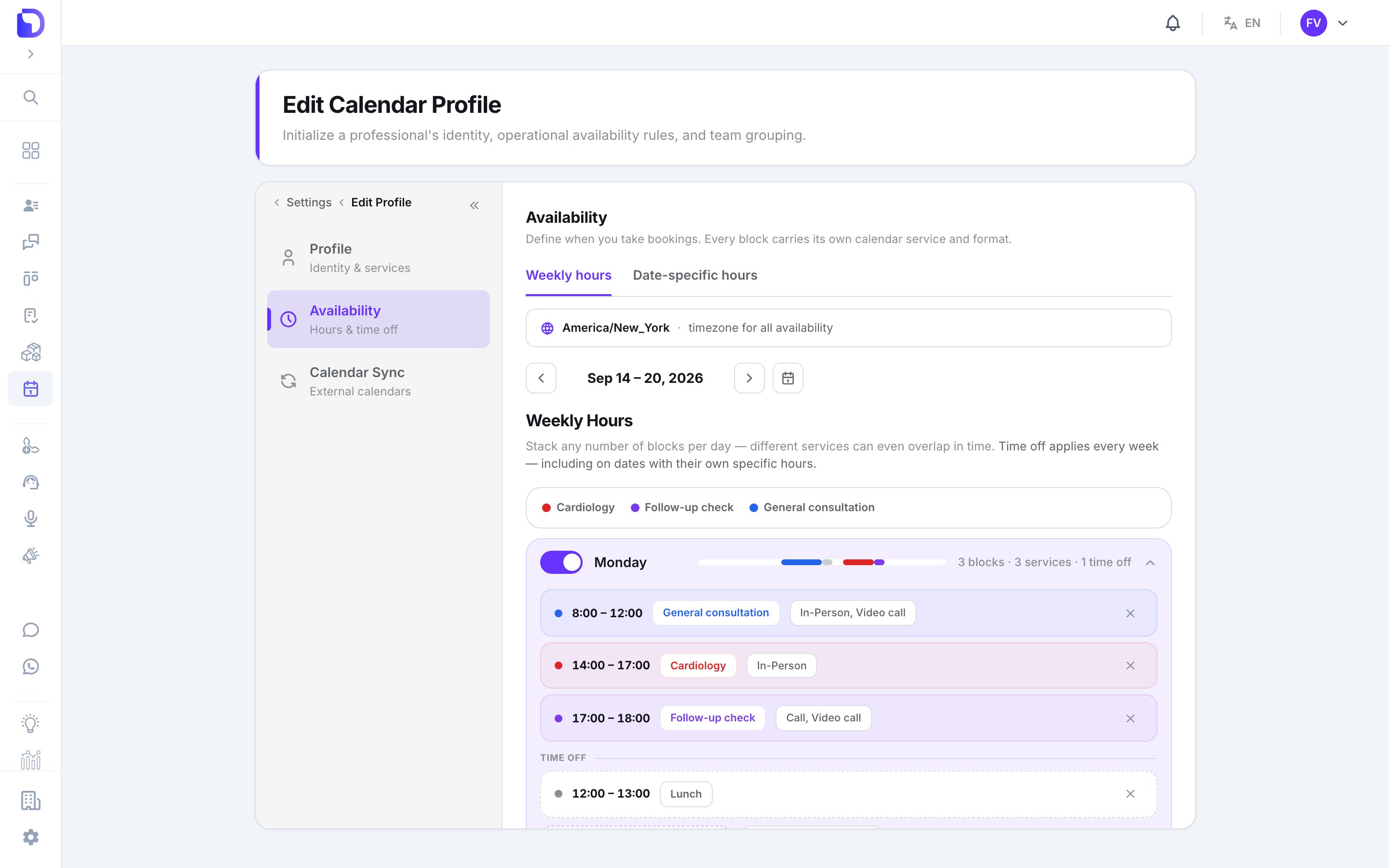 One row per weekday with an **Unavailable** switch. Expand a day to see its blocks. Stack as many blocks as you like — *different services can even overlap in time*.
| Control | What it does |
| ---------------------- | ------------------------------------------------------------------- |
| **Add block to** {day} | Opens the block editor |
| **Copy to all days** | *Replaces every other day's blocks* with this day's |
| Week navigator | Shows which week you're looking at; only matters for one-off blocks |
### A block
One row per weekday with an **Unavailable** switch. Expand a day to see its blocks. Stack as many blocks as you like — *different services can even overlap in time*.
| Control | What it does |
| ---------------------- | ------------------------------------------------------------------- |
| **Add block to** {day} | Opens the block editor |
| **Copy to all days** | *Replaces every other day's blocks* with this day's |
| Week navigator | Shows which week you're looking at; only matters for one-off blocks |
### A block
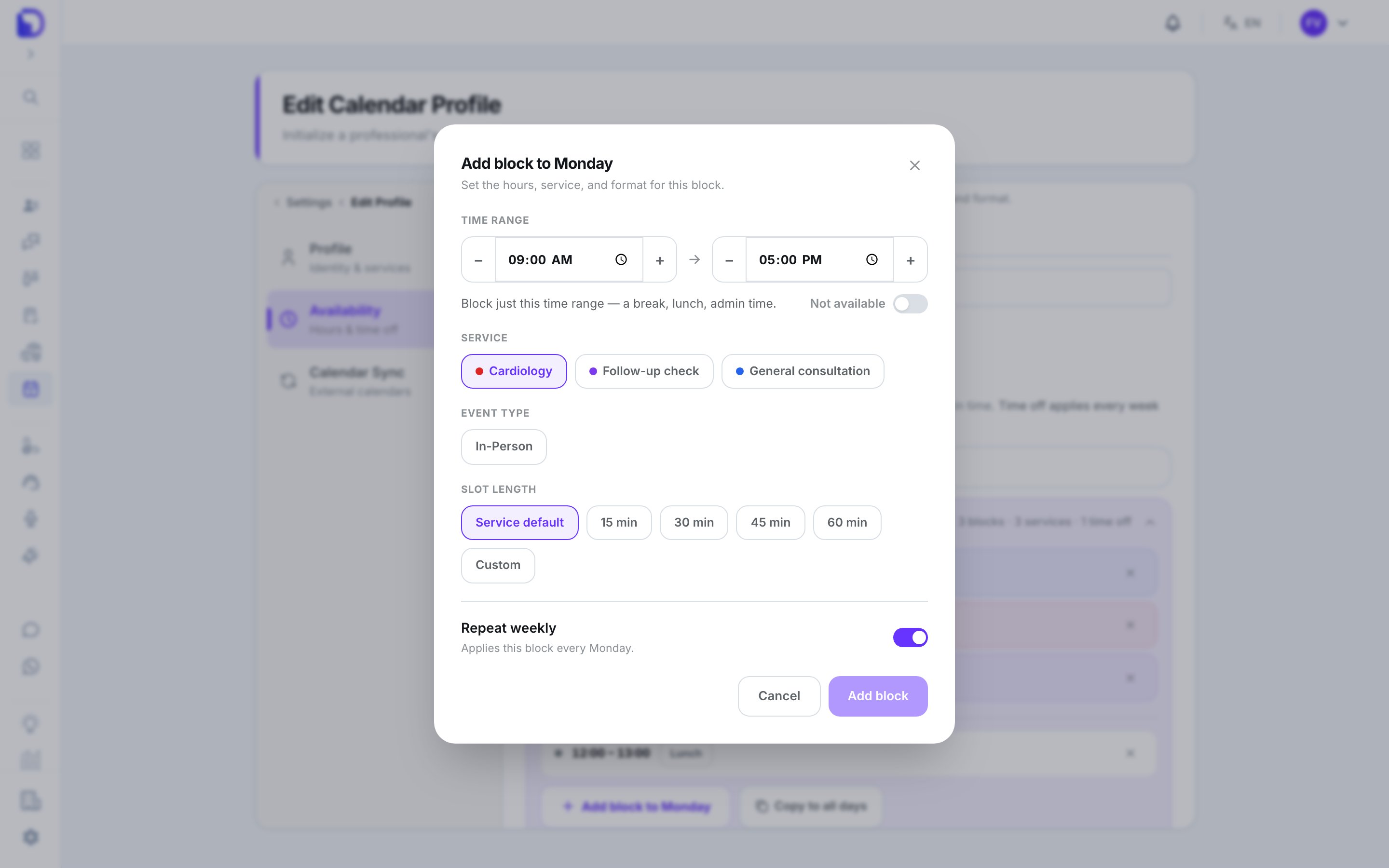 | Field | Options | Default |
| ----------------- | --------------------------------------------------------------------------------------------------------- | --------------- |
| **Time range** | start / end, 15-min steps | — |
| **Service** | one service | required |
| **Event type** | one or more | required |
| **Slot length** | **Service default** or **Custom** (15 / 30 / 45 / 60 or any 5-min value) | Service default |
| **Repeat weekly** | on = every week; off = *Applies only to the week of…* | on |
| **Not available** | turns the block into a break — *Block just this time range — a break, lunch, admin time.* With a **Note** | off |
**Breaks apply to every service and every week**, even on dates with their own specific hours. Slots are cut by the slot length — there's no separate grid step.
## Date-specific hours
| Field | Options | Default |
| ----------------- | --------------------------------------------------------------------------------------------------------- | --------------- |
| **Time range** | start / end, 15-min steps | — |
| **Service** | one service | required |
| **Event type** | one or more | required |
| **Slot length** | **Service default** or **Custom** (15 / 30 / 45 / 60 or any 5-min value) | Service default |
| **Repeat weekly** | on = every week; off = *Applies only to the week of…* | on |
| **Not available** | turns the block into a break — *Block just this time range — a break, lunch, admin time.* With a **Note** | off |
**Breaks apply to every service and every week**, even on dates with their own specific hours. Slots are cut by the slot length — there's no separate grid step.
## Date-specific hours
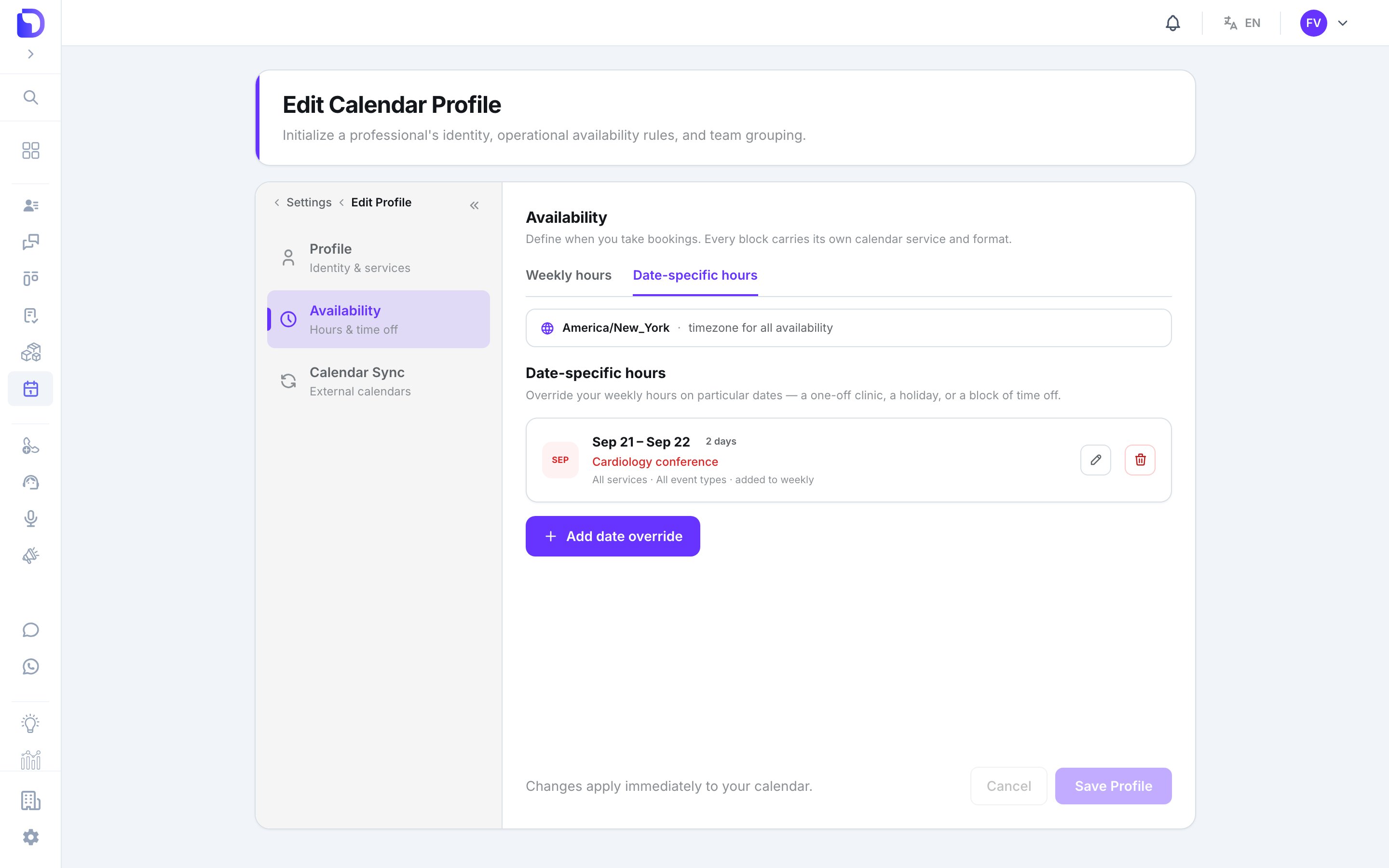 *Override your weekly hours on particular dates — a one-off clinic, a holiday, or a block of time off.* **Add date override** opens the editor:
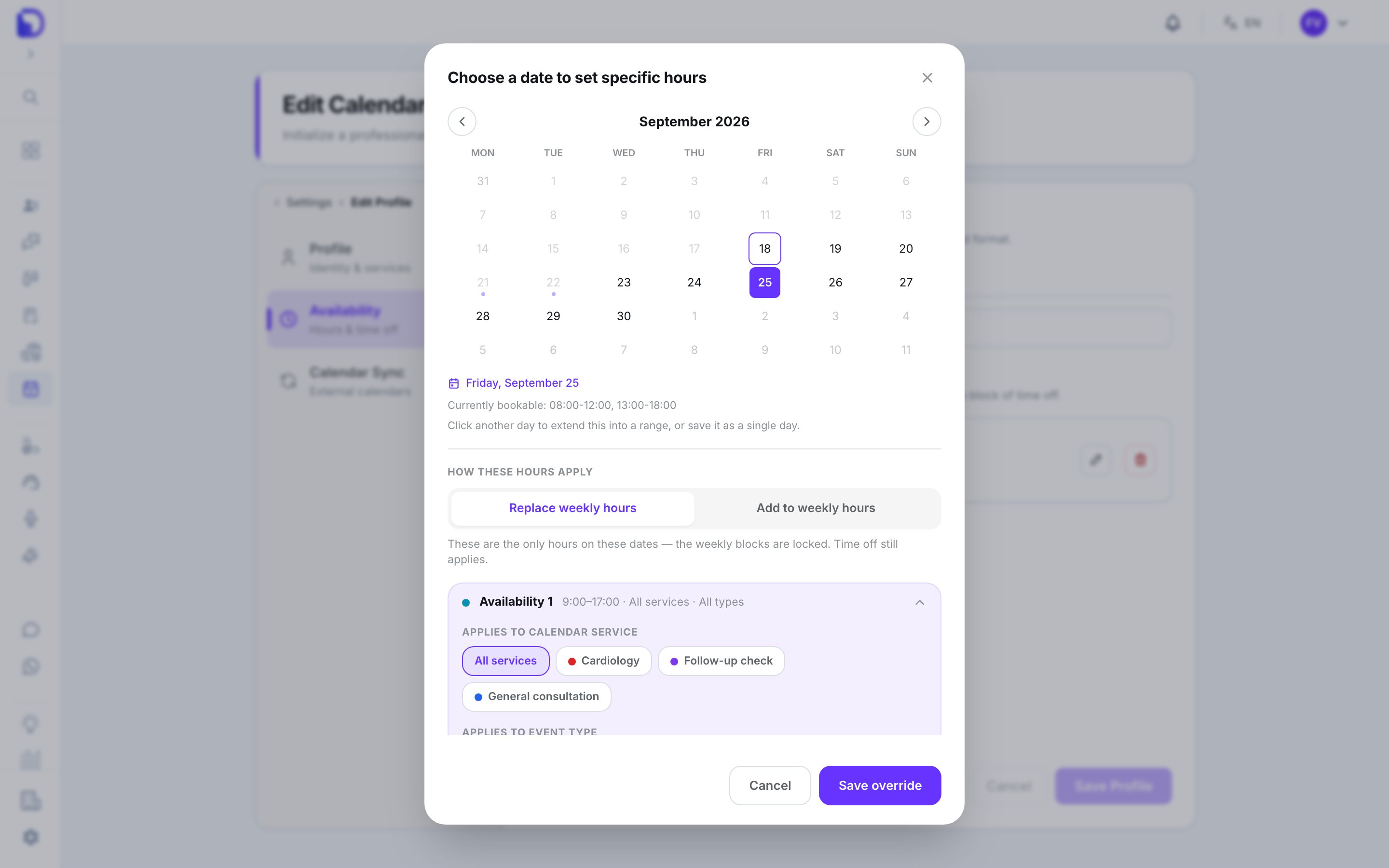 * Pick one day, or click twice for a **range** — *Saved as one record covering every day in the range.*
* **Mark unavailable** — the whole day, or specific time ranges.
* Or give the date its own **slot start / end times**, an **Applies to calendar service** and an **Applies to event type**.
* **How these hours apply**: **Add to weekly hours** or **Replace weekly hours**. *Either way, "Not available" always wins.*
The preview line *Currently bookable: …* shows the result before you save. Days with an override are locked on the weekly tab: *Blocked — date override* / *Custom hours — date override*.
## Booking windows
Minimum notice, how far ahead, buffers — those are **booking rules**, not availability. Set them on the [service](/en/calendar/services#booking-rules) and override per [professional](/en/calendar/professionals#personal-booking-rules).
## What doesn't exist
* **Hours at the service level** — always per professional.
* **Holiday import** or recurring exceptions (*every second Friday*).
* **Copying hours between professionals.**
## Next step
The WhatsApp message before each appointment.
* Pick one day, or click twice for a **range** — *Saved as one record covering every day in the range.*
* **Mark unavailable** — the whole day, or specific time ranges.
* Or give the date its own **slot start / end times**, an **Applies to calendar service** and an **Applies to event type**.
* **How these hours apply**: **Add to weekly hours** or **Replace weekly hours**. *Either way, "Not available" always wins.*
The preview line *Currently bookable: …* shows the result before you save. Days with an override are locked on the weekly tab: *Blocked — date override* / *Custom hours — date override*.
## Booking windows
Minimum notice, how far ahead, buffers — those are **booking rules**, not availability. Set them on the [service](/en/calendar/services#booking-rules) and override per [professional](/en/calendar/professionals#personal-booking-rules).
## What doesn't exist
* **Hours at the service level** — always per professional.
* **Holiday import** or recurring exceptions (*every second Friday*).
* **Copying hours between professionals.**
## Next step
The WhatsApp message before each appointment.