> ## Documentation Index
> Fetch the complete documentation index at: https://docs.dialtu.com/llms.txt
> Use this file to discover all available pages before exploring further.
# Google Calendar
> Connect a professional's Google Calendar, what syncs in each direction, and colours
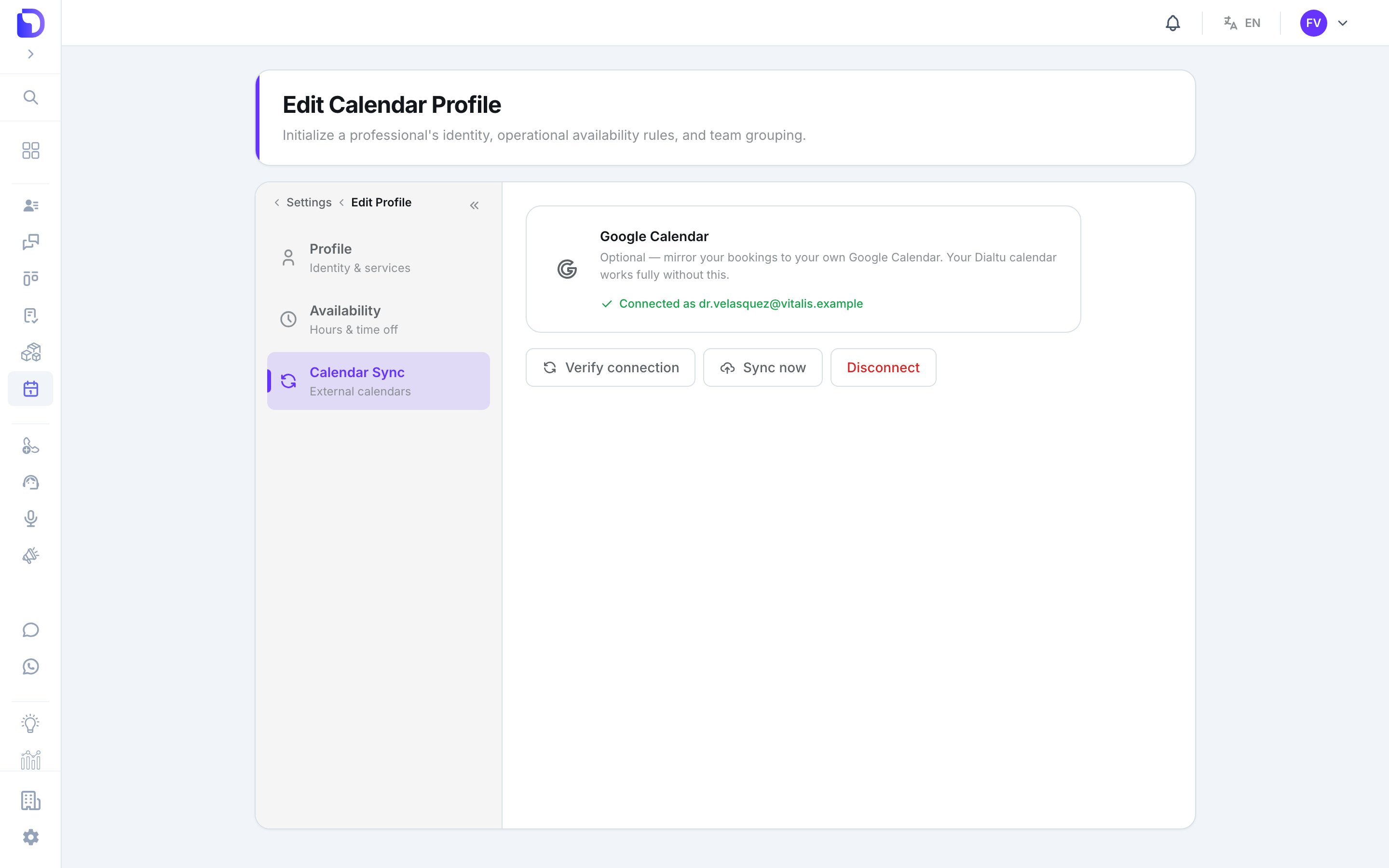
*Optional — mirror your bookings to your own Google Calendar. Your Dialtu calendar works fully without this.* Each professional connects their **own** account from their profile: **Calendar → Settings → Profiles → (your profile) → Calendar Sync**.
 ## Connect
The tab is only enabled on a saved profile that has a **user** — a profile with the *No user* badge can't sync.
Press **Connect Google Calendar**, approve the Google consent screen, and you land back with *Connected as* {email}.
**Verify connection** re-checks the token. **Sync now** pushes upcoming appointments and reports {n} *appointments updated in Google*. **Sync now** also appears on the agenda toolbar.
## What syncs
| Direction | What |
| ------------------- | ------------------------------------------------------------------------------------------------------------------------------------------------------------------------------------------------------------------------------------------------ |
| **Dialtu → Google** | Every booking creates a Google event; a reschedule updates it; a cancellation deletes it. The event carries the title, the time, and the **service's colour** snapped to the closest of Google's 11 colours. No phone, notes or answers are sent |
| **Google → Dialtu** | **Busy time only.** Anything on the Google calendar removes those slots from availability, is re-checked at booking, and shows as a *Busy — Google Calendar* card on the agenda. Nothing is imported as an appointment |
Change a service's colour and its upcoming Google events are re-coloured too.
## Expired connection
When Google revokes the token, the agenda shows *Google Calendar sync stopped* and the profile tab reads *Connection expired — reconnect to resume syncing.* Press **Reconnect Google Calendar**. Bookings made meanwhile are not mirrored retroactively — use **Sync now** after reconnecting.
## Disconnect
**Disconnect** stops both directions. Events already in Google stay there.
## What doesn't exist
* **Importing Google events as appointments.**
* **Choosing a calendar** other than the primary one.
* **Outlook, iCloud, CalDAV or an ICS feed.**
* **An admin connecting on a professional's behalf.**
## Next step
When there's no slot to offer.
## Connect
The tab is only enabled on a saved profile that has a **user** — a profile with the *No user* badge can't sync.
Press **Connect Google Calendar**, approve the Google consent screen, and you land back with *Connected as* {email}.
**Verify connection** re-checks the token. **Sync now** pushes upcoming appointments and reports {n} *appointments updated in Google*. **Sync now** also appears on the agenda toolbar.
## What syncs
| Direction | What |
| ------------------- | ------------------------------------------------------------------------------------------------------------------------------------------------------------------------------------------------------------------------------------------------ |
| **Dialtu → Google** | Every booking creates a Google event; a reschedule updates it; a cancellation deletes it. The event carries the title, the time, and the **service's colour** snapped to the closest of Google's 11 colours. No phone, notes or answers are sent |
| **Google → Dialtu** | **Busy time only.** Anything on the Google calendar removes those slots from availability, is re-checked at booking, and shows as a *Busy — Google Calendar* card on the agenda. Nothing is imported as an appointment |
Change a service's colour and its upcoming Google events are re-coloured too.
## Expired connection
When Google revokes the token, the agenda shows *Google Calendar sync stopped* and the profile tab reads *Connection expired — reconnect to resume syncing.* Press **Reconnect Google Calendar**. Bookings made meanwhile are not mirrored retroactively — use **Sync now** after reconnecting.
## Disconnect
**Disconnect** stops both directions. Events already in Google stay there.
## What doesn't exist
* **Importing Google events as appointments.**
* **Choosing a calendar** other than the primary one.
* **Outlook, iCloud, CalDAV or an ICS feed.**
* **An admin connecting on a professional's behalf.**
## Next step
When there's no slot to offer.