> ## Documentation Index
> Fetch the complete documentation index at: https://docs.dialtu.com/llms.txt
> Use this file to discover all available pages before exploring further.
# Invitations and shared appointments
> Invite another professional to an appointment, answer invitations, and leave an appointment you were invited to
Every appointment has **one organizer**: its main professional. Other professionals can be **invited** to it — a second doctor, an assistant, a co-teacher for a class. An invited professional is a **co-professional**: once they accept, the appointment shows on their own calendar, but it still belongs to the organizer.
## Who can do what
| | Organizer (main professional) or calendar Admin | Co-professional, accepted, with **Can reschedule** | Co-professional, accepted | Co-professional, not answered yet |
| - | - | - | - | - |
| See the appointment on their grid | Yes | Yes | Yes | No — it's in **Invitations** |
| Reschedule | Yes | Time only | No | No |
| Change the professional | Admin only | No | No | No |
| Cancel for everyone | Yes | No | No | No |
| Add or remove people | Yes | No | No | No |
| Leave | — | Yes | Yes | Decline instead |
**Only organizers cancel.** A co-professional who can't make it uses **Leave appointment** — the appointment goes on without them.
## Invite a professional
* **When booking:** **+ New Event → Group & guests (optional) → Additional professionals**. Only members of the selected service are listed.
* **After booking:** open the appointment → **Professionals** → **Invite a professional** — again, only members of the service. They must be free at that time — otherwise *That professional is not available at this time.*
Invited professionals don't take a seat in a group.
## Answer an invitation
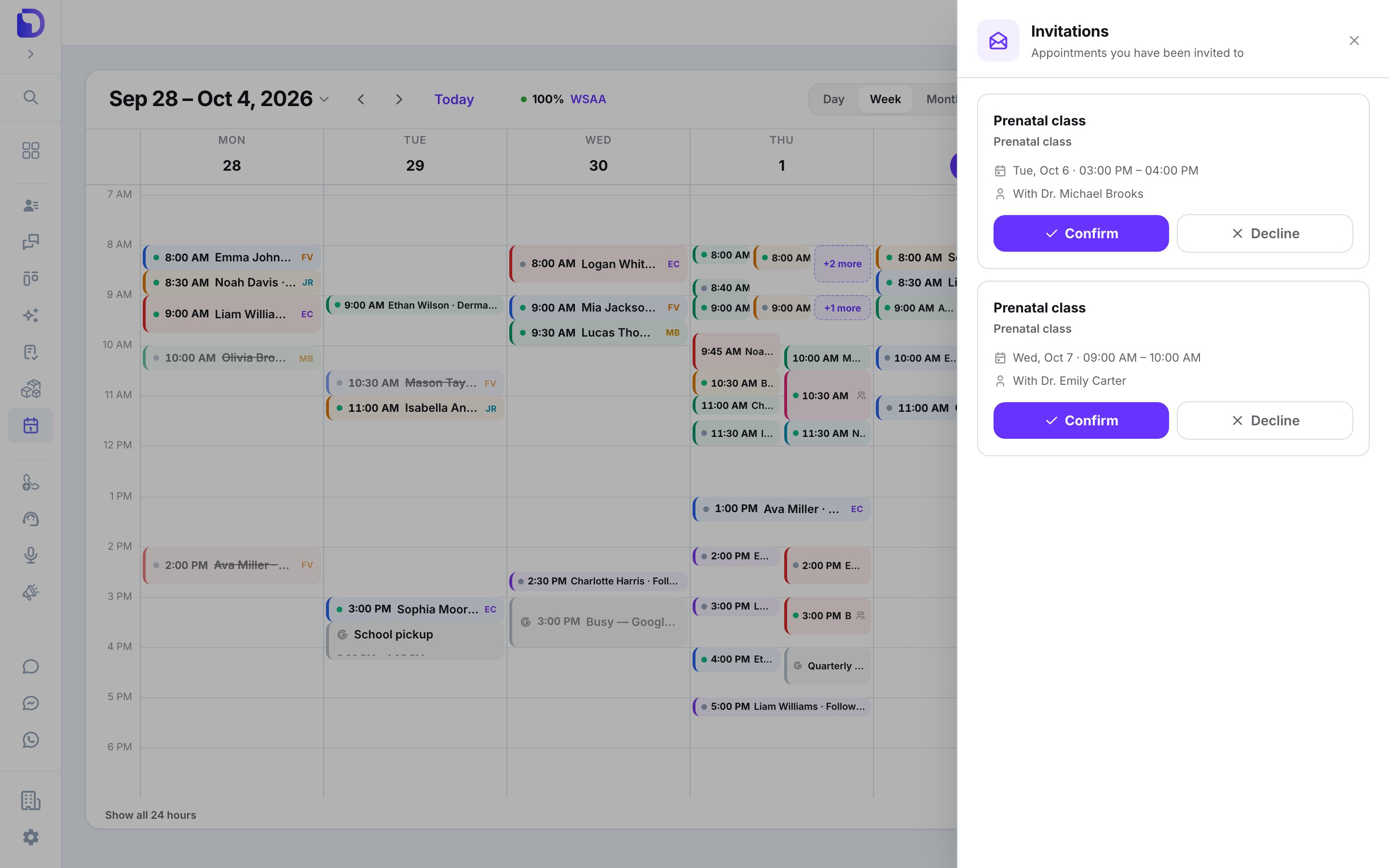 On the agenda header, the envelope icon carries a badge with your pending invitations. Click it: *Appointments you have been invited to*. Each row shows the service, the time and *With \{organizer}*.
**Confirm** → *Invitation confirmed*. **Decline** → *Invitation declined*. The row leaves the drawer either way.
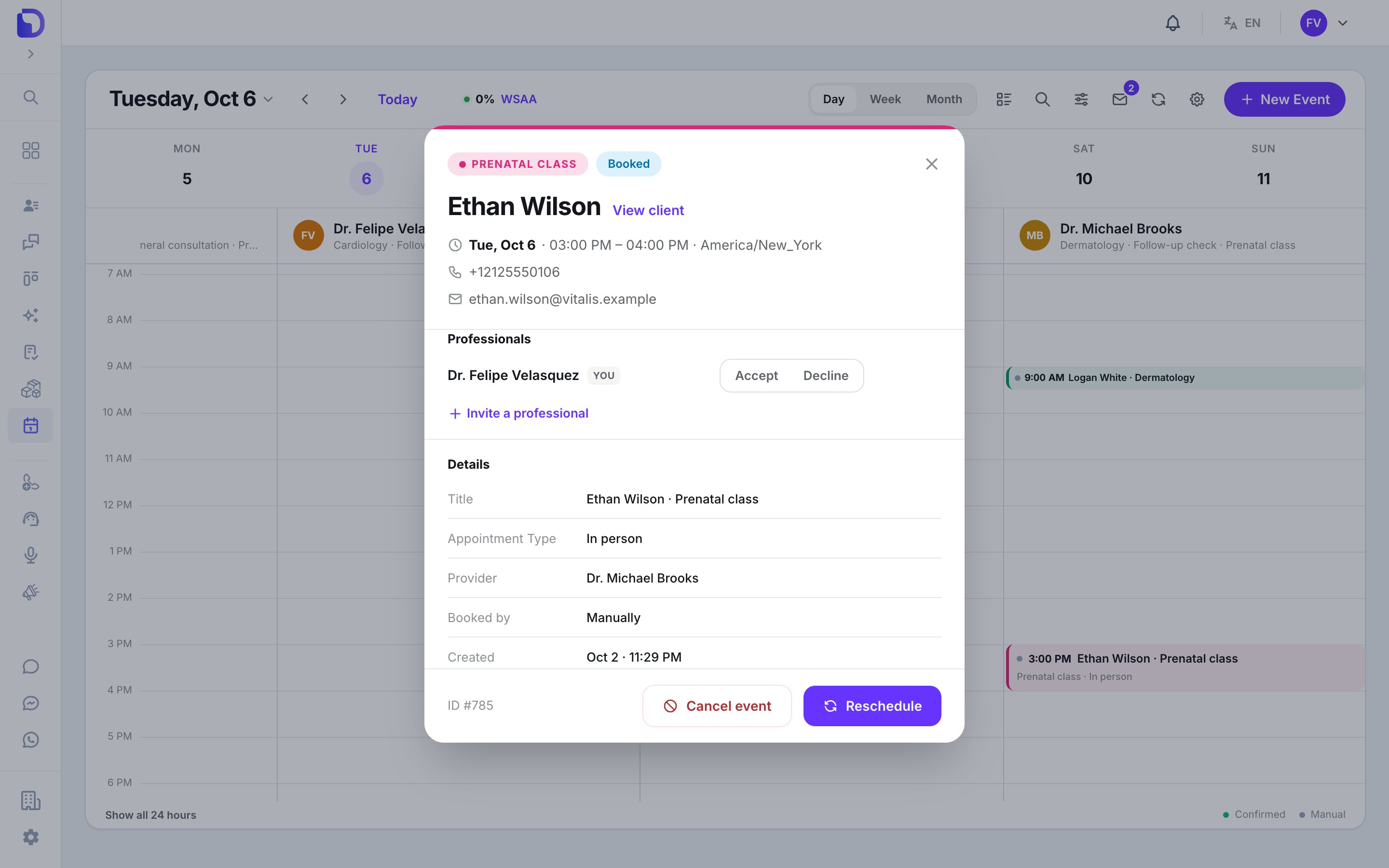
You can also answer from inside the appointment: your own row under **Professionals** reads **You**, with **Accept** and **Decline**.
On the agenda header, the envelope icon carries a badge with your pending invitations. Click it: *Appointments you have been invited to*. Each row shows the service, the time and *With \{organizer}*.
**Confirm** → *Invitation confirmed*. **Decline** → *Invitation declined*. The row leaves the drawer either way.
You can also answer from inside the appointment: your own row under **Professionals** reads **You**, with **Accept** and **Decline**.
 ### Answering for someone else
A calendar Admin sees **Accept / Decline** on every professional row — *Answer for this professional*. Use it when a professional told you their answer outside Dialtu.
## After you accept
* The appointment appears **in your column** with a *Shared with \{organizer}* line. On the organizer's card, a people icon lists the accepted co-professionals.
* If your Google Calendar is connected, you get **your own copy** of the event in Google. See [Google Calendar](/en/calendar/google-calendar).
* If the organizer ticks **Can reschedule** on your row, you can move it — time only.
## Leave an appointment
### Answering for someone else
A calendar Admin sees **Accept / Decline** on every professional row — *Answer for this professional*. Use it when a professional told you their answer outside Dialtu.
## After you accept
* The appointment appears **in your column** with a *Shared with \{organizer}* line. On the organizer's card, a people icon lists the accepted co-professionals.
* If your Google Calendar is connected, you get **your own copy** of the event in Google. See [Google Calendar](/en/calendar/google-calendar).
* If the organizer ticks **Can reschedule** on your row, you can move it — time only.
## Leave an appointment
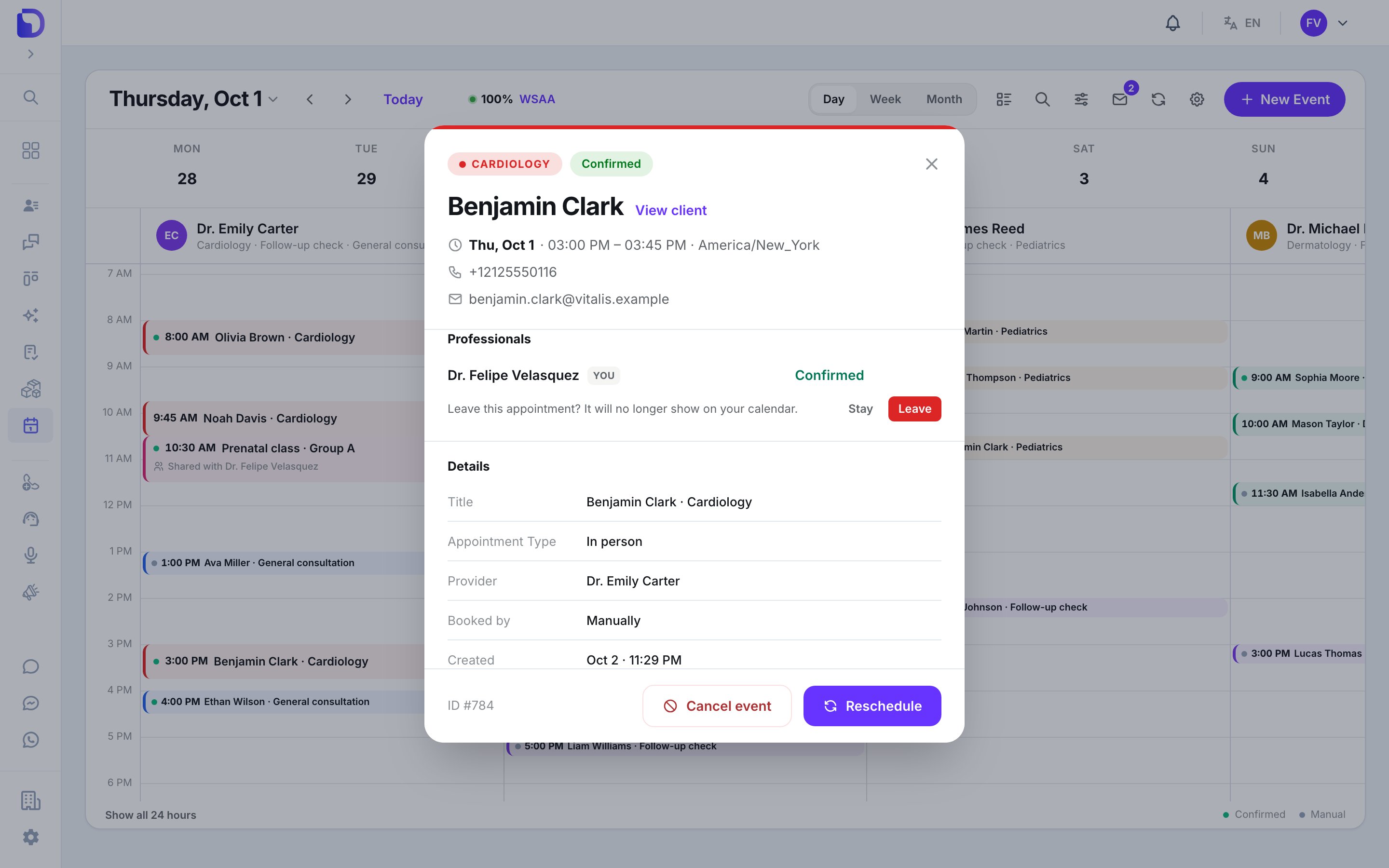 Open the appointment → your **You** row → **Leave appointment** → *Leave this appointment? It will no longer show on your calendar.* → **Stay** or **Leave**. The appointment, its client and its organizer are untouched.
## Deleting a professional
A professional with upcoming appointments — as the main professional **or as an accepted co-professional** — can't be deleted: *This professional has \{n} upcoming appointments. Reschedule or cancel them before deleting this professional.* Leave or reschedule those first. See [Professionals](/en/calendar/professionals#deleting-a-profile).
## What doesn't exist
| Not available | Detail |
| - | - |
| **Handing over the organizer role** | The main professional stays the organizer; an Admin can reschedule the appointment to another professional |
| **WhatsApp messages to professionals** | Reminders and confirmations go to clients only |
| **Inviting someone outside the service** | Only members of the appointment's service can be invited, at booking or later |
| **A co-professional cancelling** | Only the organizer or an Admin cancels |
## Next step
What decides duration, colour, members and Google Meet.
This documentation is built and hosted on [Mintlify](https://mintlify.com), a developer documentation platform.
Open the appointment → your **You** row → **Leave appointment** → *Leave this appointment? It will no longer show on your calendar.* → **Stay** or **Leave**. The appointment, its client and its organizer are untouched.
## Deleting a professional
A professional with upcoming appointments — as the main professional **or as an accepted co-professional** — can't be deleted: *This professional has \{n} upcoming appointments. Reschedule or cancel them before deleting this professional.* Leave or reschedule those first. See [Professionals](/en/calendar/professionals#deleting-a-profile).
## What doesn't exist
| Not available | Detail |
| - | - |
| **Handing over the organizer role** | The main professional stays the organizer; an Admin can reschedule the appointment to another professional |
| **WhatsApp messages to professionals** | Reminders and confirmations go to clients only |
| **Inviting someone outside the service** | Only members of the appointment's service can be invited, at booking or later |
| **A co-professional cancelling** | Only the organizer or an Admin cancels |
## Next step
What decides duration, colour, members and Google Meet.
This documentation is built and hosted on [Mintlify](https://mintlify.com), a developer documentation platform.