> ## Documentation Index
> Fetch the complete documentation index at: https://docs.dialtu.com/llms.txt
> Use this file to discover all available pages before exploring further.
# Branding
> Your logo, your colours, your words — across the app, the login page and your emails
Everything here lives under **Settings → Customization**, and it belongs to **you**, not to
your organizations. Your clients inherit your brand; they can't change it and they never see
this section.
**A new account starts Dialtu-purple with no logo.** Nothing is pre-filled for you. Setting
your colours and uploading a logo should be the first thing you do — before you invite anyone,
because invitation emails carry your branding.
 ## Brand
Five things, all optional except the name.
| Field | What it's for |
| ------------------ | ------------------------------------------------------------------------------ |
| **Logo** | Your wordmark. Top navigation, the login page, email headers |
| **Isotype** | The square mark. Collapsed sidebar and the login hero. Falls back to your logo |
| **Favicon** | The browser tab |
| **Workspace name** | Top navigation, the browser tab title, and emails to your users |
| **Support email** | Where your users reach you. Leave it blank to hide the link entirely |
**Images: SVG, PNG, JPG or WebP, up to 2 MB.** The favicon also accepts ICO. Wide formats work
best for the logo.
Upload a **PNG or JPG** and you get a crop step, which exports a clean transparent PNG at the
right size — 600×200 for the logo, 512×512 for the isotype, 256×256 for the favicon. SVG and
ICO files are used exactly as you upload them, with no crop step.
## Brand
Five things, all optional except the name.
| Field | What it's for |
| ------------------ | ------------------------------------------------------------------------------ |
| **Logo** | Your wordmark. Top navigation, the login page, email headers |
| **Isotype** | The square mark. Collapsed sidebar and the login hero. Falls back to your logo |
| **Favicon** | The browser tab |
| **Workspace name** | Top navigation, the browser tab title, and emails to your users |
| **Support email** | Where your users reach you. Leave it blank to hide the link entirely |
**Images: SVG, PNG, JPG or WebP, up to 2 MB.** The favicon also accepts ICO. Wide formats work
best for the logo.
Upload a **PNG or JPG** and you get a crop step, which exports a clean transparent PNG at the
right size — 600×200 for the logo, 512×512 for the isotype, 256×256 for the favicon. SVG and
ICO files are used exactly as you upload them, with no crop step.
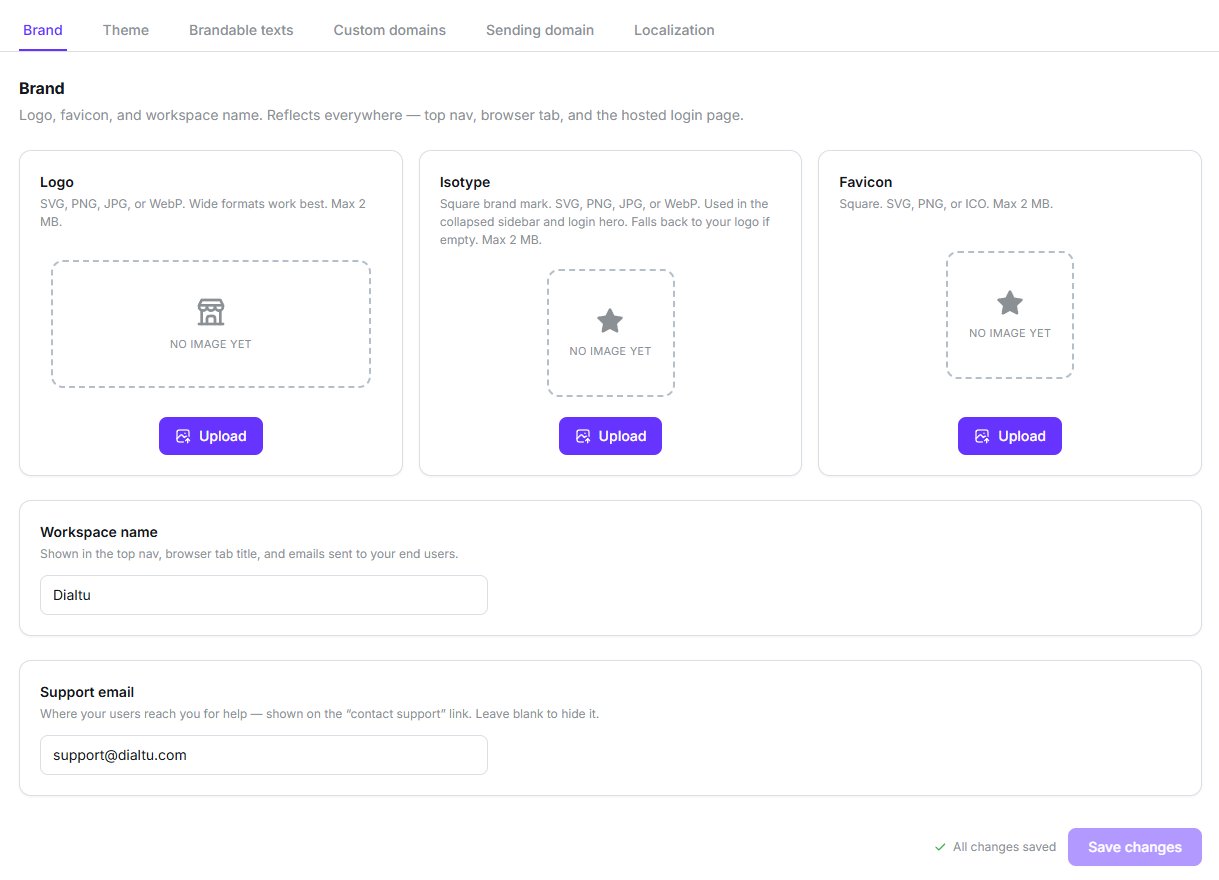 The three slots above are **empty**, which is exactly how a new account arrives. Until you
upload something, your users see a generated letter tile rather than a mark of yours.
If you upload no favicon, your users get an automatically generated tile — the first letter
of your workspace name on your primary colour. They never see the Dialtu mark.
## Theme
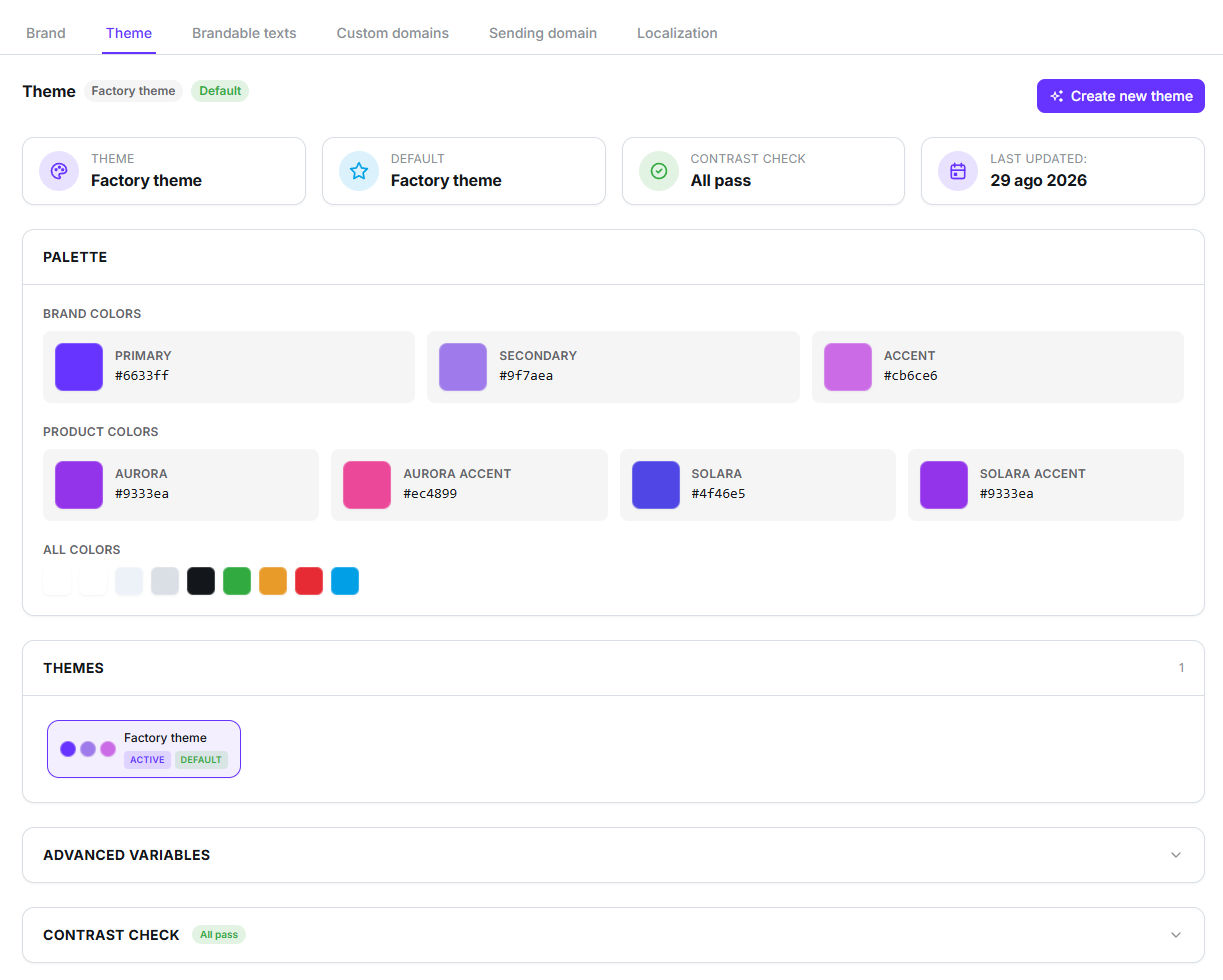
Three colours drive everything: **Primary**, **Secondary** and **Accent**. The rest of the
palette — around forty variables in all — is derived automatically unless you turn that off.
Paste one hex value and get a full palette built around it.
Complementary, analogous, triadic or tetradic.
Open **Advanced variables** to set any of the remaining colours by hand. You can save several
named themes and keep two pointers: the **active** theme, which everyone sees, and the
**default**, which *Reset* returns to.
The three slots above are **empty**, which is exactly how a new account arrives. Until you
upload something, your users see a generated letter tile rather than a mark of yours.
If you upload no favicon, your users get an automatically generated tile — the first letter
of your workspace name on your primary colour. They never see the Dialtu mark.
## Theme
Three colours drive everything: **Primary**, **Secondary** and **Accent**. The rest of the
palette — around forty variables in all — is derived automatically unless you turn that off.
Paste one hex value and get a full palette built around it.
Complementary, analogous, triadic or tetradic.
Open **Advanced variables** to set any of the remaining colours by hand. You can save several
named themes and keep two pointers: the **active** theme, which everyone sees, and the
**default**, which *Reset* returns to.
 ### Where your colours end up
**Save the theme once and your primary and accent colours follow you everywhere** — the
dashboard, the hosted login page, and your invitation emails. There's no second place to
set them.
Only primary and accent cross over. Surface, text and status colours stay in the dashboard.
### About the contrast check
The editor shows live WCAG AA pass/fail badges as you pick colours.
**They're advice, not a gate.** A theme that fails contrast still saves. Read the badges —
nothing else will stop you shipping a palette your users struggle to read.
There's no separate dark-mode palette. One set of colours serves both modes.
## Brandable texts
Override wording in the interface, per language. Use it for the vocabulary your industry
expects — renaming things your clients call something else.
### Where your colours end up
**Save the theme once and your primary and accent colours follow you everywhere** — the
dashboard, the hosted login page, and your invitation emails. There's no second place to
set them.
Only primary and accent cross over. Surface, text and status colours stay in the dashboard.
### About the contrast check
The editor shows live WCAG AA pass/fail badges as you pick colours.
**They're advice, not a gate.** A theme that fails contrast still saves. Read the badges —
nothing else will stop you shipping a palette your users struggle to read.
There's no separate dark-mode palette. One set of colours serves both modes.
## Brandable texts
Override wording in the interface, per language. Use it for the vocabulary your industry
expects — renaming things your clients call something else.
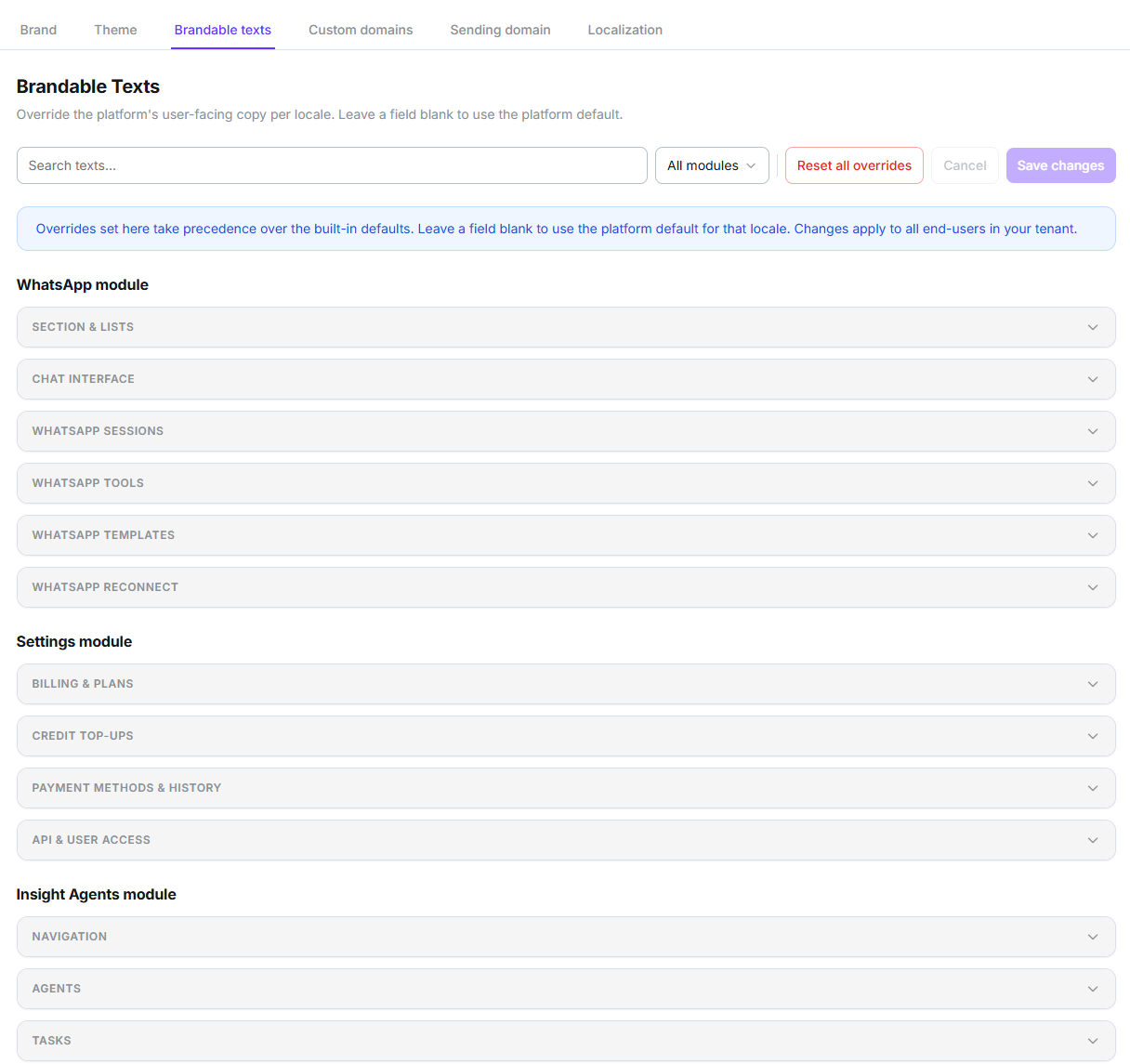 Leave a field blank and the platform's own wording is used for that language. **Reset all
overrides** puts everything back at once.
## Localization
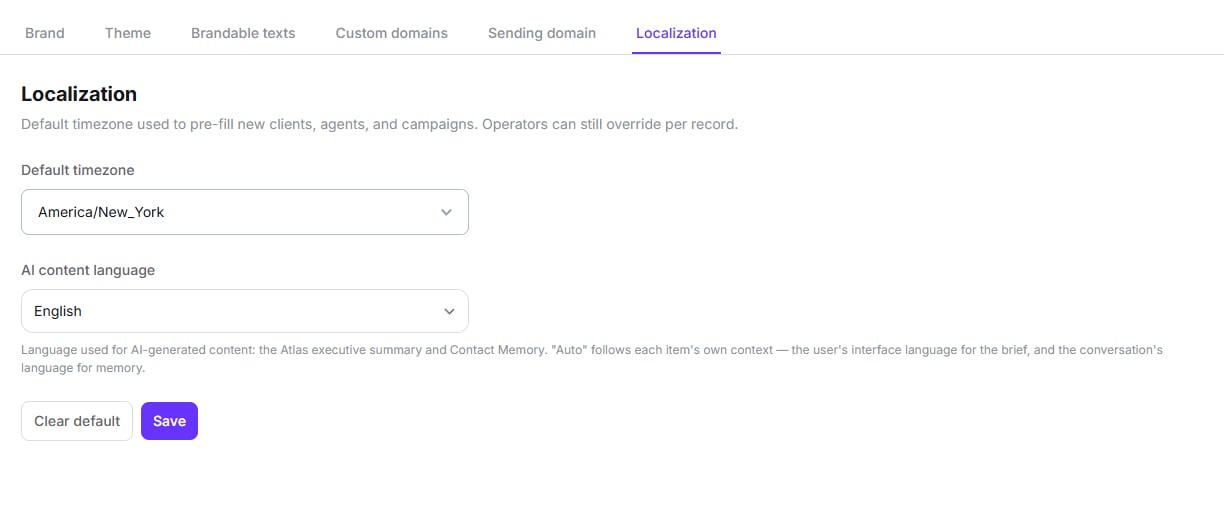
The last sub-tab, and the only one a non-partner account also gets. Two settings:
* **Default timezone** — pre-fills new clients, agents and campaigns. Anyone can still override
it on an individual record.
* **AI content language** — the language used for AI-written content such as the Atlas
executive summary and contact memory. Set it to *Auto* and each piece follows its own
context: the reader's interface language for a summary, the conversation's language for
memory.
Leave a field blank and the platform's own wording is used for that language. **Reset all
overrides** puts everything back at once.
## Localization
The last sub-tab, and the only one a non-partner account also gets. Two settings:
* **Default timezone** — pre-fills new clients, agents and campaigns. Anyone can still override
it on an individual record.
* **AI content language** — the language used for AI-written content such as the Atlas
executive summary and contact memory. Set it to *Auto* and each piece follows its own
context: the reader's interface language for a summary, the conversation's language for
memory.
 ## What you can't change
The headline and strapline beside the sign-in form are fixed, brand-neutral English. They
don't mention Dialtu, but you can't edit them or translate them.
The favicon applies to the **dashboard tab only**. The hosted login page doesn't currently
pick it up, even though the panel reads as though it does.
The `yourname.dialtu.com` address is fixed at setup and can't be renamed afterwards. If you
want a different address, attach [a domain of your own](/en/organizations/domains).
Your organizations all share your brand. There's no per-client logo or palette — they sign
in through your login page, under your name.
## Next step
Put the app on your own web address and send invitations from your own domain.
## What you can't change
The headline and strapline beside the sign-in form are fixed, brand-neutral English. They
don't mention Dialtu, but you can't edit them or translate them.
The favicon applies to the **dashboard tab only**. The hosted login page doesn't currently
pick it up, even though the panel reads as though it does.
The `yourname.dialtu.com` address is fixed at setup and can't be renamed afterwards. If you
want a different address, attach [a domain of your own](/en/organizations/domains).
Your organizations all share your brand. There's no per-client logo or palette — they sign
in through your login page, under your name.
## Next step
Put the app on your own web address and send invitations from your own domain.