> ## Documentation Index
> Fetch the complete documentation index at: https://docs.dialtu.com/llms.txt
> Use this file to discover all available pages before exploring further.
# Create and manage organizations
> Add a client, keep track of their status, and work inside their workspace
By the end of this page you'll have created an organization, invited its first admin, and know
what every action on the list does.
## Creating one
**Organizations → Create organization.** A two-step wizard.
* **Display name** — what you and your client see. Up to 150 characters.
* **Slug** — the short identifier, suggested from the name. Lowercase letters, numbers and
hyphens.
* **Billing plan** — optional, but without one there's no monthly allowance. The dropdown
shows each plan's included credits and price.
* **Auto-refill monthly** — on by default. Resets their allowance every cycle.
**The slug can't be changed later.** The display name can. Choose the slug with that in
mind.
An email address — type it, or pick from a dropdown of people already in your account.
They're invited as an **Admin** of the new organization and get a branded invitation.
**This step is optional.** You can create the organization with nobody in it and invite
people later from **Manage users**.
You're added automatically either way, so you can switch into it right away without
inviting yourself.
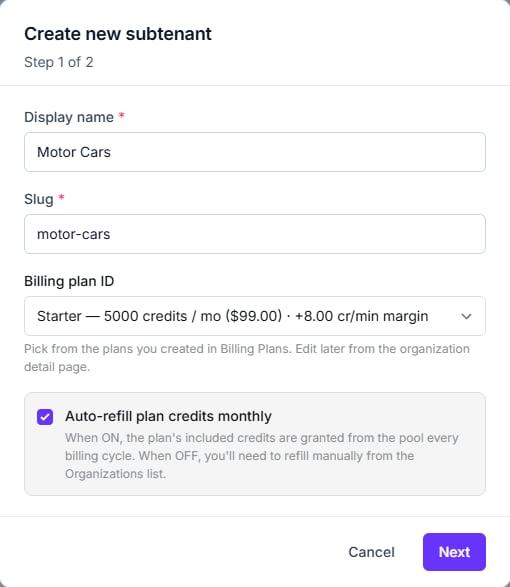
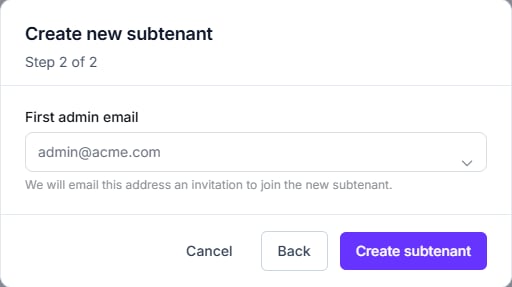 **The wizard still says "subtenant"** — in its title, its button, and the confirmation
message. It's the old internal name for an organization. The plan field is labelled
*Billing plan ID* but is an ordinary dropdown of your plans.
**Your plan caps how many organizations you can have.** Hit the limit and creation is refused
with a prompt to upgrade. Your own workspace doesn't count toward it.
## Reading the list
The stat strip across the top gives you totals, active count, failures, and **credits in
pool**. The table lists each organization with its plan, credits, auto-refill setting and
status.
| Status | What it means |
| ------------------------ | ------------------------------------------------------- |
| **Active** | Working normally |
| **Admin invite pending** | Setup didn't finish — **nobody can sign in**. See below |
| **Suspended** | Excluded from the monthly allowance reset |
| **Provisioning failed** | Creation didn't complete |
| **Deleted** | Hidden from the list. Data is kept |
**Admin invite pending is not cosmetic.** The organization exists but its members are locked
out until you fix it. Use **Retry admin invite** from the row's menu.
## What you can do to a row
**The wizard still says "subtenant"** — in its title, its button, and the confirmation
message. It's the old internal name for an organization. The plan field is labelled
*Billing plan ID* but is an ordinary dropdown of your plans.
**Your plan caps how many organizations you can have.** Hit the limit and creation is refused
with a prompt to upgrade. Your own workspace doesn't count toward it.
## Reading the list
The stat strip across the top gives you totals, active count, failures, and **credits in
pool**. The table lists each organization with its plan, credits, auto-refill setting and
status.
| Status | What it means |
| ------------------------ | ------------------------------------------------------- |
| **Active** | Working normally |
| **Admin invite pending** | Setup didn't finish — **nobody can sign in**. See below |
| **Suspended** | Excluded from the monthly allowance reset |
| **Provisioning failed** | Creation didn't complete |
| **Deleted** | Hidden from the list. Data is kept |
**Admin invite pending is not cosmetic.** The organization exists but its members are locked
out until you fix it. Use **Retry admin invite** from the row's menu.
## What you can do to a row
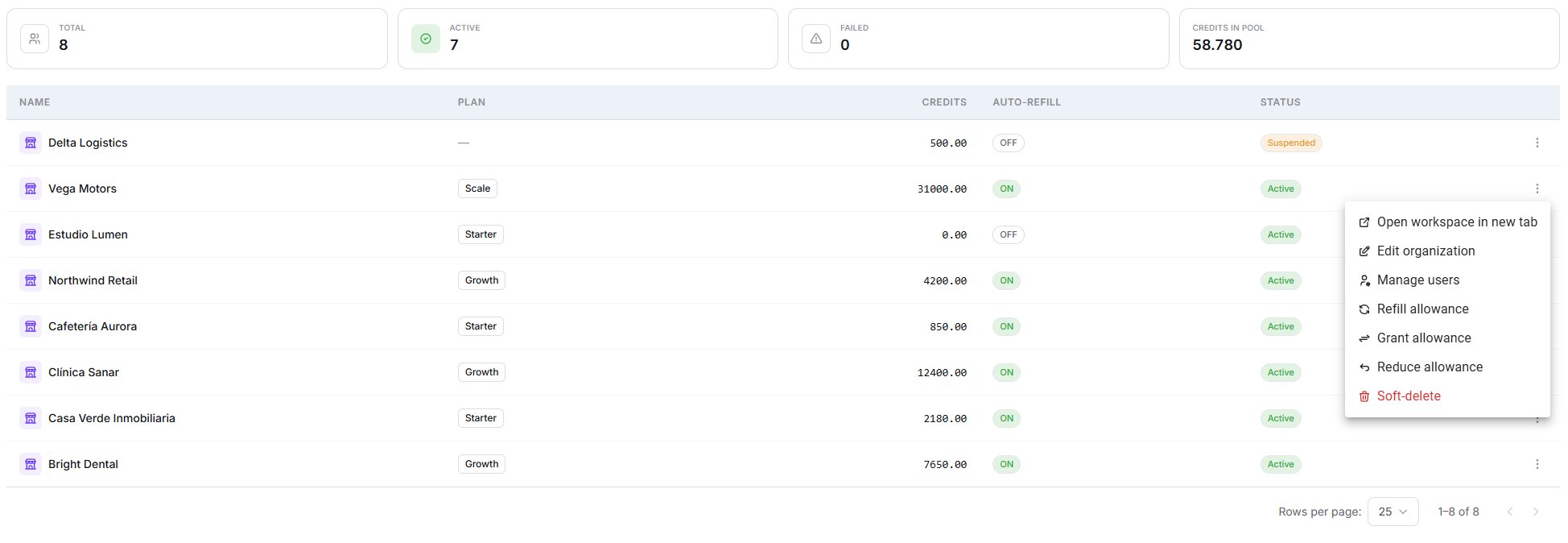 Go and work inside the organization.
Invite people, change roles, remove access.
Adjust their credit ceiling. See [Credits](/en/organizations/credits).
Display name, plan, concurrency limit and auto-refill.
Two more appear only when they're relevant: **Refill allowance**, which needs the organization
to have a billing plan, and **Retry admin invite**, which only shows on a stuck row.
The **slug** is not editable here, and there's **no way to suspend an organization** from the
interface — the status column is read-only.
### Concurrency limits
You can cap how many simultaneous calls one organization may run. Two things to understand:
**All your organizations share one pool of concurrent calls**, set by your own Dialtu plan —
plus your own workspace. A per-organization limit is a **sub-limit inside** that pool, not
extra capacity.
Four organizations at 10 each does not give you 40 lines. You're free to oversubscribe on
purpose, betting they won't all peak at once.
An organization needs a plan before you can set a concurrency limit, and the limit can never
exceed your own plan's ceiling. The same applies to the other per-organization overrides —
they can only ever be **lower** than what your plan allows.
## Deleting
**Delete is a soft delete.** The organization disappears from the list and its subscription
is cancelled, but **the data is kept** and existing members keep their access records.
Treat it as archiving, not erasing. If a client needs their data genuinely destroyed, contact
Dialtu.
**Phone numbers are not released.** A number assigned to a deleted organization stays
assigned. Move it back to your pool first — see [Phone numbers](/en/organizations/phones).
## Next step
Decide what each organization gets, and what it costs them.
Go and work inside the organization.
Invite people, change roles, remove access.
Adjust their credit ceiling. See [Credits](/en/organizations/credits).
Display name, plan, concurrency limit and auto-refill.
Two more appear only when they're relevant: **Refill allowance**, which needs the organization
to have a billing plan, and **Retry admin invite**, which only shows on a stuck row.
The **slug** is not editable here, and there's **no way to suspend an organization** from the
interface — the status column is read-only.
### Concurrency limits
You can cap how many simultaneous calls one organization may run. Two things to understand:
**All your organizations share one pool of concurrent calls**, set by your own Dialtu plan —
plus your own workspace. A per-organization limit is a **sub-limit inside** that pool, not
extra capacity.
Four organizations at 10 each does not give you 40 lines. You're free to oversubscribe on
purpose, betting they won't all peak at once.
An organization needs a plan before you can set a concurrency limit, and the limit can never
exceed your own plan's ceiling. The same applies to the other per-organization overrides —
they can only ever be **lower** than what your plan allows.
## Deleting
**Delete is a soft delete.** The organization disappears from the list and its subscription
is cancelled, but **the data is kept** and existing members keep their access records.
Treat it as archiving, not erasing. If a client needs their data genuinely destroyed, contact
Dialtu.
**Phone numbers are not released.** A number assigned to a deleted organization stays
assigned. Move it back to your pool first — see [Phone numbers](/en/organizations/phones).
## Next step
Decide what each organization gets, and what it costs them.