> ## Documentation Index
> Fetch the complete documentation index at: https://docs.dialtu.com/llms.txt
> Use this file to discover all available pages before exploring further.
# Events and sequences
> Automate what happens inside each stage
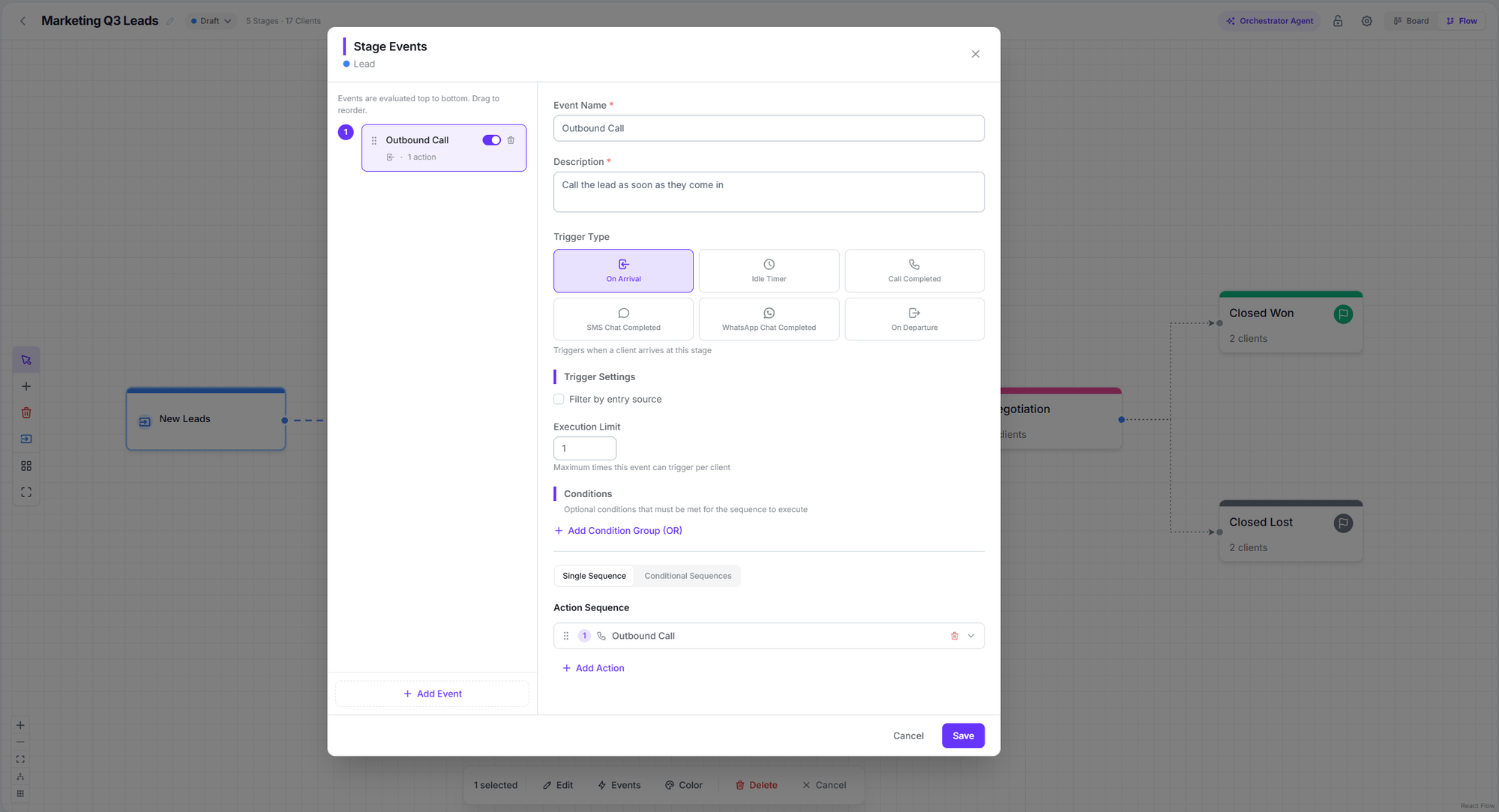
Transitions move customers **between** stages. Events automate what happens **inside** a stage: calling, writing, waiting, tagging, notifying.
The structure is always the same:
**An event** (the trigger) → **conditions** (optional) → **a sequence** (the ordered list of actions).
Events are configured **only from the Flow view**: select a stage and click **Events** in the bottom bar. There's no way to reach them from the Board — the column menu only offers *Edit* and *Delete*.
 ## The six triggers
| Trigger | Fires when | Own configuration |
| --------------------------- | ----------------------------------------- | --------------------------------------------------------------------------------------------- |
| **On arrival** | A customer arrives in this stage | Filter by entry source: Manual, Transition Trigger, Orchestrator, Auto Entry, Sequence Action |
| **On departure** | A customer leaves this stage | Filter by target stage |
| **Idle timer** | The customer has sat still for a set time | Duration + detection mode |
| **Call completed** | A call ends for a customer in this stage | Filter by agent + call conditions |
| **WhatsApp chat completed** | A WhatsApp session ends | Filter by agent + chat conditions |
| **SMS chat completed** | An SMS session ends | Filter by agent + chat conditions |
### Idle timer
It has two modes, and the difference matters:
* **Time in stage** — counts from when the customer **entered this stage**. This is what you want for "has been in Proposal for 3 days without progress".
* **Stale after activity** — counts from the last action, transition, or call. This is what you want for "nobody has done anything with this lead in a week".
The duration must be **greater than zero**. A timer with duration 0 never fires, and saving shows *"The idle trigger requires a duration greater than zero."*
## Conditions
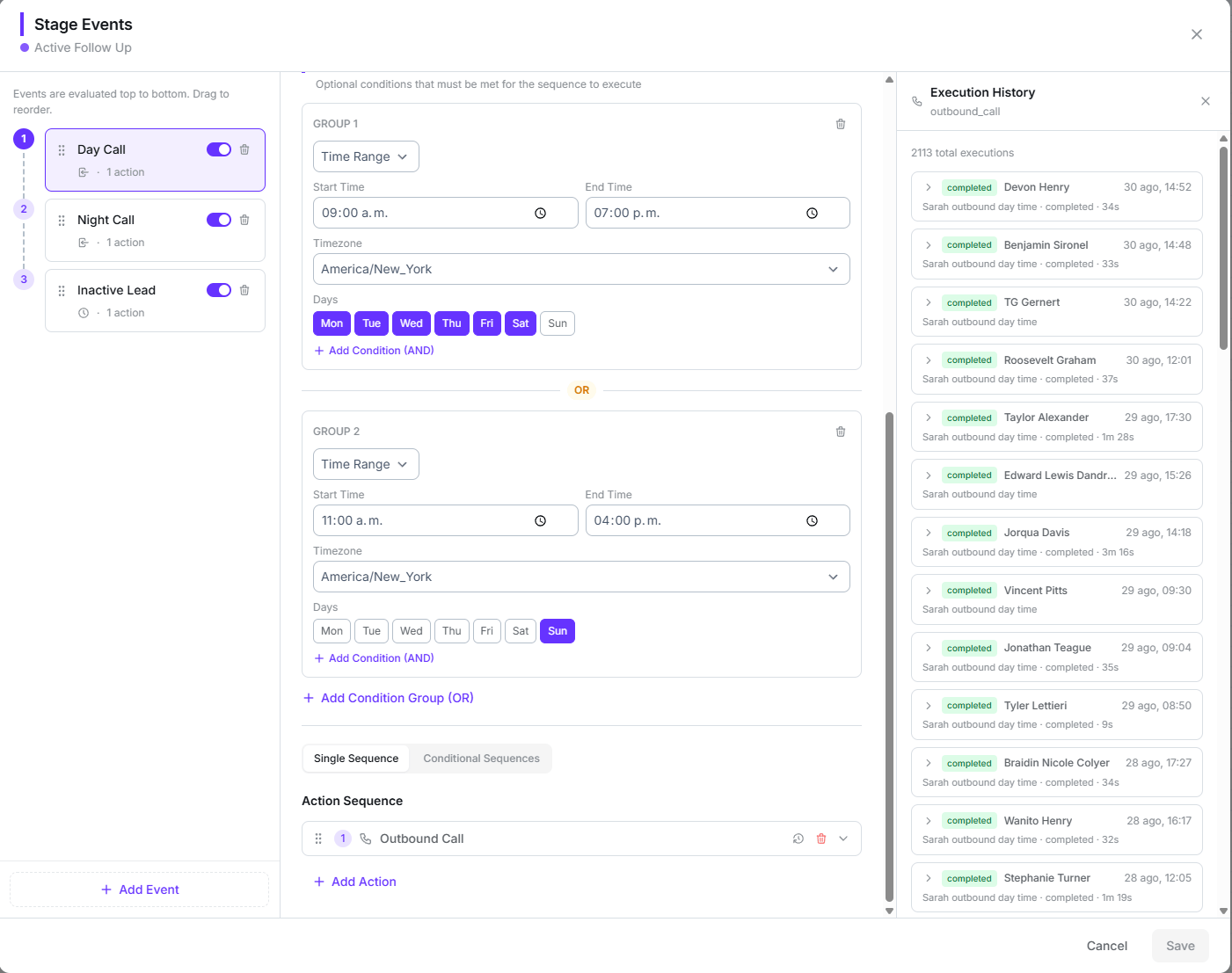
**Conditions** are an extra filter evaluated before the sequence launches. They're built as **groups**: within a group, conditions combine with **AND**, and groups with each other with **OR**.
There are three types:
* **Time range** — start and end time, days of the week, and timezone. Supports ranges crossing midnight.
* **Client field** — first name, last name, email, phone, company, or a custom field.
* **Call field** — disposition, answered by, status, duration, ended by, inbound, requires follow-up, retry count.
Operators: *equals, not equals, contains, not contains, is empty, not empty, greater than, less than*.
**Time range** is the most useful condition of all: it stops a sequence from calling or texting a customer at 3 in the morning.
## The six triggers
| Trigger | Fires when | Own configuration |
| --------------------------- | ----------------------------------------- | --------------------------------------------------------------------------------------------- |
| **On arrival** | A customer arrives in this stage | Filter by entry source: Manual, Transition Trigger, Orchestrator, Auto Entry, Sequence Action |
| **On departure** | A customer leaves this stage | Filter by target stage |
| **Idle timer** | The customer has sat still for a set time | Duration + detection mode |
| **Call completed** | A call ends for a customer in this stage | Filter by agent + call conditions |
| **WhatsApp chat completed** | A WhatsApp session ends | Filter by agent + chat conditions |
| **SMS chat completed** | An SMS session ends | Filter by agent + chat conditions |
### Idle timer
It has two modes, and the difference matters:
* **Time in stage** — counts from when the customer **entered this stage**. This is what you want for "has been in Proposal for 3 days without progress".
* **Stale after activity** — counts from the last action, transition, or call. This is what you want for "nobody has done anything with this lead in a week".
The duration must be **greater than zero**. A timer with duration 0 never fires, and saving shows *"The idle trigger requires a duration greater than zero."*
## Conditions
**Conditions** are an extra filter evaluated before the sequence launches. They're built as **groups**: within a group, conditions combine with **AND**, and groups with each other with **OR**.
There are three types:
* **Time range** — start and end time, days of the week, and timezone. Supports ranges crossing midnight.
* **Client field** — first name, last name, email, phone, company, or a custom field.
* **Call field** — disposition, answered by, status, duration, ended by, inbound, requires follow-up, retry count.
Operators: *equals, not equals, contains, not contains, is empty, not empty, greater than, less than*.
**Time range** is the most useful condition of all: it stops a sequence from calling or texting a customer at 3 in the morning.
 ## Single sequence or conditional sequences
* **Single sequence** — one list of actions, always the same.
* **Conditional sequences** — several branches with their own conditions. They're evaluated top to bottom and **the first one that matches runs**. You can add a **Default (Else)** branch as a fallback.
If you use conditional sequences and **no branch matches** — and you didn't define a default branch — **nothing runs at all**. Always add a fallback if you expect every customer to get some treatment.
Branches are resolved **once, at trigger time**. You cannot branch mid-sequence based on the result of a previous action.
## How a sequence runs
Actions run **in order**. Immediate ones (tag, move, webhook, update) chain instantly; the ones that wait for something (call, SMS chat, **Wait**) park the sequence until they resolve.
**If one action fails, the whole sequence fails** and the remaining actions are cancelled. **There is no automatic retry**: you have to relaunch it by hand from the customer's history, with *Retry from failure* or *Retry all*.
## Limits and safeguards
| Setting | What it controls |
| ----------------------- | ------------------------------------------------------------------------------ |
| **Execution limit** | How many times this event can fire for the same customer. Defaults to **1**. |
| **Cancel on departure** | Cancels in-flight sequences when the customer leaves the stage. On by default. |
| **Priority** | Events are evaluated top to bottom; drag them in the list to reorder. |
**Watch out for loops.** The **Move to Stage** action fires the target stage's *On arrival* events immediately. If stage A moves to B and stage B moves to A, you have a cycle.
The only thing stopping it today is the **Execution limit** — with the default of 1 the common case is safe, but **if you raise it on two stages that move to each other, the loop will repeat as many times as that limit allows**. There is no cycle detector.
**Bulk moves do not trigger automations.** If you select several cards and move them at once, no *On departure* or *On arrival* event runs. Dragging a single card does trigger them. It's a real difference and easy to miss.
Pipeline entries **from a call** do not trigger the target stage's *On arrival* events, unlike entries via WhatsApp, SMS, Client, or API. If your welcome automation depends on *On arrival*, it won't run for leads that enter by call.
## Variables
Any action configuration field accepts variables that reference the customer, the stage, the pipeline, the call that triggered the event, and the previous action in the sequence.
Any action configuration field accepts variables like `{'{{'}client.first_name{'}}'}`. You can use data from the customer, the stage, the pipeline, the call that triggered the event, and the previous action in the sequence.
## Next step
The nine available actions, with their full configuration.
## Single sequence or conditional sequences
* **Single sequence** — one list of actions, always the same.
* **Conditional sequences** — several branches with their own conditions. They're evaluated top to bottom and **the first one that matches runs**. You can add a **Default (Else)** branch as a fallback.
If you use conditional sequences and **no branch matches** — and you didn't define a default branch — **nothing runs at all**. Always add a fallback if you expect every customer to get some treatment.
Branches are resolved **once, at trigger time**. You cannot branch mid-sequence based on the result of a previous action.
## How a sequence runs
Actions run **in order**. Immediate ones (tag, move, webhook, update) chain instantly; the ones that wait for something (call, SMS chat, **Wait**) park the sequence until they resolve.
**If one action fails, the whole sequence fails** and the remaining actions are cancelled. **There is no automatic retry**: you have to relaunch it by hand from the customer's history, with *Retry from failure* or *Retry all*.
## Limits and safeguards
| Setting | What it controls |
| ----------------------- | ------------------------------------------------------------------------------ |
| **Execution limit** | How many times this event can fire for the same customer. Defaults to **1**. |
| **Cancel on departure** | Cancels in-flight sequences when the customer leaves the stage. On by default. |
| **Priority** | Events are evaluated top to bottom; drag them in the list to reorder. |
**Watch out for loops.** The **Move to Stage** action fires the target stage's *On arrival* events immediately. If stage A moves to B and stage B moves to A, you have a cycle.
The only thing stopping it today is the **Execution limit** — with the default of 1 the common case is safe, but **if you raise it on two stages that move to each other, the loop will repeat as many times as that limit allows**. There is no cycle detector.
**Bulk moves do not trigger automations.** If you select several cards and move them at once, no *On departure* or *On arrival* event runs. Dragging a single card does trigger them. It's a real difference and easy to miss.
Pipeline entries **from a call** do not trigger the target stage's *On arrival* events, unlike entries via WhatsApp, SMS, Client, or API. If your welcome automation depends on *On arrival*, it won't run for leads that enter by call.
## Variables
Any action configuration field accepts variables that reference the customer, the stage, the pipeline, the call that triggered the event, and the previous action in the sequence.
Any action configuration field accepts variables like `{'{{'}client.first_name{'}}'}`. You can use data from the customer, the stage, the pipeline, the call that triggered the event, and the previous action in the sequence.
## Next step
The nine available actions, with their full configuration.