> ## Documentation Index
> Fetch the complete documentation index at: https://docs.dialtu.com/llms.txt
> Use this file to discover all available pages before exploring further.
# What is Salesflow
> Dialtu's CRM: a staged pipeline that moves itself
Salesflow is the Dialtu CRM. It represents your sales process as a **pipeline**: a series of **stages** your customers move through, from first contact to won or lost.
What sets it apart from a traditional CRM is that **it doesn't depend on someone dragging cards**. Your AI agents talk over voice, WhatsApp, and SMS; when a conversation ends, Salesflow analyzes it and decides whether the customer should move forward.
 ## A lead's journey
An **input node** detects the customer — a call ended, a WhatsApp chat was resolved, a contact was created, a record arrived via API — and places them in a stage.
If you configured an assignment strategy, Salesflow distributes the lead across your team members at that moment.
Every time a conversation ends, the **transitions** leaving its stage are evaluated. Static ones first (exact rules), and if none match, the **orchestrator** AI decides.
On arriving in a stage — or on sitting still too long — that stage's **events** launch **sequences**: call, send a WhatsApp, wait, tag, move.
On reaching a **final stage** it's marked won or lost, and after a few days it becomes **completed**.
## Vocabulary
Worth pinning down these terms before going further — they're used throughout this section and in the interface.
| Term | What it is |
| ---------------- | -------------------------------------------------------------------------------------------------------------------- |
| **Pipeline** | The whole process. You can have as many as you want: sales, support, collections. |
| **Stage** | A column of the pipeline. A customer sits in exactly one stage per pipeline. |
| **Input node** | The doorway: defines which channel customers come from, which filters they must match, and which stage they land in. |
| **Transition** | An arrow between two stages. Defines how that move is allowed (or automated). |
| **Orchestrator** | The AI that reads the conversation and decides whether to move the customer, with a confidence level. |
| **Event** | A trigger inside a stage: on arrival, on departure, after X idle time, when a call or chat ends. |
| **Sequence** | The ordered list of actions an event runs. |
| **Action** | A concrete step: call, send WhatsApp, wait, tag, move stage, call a webhook. |
In older documentation and some internal documents you'll see the words *funnel* and *board*. The correct term, and the one the interface uses, is **pipeline**.
## Two views of the same pipeline
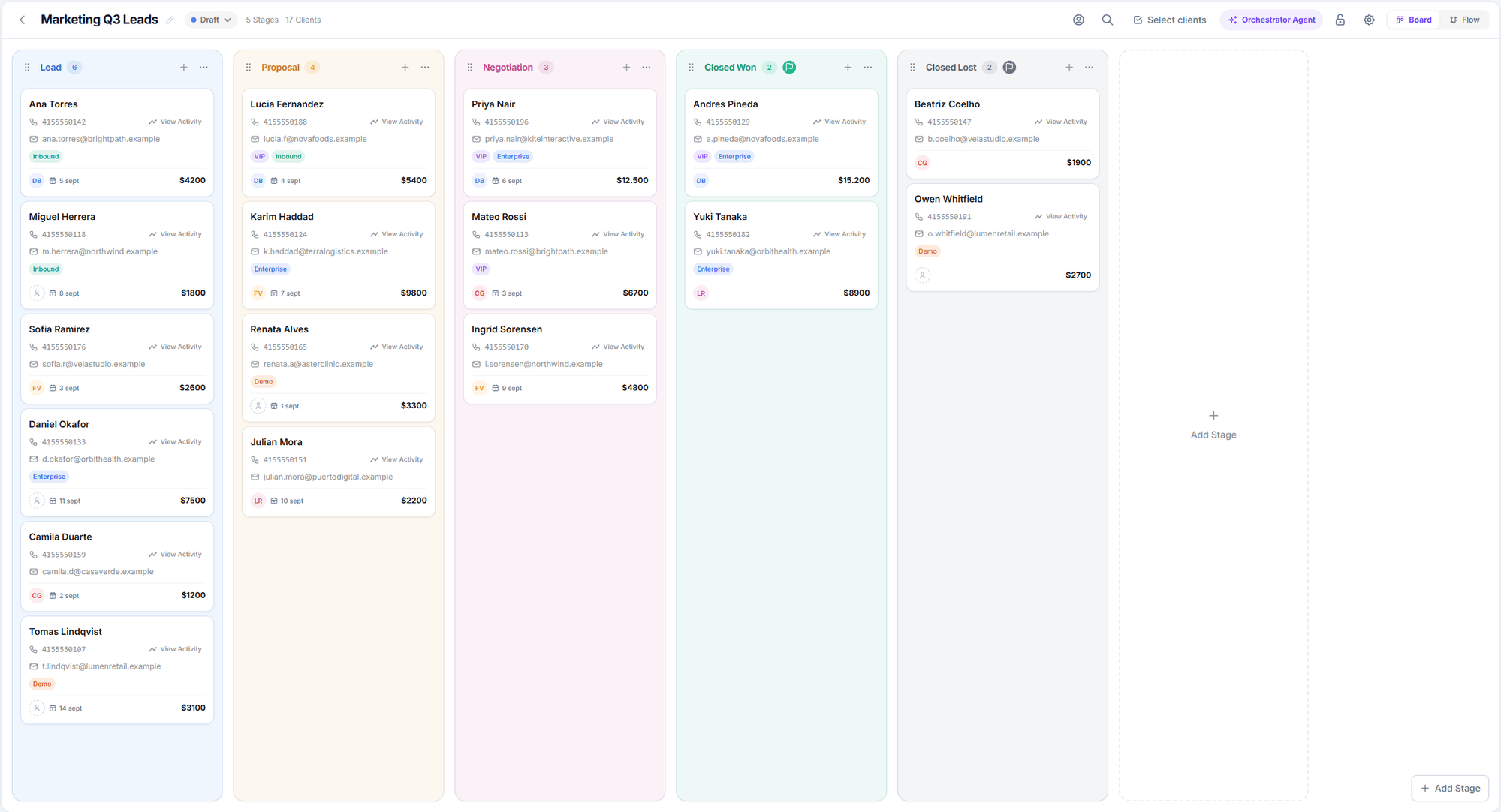
The Kanban view: one column per stage, one card per customer. This is the day-to-day view — where you work leads and move them by hand.
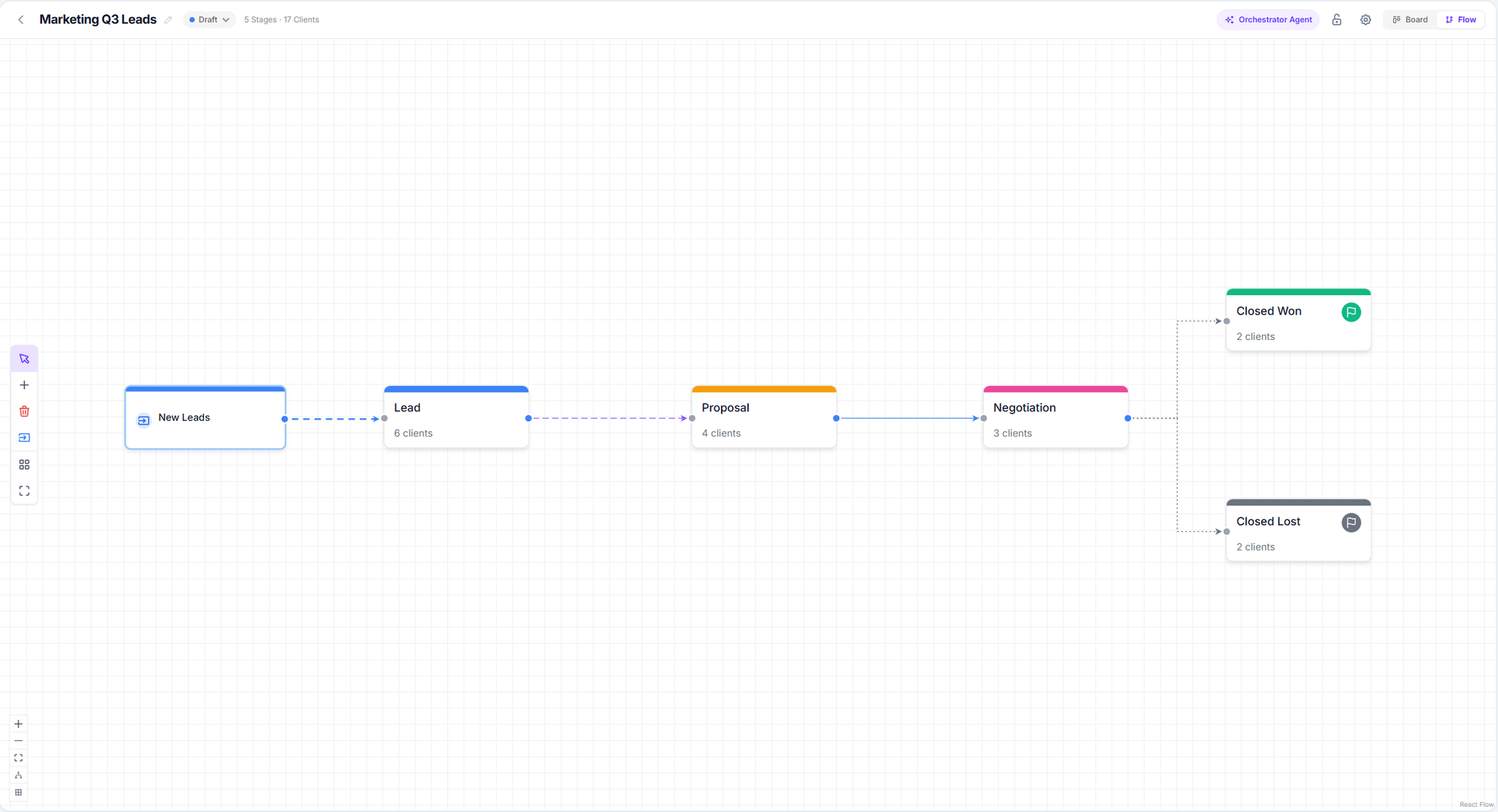
The diagram: stages, input nodes, and the arrows between them. This is the design view — where you define how the pipeline works.
## A lead's journey
An **input node** detects the customer — a call ended, a WhatsApp chat was resolved, a contact was created, a record arrived via API — and places them in a stage.
If you configured an assignment strategy, Salesflow distributes the lead across your team members at that moment.
Every time a conversation ends, the **transitions** leaving its stage are evaluated. Static ones first (exact rules), and if none match, the **orchestrator** AI decides.
On arriving in a stage — or on sitting still too long — that stage's **events** launch **sequences**: call, send a WhatsApp, wait, tag, move.
On reaching a **final stage** it's marked won or lost, and after a few days it becomes **completed**.
## Vocabulary
Worth pinning down these terms before going further — they're used throughout this section and in the interface.
| Term | What it is |
| ---------------- | -------------------------------------------------------------------------------------------------------------------- |
| **Pipeline** | The whole process. You can have as many as you want: sales, support, collections. |
| **Stage** | A column of the pipeline. A customer sits in exactly one stage per pipeline. |
| **Input node** | The doorway: defines which channel customers come from, which filters they must match, and which stage they land in. |
| **Transition** | An arrow between two stages. Defines how that move is allowed (or automated). |
| **Orchestrator** | The AI that reads the conversation and decides whether to move the customer, with a confidence level. |
| **Event** | A trigger inside a stage: on arrival, on departure, after X idle time, when a call or chat ends. |
| **Sequence** | The ordered list of actions an event runs. |
| **Action** | A concrete step: call, send WhatsApp, wait, tag, move stage, call a webhook. |
In older documentation and some internal documents you'll see the words *funnel* and *board*. The correct term, and the one the interface uses, is **pipeline**.
## Two views of the same pipeline
The Kanban view: one column per stage, one card per customer. This is the day-to-day view — where you work leads and move them by hand.
The diagram: stages, input nodes, and the arrows between them. This is the design view — where you define how the pipeline works.
 ## What to read next
From zero to a working pipeline, step by step.
Stage types, colors, closing, and archiving.
How customers enter and with which filters.
The AI that moves leads for you.
## What to read next
From zero to a working pipeline, step by step.
Stage types, colors, closing, and archiving.
How customers enter and with which filters.
The AI that moves leads for you.