> ## Documentation Index
> Fetch the complete documentation index at: https://docs.dialtu.com/llms.txt
> Use this file to discover all available pages before exploring further.
# Stages
> The three stage types, closing deals, and archiving
A stage is a column of your pipeline. A customer sits in **exactly one stage per pipeline** —
they can be in several pipelines at once, but never in two stages of the same one.
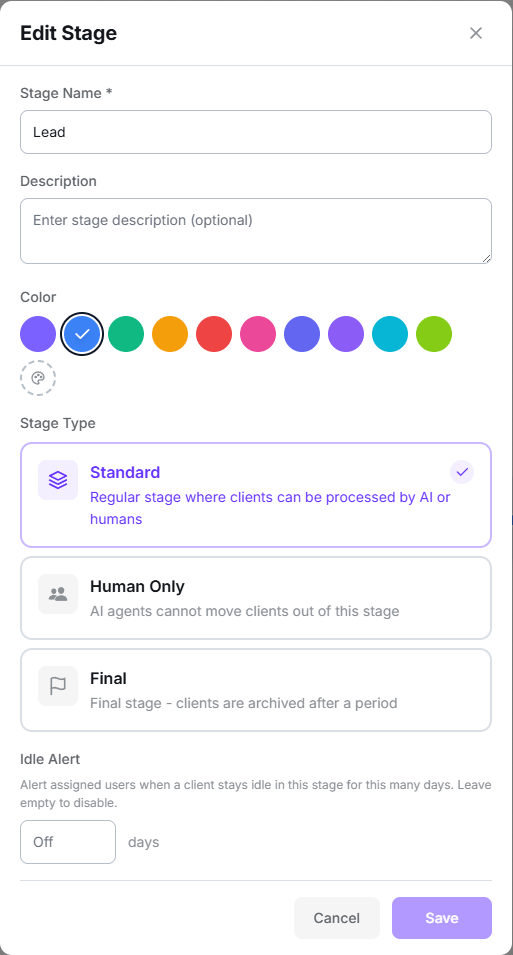 ## The three types
A regular stage where customers can be handled by AI or humans.
Transitions leaving this stage are forced to **manual**.
Closes the deal as won or lost. Cannot have outgoing transitions.
**"Human only" does not pause your AI agents.** The type does exactly two things: it forces
outgoing transitions to be manual, and it notifies pipeline members. A WhatsApp or SMS agent
**will keep replying** to a customer parked in a human-only stage. If you need the AI to stop
answering, pause it from the agent itself or flag the conversation for human handling.
## Final stages: won, lost, and archived
Marking a stage as **Final** reveals two settings:
| Field | What it does |
| ----------------------- | ---------------------------------------------------------------------------------------------- |
| **Outcome type** | **Won** or **Lost**. This is how the close is counted. |
| **Days before archive** | How many days to wait before moving the customer from *active* to *completed*. Defaults to 14. |
A customer reaching a final stage **does not disappear immediately**: they stay visible and
active for the number of days you configure. After that, an automatic process marks them
**completed** and they stop counting as active.
It's standard to have two final stages, `Closed won` and `Closed lost`, so you can measure
conversion. With only one, you lose that distinction.
## Idle alert
The **Idle alert** field promises to notify assigned users when a customer has sat in the
stage too many days.
**This setting does not produce any notification yet.** The field saves and is editable, but
the process that sends the alerts isn't scheduled in production. If you need to react to
stalled customers, use an
[**Idle timer** event](/en/salesflow/events-and-sequences), which does work.
## Order, color, and position
* The **order** of columns in the Board is changed by dragging the column, or from the
**Position** field when creating the stage.
* The **position in the Flow diagram is independent** of the Board order. Moving a stage in
the diagram does not reorder the columns.
* The **color** is picked from eight presets or via **Custom color**. It's purely visual, but
it helps a lot when scanning the board.
## Deleting a stage
When deleting a stage that contains customers, Salesflow forces you to decide what happens to
them:
* **Move customers to** another stage, or
* **Remove all customers from the pipeline** — they're marked as *removed*, not deleted.
Deleting a stage **cannot be undone**, and it takes its transitions and events with it.
## Warning: dead ends
The Flow view shows an amber warning when a stage **has no path to a final stage**. Clicking
it makes the affected stages flash. It's worth keeping at zero: a stage with no exit is a
place where leads get stuck forever.
## Next step
Define how customers reach these stages.
## The three types
A regular stage where customers can be handled by AI or humans.
Transitions leaving this stage are forced to **manual**.
Closes the deal as won or lost. Cannot have outgoing transitions.
**"Human only" does not pause your AI agents.** The type does exactly two things: it forces
outgoing transitions to be manual, and it notifies pipeline members. A WhatsApp or SMS agent
**will keep replying** to a customer parked in a human-only stage. If you need the AI to stop
answering, pause it from the agent itself or flag the conversation for human handling.
## Final stages: won, lost, and archived
Marking a stage as **Final** reveals two settings:
| Field | What it does |
| ----------------------- | ---------------------------------------------------------------------------------------------- |
| **Outcome type** | **Won** or **Lost**. This is how the close is counted. |
| **Days before archive** | How many days to wait before moving the customer from *active* to *completed*. Defaults to 14. |
A customer reaching a final stage **does not disappear immediately**: they stay visible and
active for the number of days you configure. After that, an automatic process marks them
**completed** and they stop counting as active.
It's standard to have two final stages, `Closed won` and `Closed lost`, so you can measure
conversion. With only one, you lose that distinction.
## Idle alert
The **Idle alert** field promises to notify assigned users when a customer has sat in the
stage too many days.
**This setting does not produce any notification yet.** The field saves and is editable, but
the process that sends the alerts isn't scheduled in production. If you need to react to
stalled customers, use an
[**Idle timer** event](/en/salesflow/events-and-sequences), which does work.
## Order, color, and position
* The **order** of columns in the Board is changed by dragging the column, or from the
**Position** field when creating the stage.
* The **position in the Flow diagram is independent** of the Board order. Moving a stage in
the diagram does not reorder the columns.
* The **color** is picked from eight presets or via **Custom color**. It's purely visual, but
it helps a lot when scanning the board.
## Deleting a stage
When deleting a stage that contains customers, Salesflow forces you to decide what happens to
them:
* **Move customers to** another stage, or
* **Remove all customers from the pipeline** — they're marked as *removed*, not deleted.
Deleting a stage **cannot be undone**, and it takes its transitions and events with it.
## Warning: dead ends
The Flow view shows an amber warning when a stage **has no path to a final stage**. Clicking
it makes the affected stages flash. It's worth keeping at zero: a stage with no exit is a
place where leads get stuck forever.
## Next step
Define how customers reach these stages.