> ## Documentation Index
> Fetch the complete documentation index at: https://docs.dialtu.com/llms.txt
> Use this file to discover all available pages before exploring further.
# Transitions
> Manual, static, and orchestrator: how customers move between stages
A transition is an arrow between two stages. It defines **how** that move is allowed and, if
it's automatic, **under which conditions**.
You create one by dragging from a stage's right-hand connector to another stage. Clicking the
arrow opens **Configure Transition**.
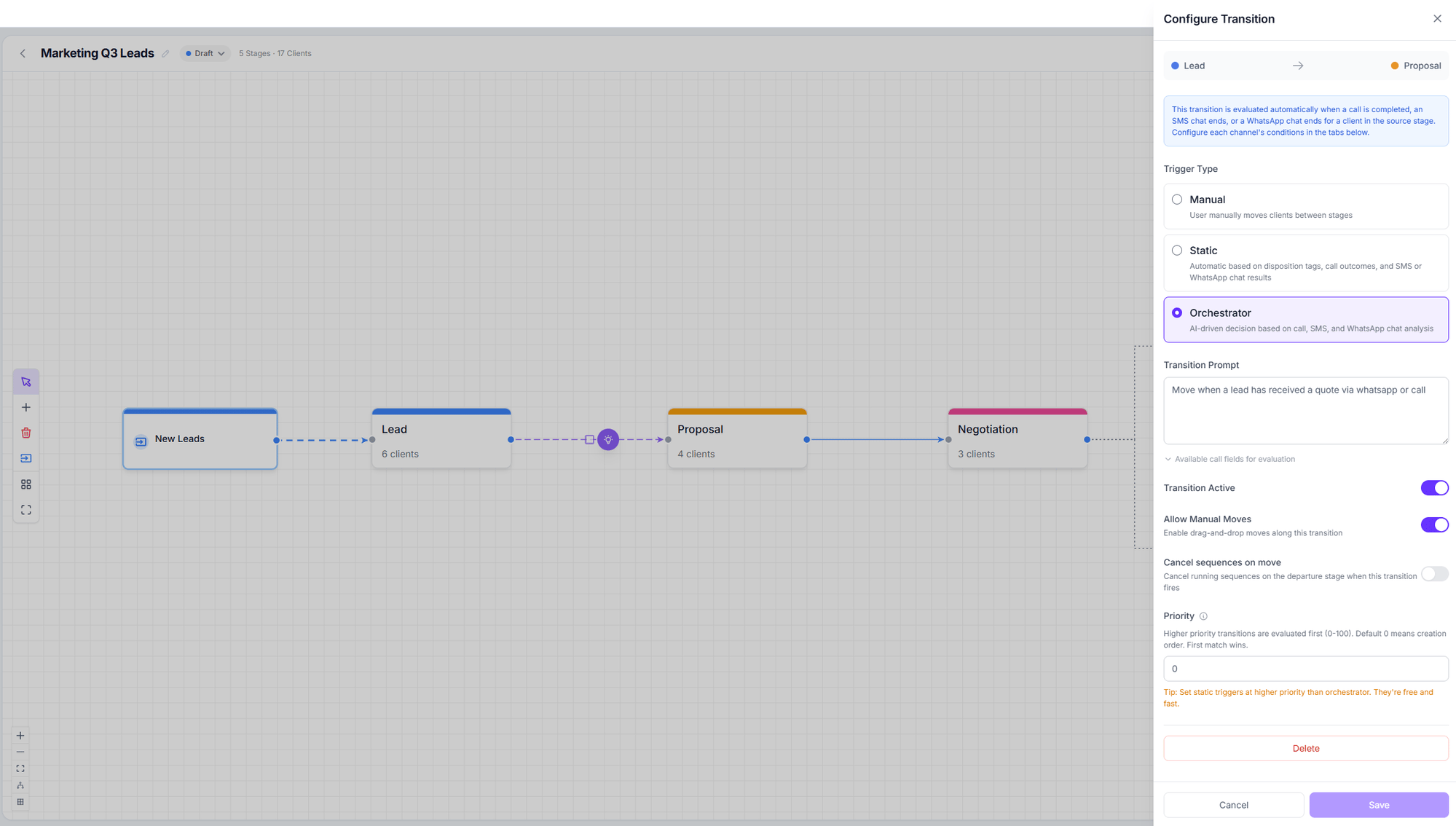 ## The three trigger types
The user moves customers between stages by hand. Grey dotted line.
Automatic, based on exact rules about the call or chat. Solid blue line. Free.
The AI decides, based on a prompt you write. Animated purple line.
All of them are evaluated **when a conversation ends** — a call that completes, an SMS or
WhatsApp chat that finishes — for a customer sitting in the source stage.
## Static transitions
These are exact rules, no AI. They're configured across three independent tabs — **Calls**,
**SMS Chat**, and **WhatsApp Chat** — and **a single transition can fire from any of the three
channels**.
The **Match mode** decides how the filters combine:
* **All filters (AND)** — every filter type must match.
* **Any filter (OR)** — one match is enough.
In both cases, selecting several values within one filter means "any of these".
Disposition tags · Answered by (Human / Voicemail / Unknown / No answer) · Call status
(Completed / Failed / Cancelled) · Call duration (min–max in seconds) · Requires follow-up
· Call ended by (User / Assistant / Error / Transfer / Timeout) · Call direction · Is retry
· Retry count.
Filter by agent · Chat status · Sentiment · Disposition tags · Minimum messages · Has
summary · Match mode.
A static transition **with no conditions** fires on *any* event from that channel. The panel
warns you: *"No conditions configured — any call event will trigger this transition"*.
## Orchestrator transitions
These are configured with a single field: the **Transition prompt**, in natural language.
```text theme={null}
Move the customer when they have explicitly confirmed they have budget allocated
and have given an approximate decision date. Do not move them if they only asked
for pricing information without committing.
```
They're only available if the **Orchestrator Agent** is enabled on the pipeline. See
[The orchestrator](/en/salesflow/orchestrator) for the full detail.
## Priority and evaluation order
The **Priority** field (0–100) orders transitions: higher priority is evaluated first, and
**the first match stops evaluation**. With priority 0, creation order is used.
**Static transitions are always evaluated before orchestrator ones**, regardless of priority.
Priority orders within each group, not between groups. An orchestrator transition with
priority 100 still loses to any static one that matches.
That's intentional — static rules are free and instant — but it explains why sometimes "the
AI didn't decide": it never ran.
## Common options
| Option | What it does |
| ---------------------------- | --------------------------------------------------------------------------- |
| **Transition active** | Turning it off leaves it drawn but inert. |
| **Allow manual moves** | Enables drag and drop along this transition, on top of its automation. |
| **Cancel sequences on move** | Cancels running sequences in the source stage when it fires. On by default. |
| **Priority** | The evaluation order described above. |
## Strict mode
There's a padlock in the top bar. When enabled, **customers can only move between stages that
have a defined transition**.
* **Off** (default) — anyone can drag a card anywhere. Transitions act purely as automation
rules.
* **On** — when dragging, disallowed stages show a padlock and the message **Move not
allowed**.
## Rules when creating transitions
* You cannot create a transition **from a final stage**.
* You cannot create a transition from a stage **to itself**.
* There cannot be **two transitions between the same pair** of stages.
* From a **Human only** stage, the transition is forced to manual.
## Waypoints
**Waypoints** exist so your arrows don't cross each other. They appear when you select a line:
drag the hollow dots to create one, the solid ones to move them, and `Delete` to remove them.
They are **purely cosmetic** and affect no decision.
## Next step
How the AI decides, how to configure confidence, and what it costs.
## The three trigger types
The user moves customers between stages by hand. Grey dotted line.
Automatic, based on exact rules about the call or chat. Solid blue line. Free.
The AI decides, based on a prompt you write. Animated purple line.
All of them are evaluated **when a conversation ends** — a call that completes, an SMS or
WhatsApp chat that finishes — for a customer sitting in the source stage.
## Static transitions
These are exact rules, no AI. They're configured across three independent tabs — **Calls**,
**SMS Chat**, and **WhatsApp Chat** — and **a single transition can fire from any of the three
channels**.
The **Match mode** decides how the filters combine:
* **All filters (AND)** — every filter type must match.
* **Any filter (OR)** — one match is enough.
In both cases, selecting several values within one filter means "any of these".
Disposition tags · Answered by (Human / Voicemail / Unknown / No answer) · Call status
(Completed / Failed / Cancelled) · Call duration (min–max in seconds) · Requires follow-up
· Call ended by (User / Assistant / Error / Transfer / Timeout) · Call direction · Is retry
· Retry count.
Filter by agent · Chat status · Sentiment · Disposition tags · Minimum messages · Has
summary · Match mode.
A static transition **with no conditions** fires on *any* event from that channel. The panel
warns you: *"No conditions configured — any call event will trigger this transition"*.
## Orchestrator transitions
These are configured with a single field: the **Transition prompt**, in natural language.
```text theme={null}
Move the customer when they have explicitly confirmed they have budget allocated
and have given an approximate decision date. Do not move them if they only asked
for pricing information without committing.
```
They're only available if the **Orchestrator Agent** is enabled on the pipeline. See
[The orchestrator](/en/salesflow/orchestrator) for the full detail.
## Priority and evaluation order
The **Priority** field (0–100) orders transitions: higher priority is evaluated first, and
**the first match stops evaluation**. With priority 0, creation order is used.
**Static transitions are always evaluated before orchestrator ones**, regardless of priority.
Priority orders within each group, not between groups. An orchestrator transition with
priority 100 still loses to any static one that matches.
That's intentional — static rules are free and instant — but it explains why sometimes "the
AI didn't decide": it never ran.
## Common options
| Option | What it does |
| ---------------------------- | --------------------------------------------------------------------------- |
| **Transition active** | Turning it off leaves it drawn but inert. |
| **Allow manual moves** | Enables drag and drop along this transition, on top of its automation. |
| **Cancel sequences on move** | Cancels running sequences in the source stage when it fires. On by default. |
| **Priority** | The evaluation order described above. |
## Strict mode
There's a padlock in the top bar. When enabled, **customers can only move between stages that
have a defined transition**.
* **Off** (default) — anyone can drag a card anywhere. Transitions act purely as automation
rules.
* **On** — when dragging, disallowed stages show a padlock and the message **Move not
allowed**.
## Rules when creating transitions
* You cannot create a transition **from a final stage**.
* You cannot create a transition from a stage **to itself**.
* There cannot be **two transitions between the same pair** of stages.
* From a **Human only** stage, the transition is forced to manual.
## Waypoints
**Waypoints** exist so your arrows don't cross each other. They appear when you select a line:
drag the hollow dots to create one, the solid ones to move them, and `Delete` to remove them.
They are **purely cosmetic** and affect no decision.
## Next step
How the AI decides, how to configure confidence, and what it costs.