> ## Documentation Index
> Fetch the complete documentation index at: https://docs.dialtu.com/llms.txt
> Use this file to discover all available pages before exploring further.
# Atlas, testing and going live
> The right panel: build with Atlas, test the draft, check the summary, activate
The right panel of the editor has three tabs — **Atlas**, **Test** and **Summary** — and opens
on Atlas. On narrower screens the three columns of the editor stack vertically.
## Atlas
The first tab. Ask for changes in plain language and Atlas applies them to the agent.
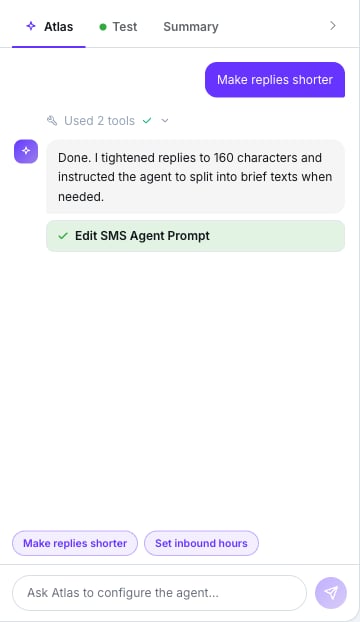 What the editor tab can do:
* **In create mode** it builds the agent from your description and drops you on its page.
* **In edit mode** it updates the name, description, language, model, active state, agent
type, first message, phone number, timezone, schedule, default-agent status (displacing the
current default), auto close message, inactivity timeout, FAQ, variables, prompt text,
attached tools, tags, disposition tags and memory settings.
* The **Make replies shorter** and **Set inbound hours** pills prefill common requests.
* It may ask clarifying questions before acting.
What only the full Atlas chat does: delete agents, and create, update or delete tools — API,
End Chat, Handoff and Send SMS only. Calendar and Integration tools are built in the UI.
**Atlas writes to the saved agent immediately.** It's a publish, like pressing **Update
Agent** — there's no preview step.
**Atlas consumes credits.**
If Atlas changes the agent while you have unsaved edits, a banner appears — *"Atlas updated this
agent — your unsaved edits are still here."* — with **Reload** and **Keep my edits**.
## Test
The second tab. You type as if you were the customer.
What the editor tab can do:
* **In create mode** it builds the agent from your description and drops you on its page.
* **In edit mode** it updates the name, description, language, model, active state, agent
type, first message, phone number, timezone, schedule, default-agent status (displacing the
current default), auto close message, inactivity timeout, FAQ, variables, prompt text,
attached tools, tags, disposition tags and memory settings.
* The **Make replies shorter** and **Set inbound hours** pills prefill common requests.
* It may ask clarifying questions before acting.
What only the full Atlas chat does: delete agents, and create, update or delete tools — API,
End Chat, Handoff and Send SMS only. Calendar and Integration tools are built in the UI.
**Atlas writes to the saved agent immediately.** It's a publish, like pressing **Update
Agent** — there's no preview step.
**Atlas consumes credits.**
If Atlas changes the agent while you have unsaved edits, a banner appears — *"Atlas updated this
agent — your unsaved edits are still here."* — with **Reload** and **Keep my edits**.
## Test
The second tab. You type as if you were the customer.
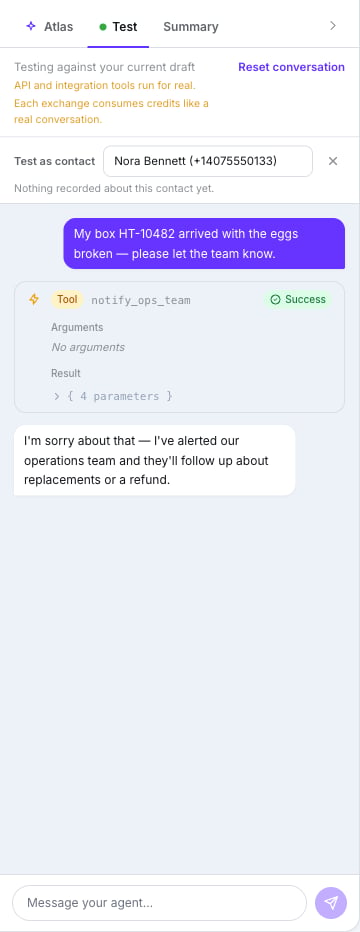 It runs against the **current draft** — unsaved edits included, even before the agent exists:
name, prompt, FAQ, variables, language, model, auto-close message, memory settings and the
selected tools.
**API and integration tools run for real.** Use test data.
**Each exchange consumes credits like a real conversation.** Unlike the WhatsApp test panel,
this one is billed — at your plan's test rate, once, when you leave the editor or reset. See
[What SMS costs](/en/sms-agents/billing).
* **Test as contact** — pick a real contact to test with their memory and past conversations.
The row then reads *"Memory: …"* or *"Nothing recorded about this contact yet."* It only
appears if you can read clients and their notes.
* **Send SMS** is simulated: no real text leaves.
* When the agent ends or hands over, a pill marks the spot — *"The agent ended the
conversation here."* or *"The agent handed the conversation to a human here."* — and the
composer reads *"This conversation has ended — the agent has no way back from here. Reset to
test again."* Press **Reset conversation** to start over.
## Summary
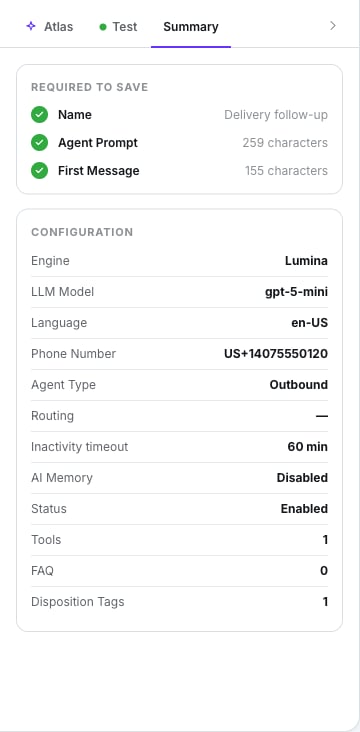
The third tab. The checklist — **Required to create** or **Required to save** — lists **Name**,
**Agent Prompt** (with its character count) and, for an outbound agent, **First Message**.
Below it, a **Configuration** recap: Engine (Lumina), LLM Model, Language, Phone Number, Agent
Type, Routing, Inactivity timeout, AI Memory, Status, Tools, FAQ and Disposition Tags.
It runs against the **current draft** — unsaved edits included, even before the agent exists:
name, prompt, FAQ, variables, language, model, auto-close message, memory settings and the
selected tools.
**API and integration tools run for real.** Use test data.
**Each exchange consumes credits like a real conversation.** Unlike the WhatsApp test panel,
this one is billed — at your plan's test rate, once, when you leave the editor or reset. See
[What SMS costs](/en/sms-agents/billing).
* **Test as contact** — pick a real contact to test with their memory and past conversations.
The row then reads *"Memory: …"* or *"Nothing recorded about this contact yet."* It only
appears if you can read clients and their notes.
* **Send SMS** is simulated: no real text leaves.
* When the agent ends or hands over, a pill marks the spot — *"The agent ended the
conversation here."* or *"The agent handed the conversation to a human here."* — and the
composer reads *"This conversation has ended — the agent has no way back from here. Reset to
test again."* Press **Reset conversation** to start over.
## Summary
The third tab. The checklist — **Required to create** or **Required to save** — lists **Name**,
**Agent Prompt** (with its character count) and, for an outbound agent, **First Message**.
Below it, a **Configuration** recap: Engine (Lumina), LLM Model, Language, Phone Number, Agent
Type, Routing, Inactivity timeout, AI Memory, Status, Tools, FAQ and Disposition Tags.
 ## Going live
**Saving publishes immediately.** There's no server-side draft and no version history —
*Draft saved* is a browser autosave.
The control is the **Active / Paused** toggle in the top bar. A paused agent isn't picked for
new inbound texts and can't start chats.
**Duplicate** lives on the agent list, not in the editor. It asks for a **New Agent Name**, a
**Phone Number** (required if the source is inbound) and, for inbound copies, **Default Agent**
or **Time-Based Routing**.
**The copy does not inherit the LLM model or the memory settings.** Set them again on the
duplicate.
**Delete**, also on the list, warns you: *"This action cannot be undone."*
For big changes to a live agent, **duplicate** it, work on the copy, then swap which one is
**Active**.
## What doesn't exist
* **Version history** or rollback.
* **Knowledge base** or document upload.
* **Analytics inside the editor** — they're under **Analytics → SMS Statistics**.
* **Bulk actions** on the agent list.
* **Changing the engine.**
## Next step
Where you watch it work — and step in.
## Going live
**Saving publishes immediately.** There's no server-side draft and no version history —
*Draft saved* is a browser autosave.
The control is the **Active / Paused** toggle in the top bar. A paused agent isn't picked for
new inbound texts and can't start chats.
**Duplicate** lives on the agent list, not in the editor. It asks for a **New Agent Name**, a
**Phone Number** (required if the source is inbound) and, for inbound copies, **Default Agent**
or **Time-Based Routing**.
**The copy does not inherit the LLM model or the memory settings.** Set them again on the
duplicate.
**Delete**, also on the list, warns you: *"This action cannot be undone."*
For big changes to a live agent, **duplicate** it, work on the copy, then swap which one is
**Active**.
## What doesn't exist
* **Version history** or rollback.
* **Knowledge base** or document upload.
* **Analytics inside the editor** — they're under **Analytics → SMS Statistics**.
* **Bulk actions** on the agent list.
* **Changing the engine.**
## Next step
Where you watch it work — and step in.