

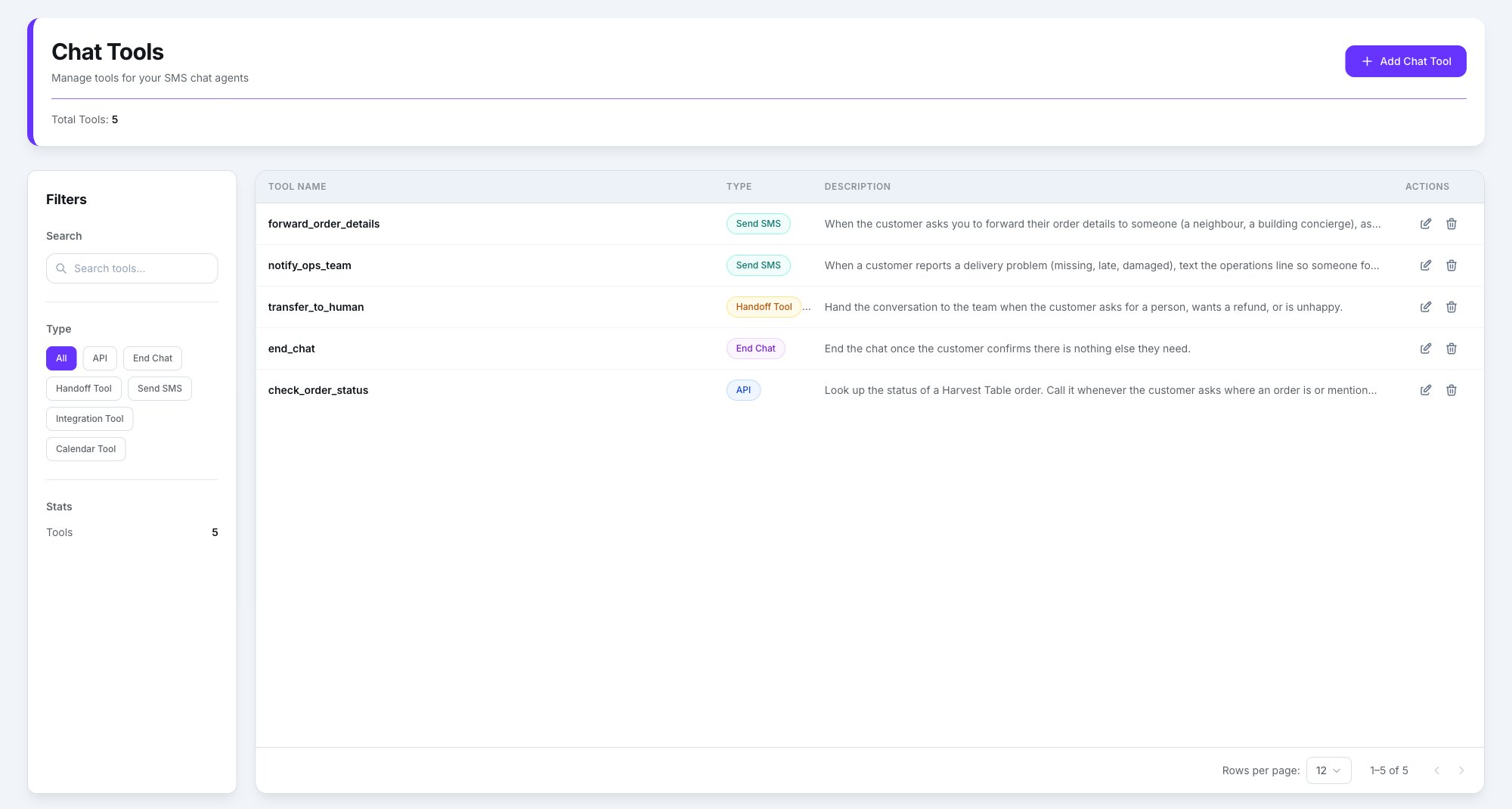
The account's SMS tool library
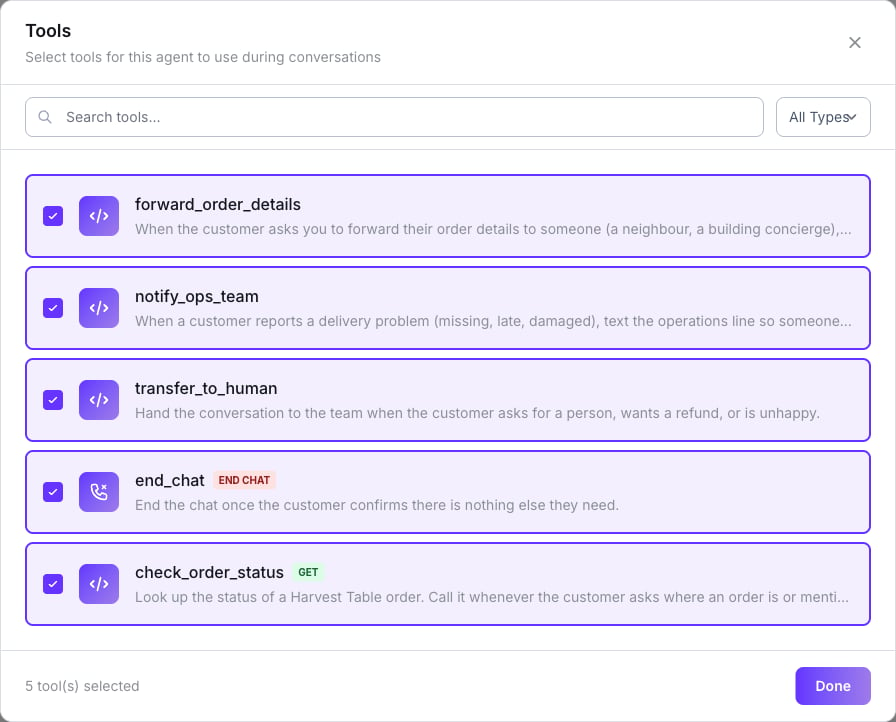
Tick what this agent needs
The window lists every SMS tool on the account, with no engine filter.
Saving the agent sends the full list of attached tools. If you open the window and untick one
by accident, it’s detached on save.
Types available on Lumina
There are no WhatsApp templates or catalog here. Transfer, end call and agent swap
are voice-only; the chat equivalent of a transfer is Handoff.
The builder
Three columns, like the agent editor:- Configure rail on the left — the Tool type cards, an Alias (shown in analytics and reports instead of the raw tool name), and a section specific to the type.
- The centre pane for the tool’s content.
- Summary on the right — a checklist of what’s missing, a recap (including Channel: SMS), and a tip.
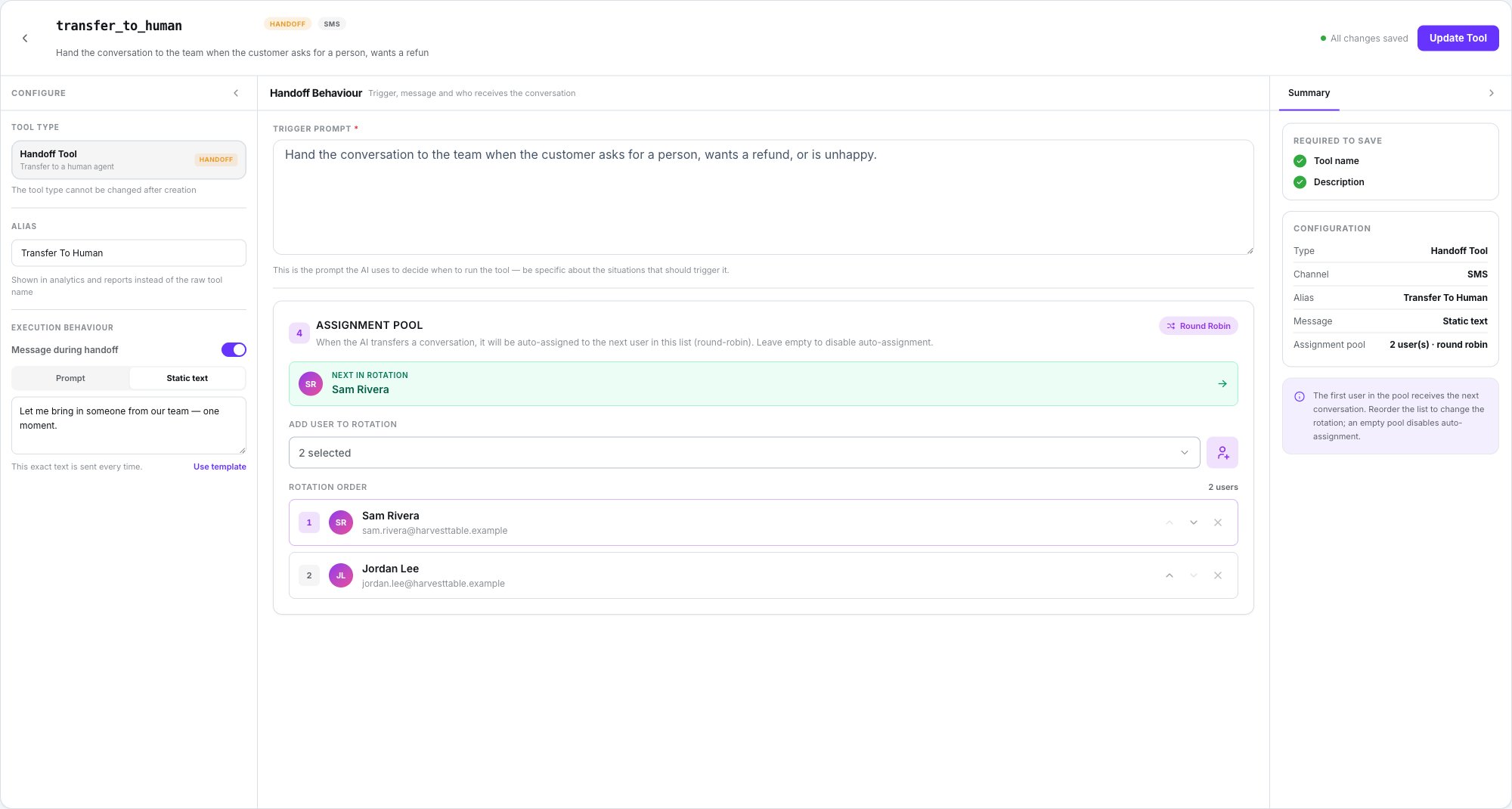
A Handoff tool: trigger prompt, assignment pool and summary
End Chat
The Trigger prompt says when the conversation should end. What the customer reads, in order of preference:- The model’s own goodbye.
- The agent’s Auto Close Message, if set.
- A generated goodbye.
- The fallback: “Thanks for getting in touch! If you need anything else, just text us back.”
Handoff
The Trigger prompt says when to hand over. The customer sees the model’s handover sentence, or a generated one. What happens behind the scenes:- The assignee is picked round-robin from the tool’s assignment pool. Inactive users are skipped; an empty pool leaves the conversation unassigned.
- A system note is written on the thread.
- The session becomes Human handling and is flagged Transfer in Conversations.
- An internal AI summary is written for the team. It’s never sent to the customer.
The Conversations inbox
Where the handed-over thread lands, and how to reply.
API
{{token}}s in the URL, params, headers or body become inputs the AI fills. The HTTP
timeout goes from 1,000 to 600,000 ms. The variables strip under the pane shows inputs in
blue and values extracted from the response in green.
Integration and Calendar
There’s one integration provider, AgendaPro, and the Dialtu team makes the connection — there’s no self-serve screen. Ask your Dialtu contact before going live.- Integration results are summarised for the customer in one short sentence, never a list.
- Calendar labels follow the agent’s Language setting.
Fields Lumina ignores
Limits
- At most 3 tool calls per turn.
- With Use memory and Deep recall on, the agent also gets a built-in previous-conversations search on top of the tools you attach.
What doesn’t exist
- WhatsApp templates or a catalog.
- An engine filter or warning in the Tools window.
- Changing a tool’s type — the builder says so under the type card: “The tool type cannot be changed after creation.” Create a new tool instead.
Next step
The Send SMS tool
The one tool that’s SMS-only.