

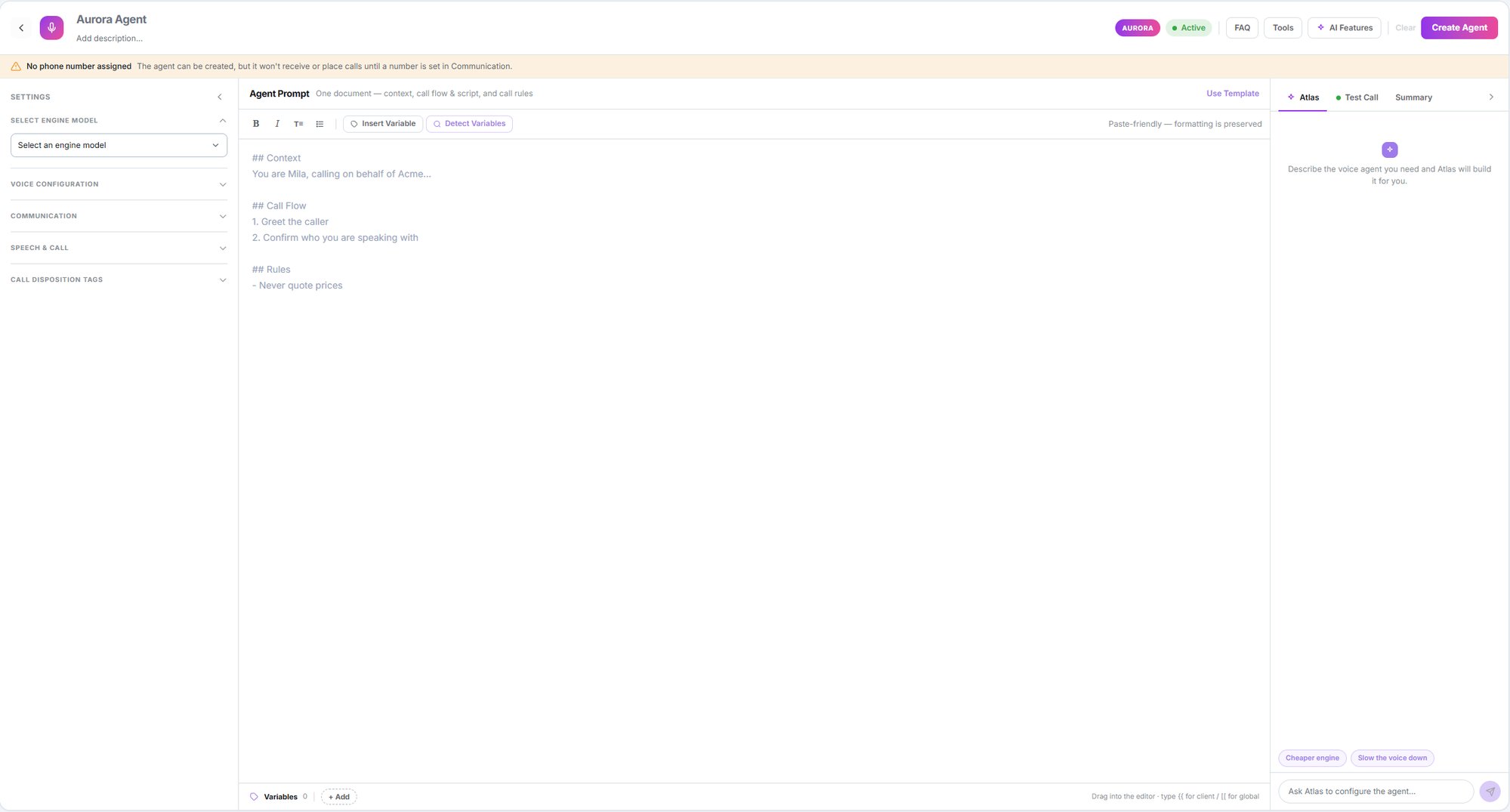
The voice agent editor: settings, prompt and right panel
The engine: Aurora
New voice agents use the Aurora engine. It’s the only one available: the previous engine, Solara, is marked Not available when creating an agent and remains active only for agents that already used it. This whole section describes Aurora agents.What a voice agent can do
Answer inbound calls
With time-based routing: several agents can share one number as long as their hours don’t overlap.
Place calls
From campaigns, from Salesflow, or one at a time.
Run actions
Call an API, book on your calendar, transfer the call, hang up — or even send a WhatsApp mid-call.
Classify and extract
On hang-up it tags the call, can create the contact automatically, and can detect whether follow-up is needed.
The editor at a glance
Creating or opening an agent drops you straight into the editor. There’s no step-by-step wizard — it’s a single screen with three columns.
The top bar holds the name, the Active / Paused state, the estimated per-minute price, and the FAQ, Tools and AI Features buttons.
Both side columns collapse, and the editor remembers how you left them.
What to know before you start
There’s also no version history — you can’t roll back to an earlier configuration. If you’re making big changes to an agent that’s handling live calls, consider duplicating it and working on the copy.
Suggested path
Create your first voice agent
The minimum fields to get an agent that can call.
The prompt and variables
How you instruct it and how to personalise per customer.
Voice, call and AI features
Language, voice, silence, voicemail, and post-call extraction.
Tools
The seven tool types and how they attach to an agent.
Test and activate
The test panel and how an agent goes live.
Phone numbers
How to get the number the agent needs in order to call.