

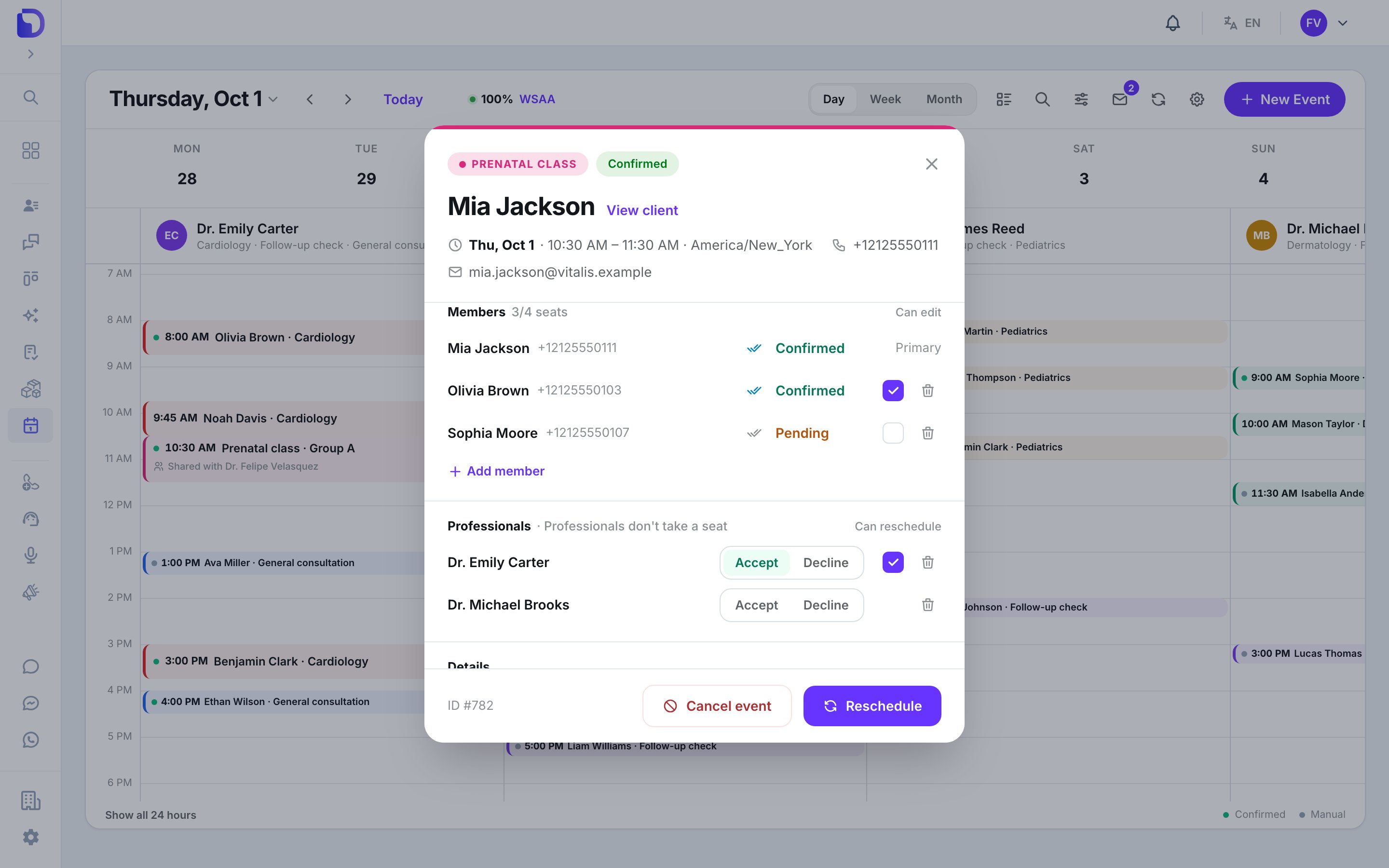
A group appointment with members and professionals
Members and professionals
Each member row shows their answer — Confirmed, Pending, Declined or Maybe — and delivery ticks for the WhatsApp messages they were sent.
Book a group
In + New Event, open Group & guests (optional):Set a maximum capacity
Maximum capacity — 2 or more turns the appointment into a group with that many client seats. Leave it empty for a single client. A group appointment needs a capacity of at least 2.
Add guests
Search an existing contact (Add an existing contact…) or type a New guest name and Phone. New guests need a phone so they can get the appointment messages.
Add professionals
Additional professionals lists the other members of the selected service. Each one gets an invitation.
Save
Everything is booked together, or nothing is: Some participants couldn’t be added, so nothing was booked.
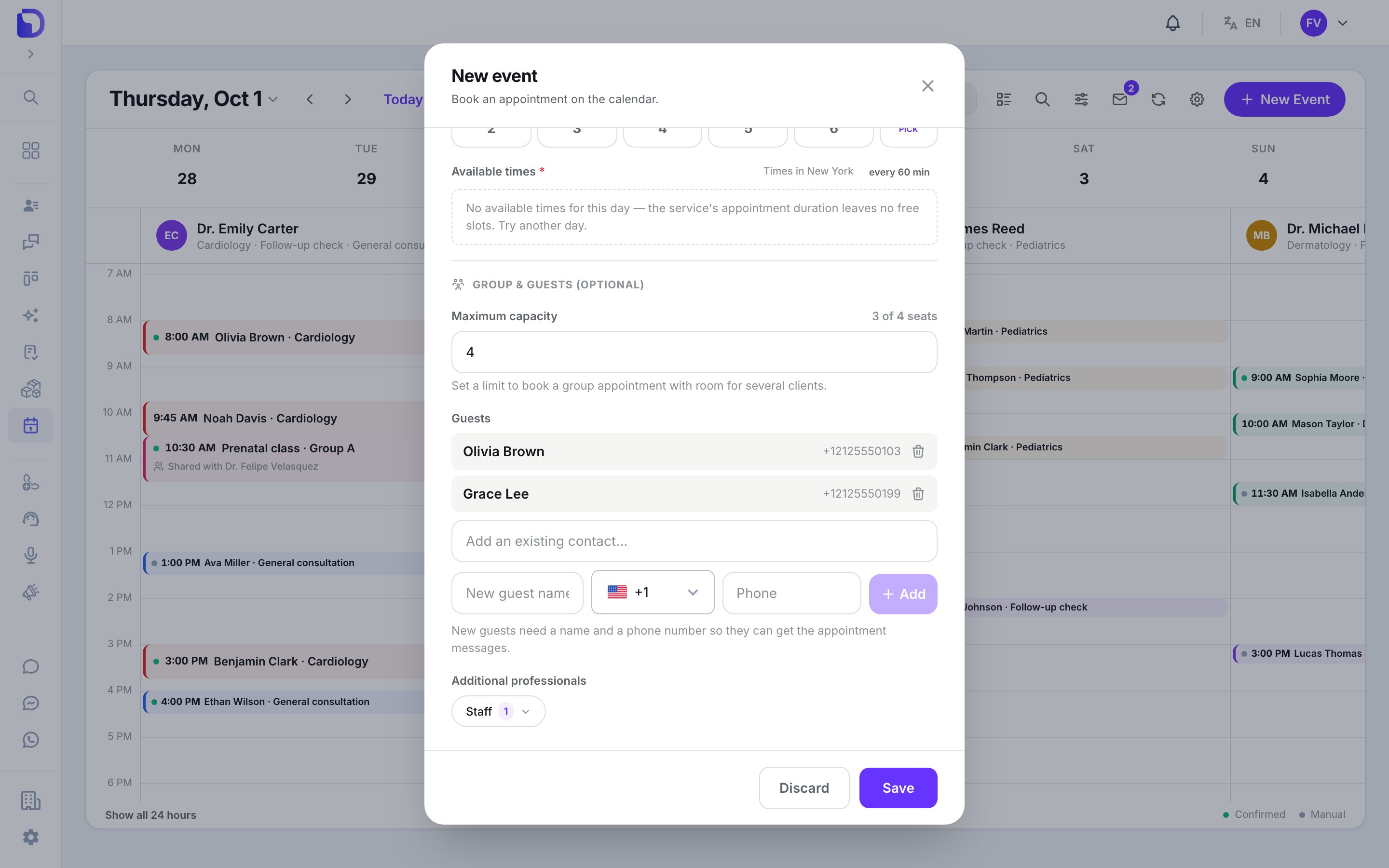
Group & guests in the New Event window
Seats
- The header of Members reads booked/max seats — e.g. 3/4 seats. The booker counts as a seat.
- On the agenda, a group card carries a 3/4 badge; hover reads 3 of 4 seats taken. When every seat is taken: Group full (3/3).
- A member who declines frees their seat.
- Adding someone to a full group is refused: This appointment is full — no seats left.
- Without a capacity there’s no seat limit.
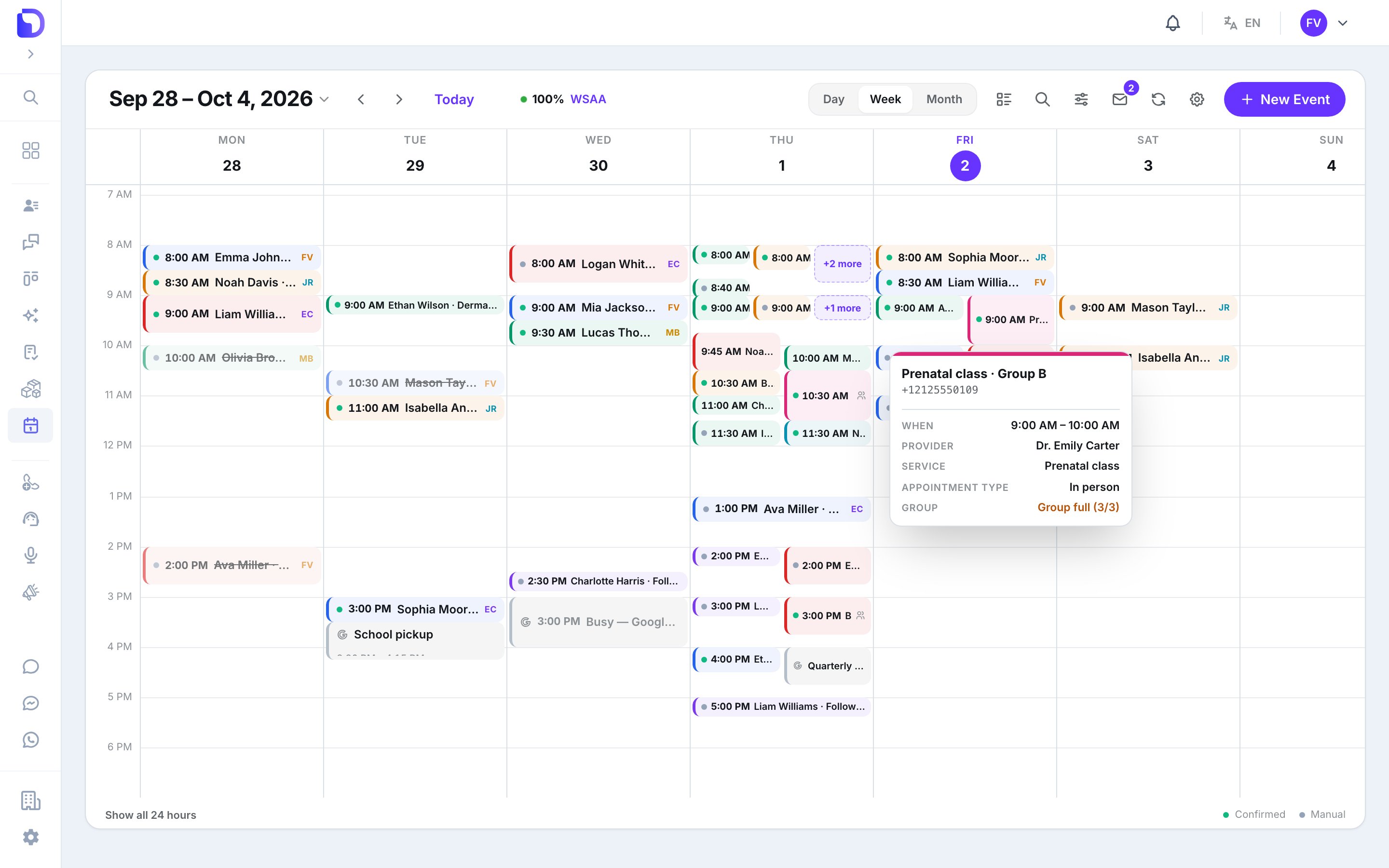
A group with every seat taken
Add or remove people after booking
Open the appointment.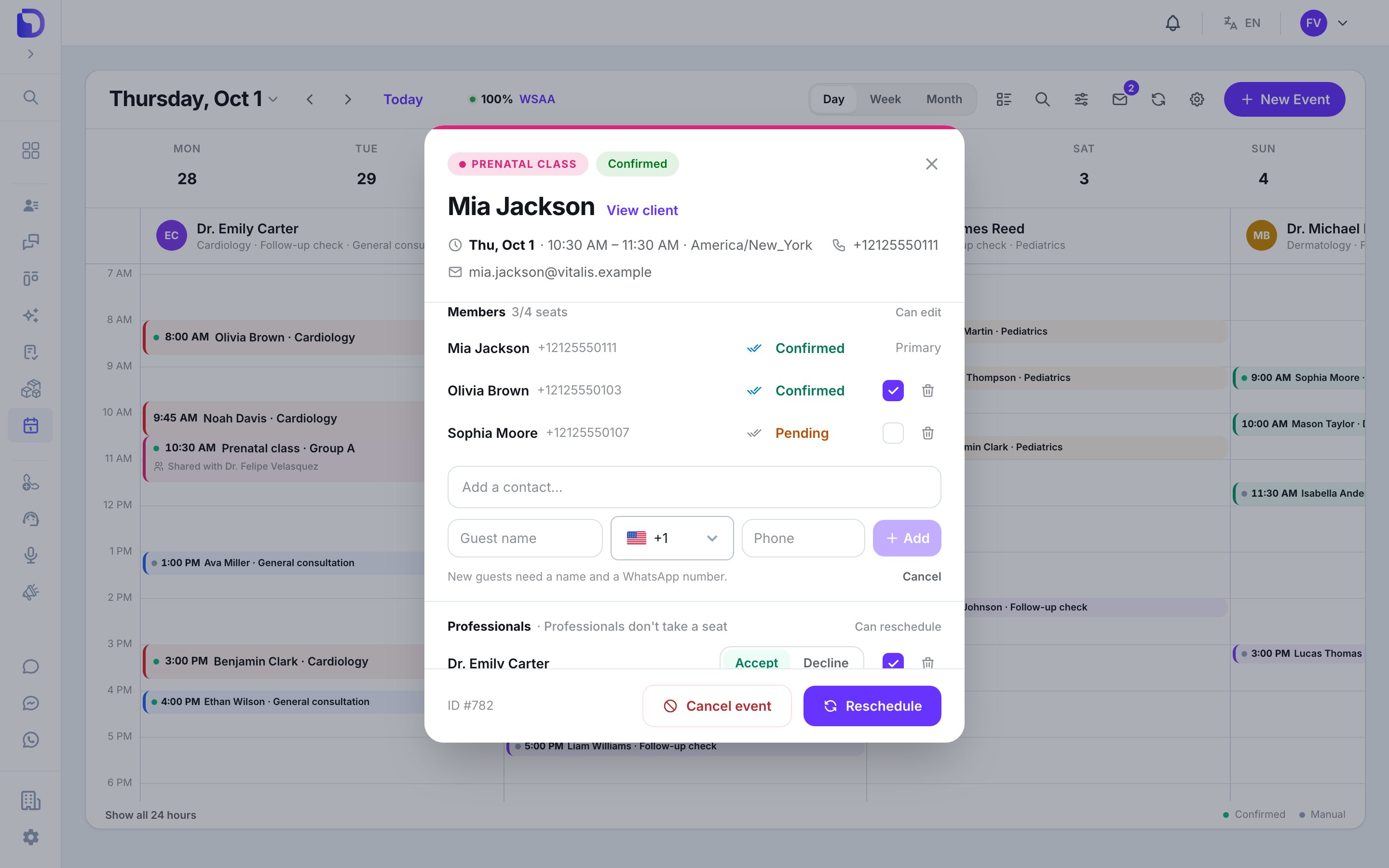
Adding a member to an existing appointment
Adding and removing people is for organizers — the appointment’s main professional or a calendar Admin.
A new guest gets the appointment’s confirmation message (if confirmations are on) when they join. People who declined or were removed get no further notices.
Permissions on a row
Only organizers change these checkboxes.
Delivery ticks and answers
Each member row shows ticks for the last WhatsApp message sent to that person. Hover them for the kind — Reminder, Reschedule notice, Cancellation notice, Confirmation — and the state: sent, delivered, read or failed (with the error code). The answer (Confirmed, Declined…) changes only when the person taps a button on a confirmation message, or when they tell an AI agent they’re leaving.What AI agents can do
With the matching calendar tool capabilities:
All three are on by default on a new calendar tool.
What doesn’t exist
Next step
Invitations and shared appointments
How co-professionals receive, accept and leave appointments.