

The orchestrator is not an agent running all the time. It wakes up when a conversation
ends, evaluates that customer, and goes back to sleep. It consumes nothing while there’s no
activity.
When it runs
It fires when a conversation ends on any of the three channels:
Evaluations are processed every minute, so roughly up to 1 minute passes between the end
of the conversation and the card moving.
How it decides
For each customer, the orchestrator takes all the orchestrator transitions leaving their current stage and evaluates them in a single query, picking the best one — or none. What the AI sees:- The name and description of the pipeline and of the source and target stages.
- Each transition’s prompt as the criterion to evaluate.
- The conversation data: for chat, the last 20 messages, plus summary, sentiment, status, and disposition; for voice, the full transcript and ~27 call fields.
- The customer: name, company, and their tags.
- Their recent journey: the last 5 stage moves.
Enabling and configuring it
The orchestrator is enabled per pipeline, from Orchestrator Agent in the top bar.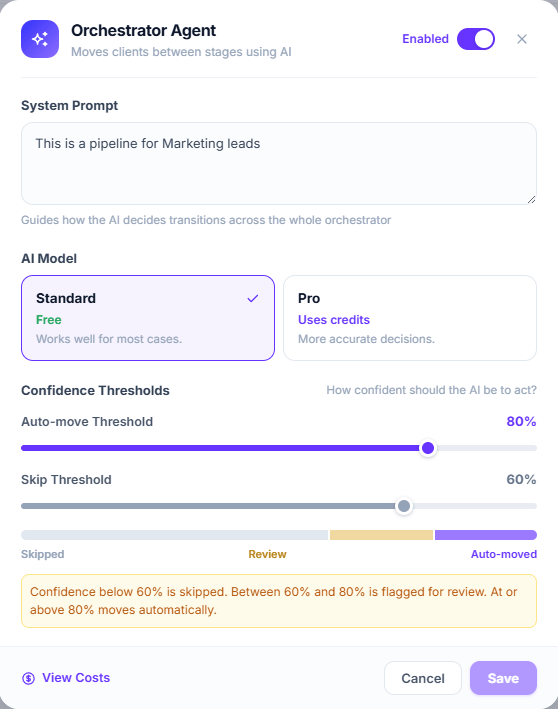
Orchestrator Agent configuration
System prompt
Instructions that apply to all transitions in this pipeline. This is the place for the business context that doesn’t change:AI model
Confidence thresholds
The AI returns a confidence from 0 to 100%. Two thresholds split it into three zones:
Defaults: skip 60%, auto-move 80%.
What it costs
- Standard is genuinely free. No credits are deducted and no transaction is created.
- Pro consumes credits, and only when the customer actually moves. A Pro evaluation that decides don’t move is not charged.
- Before each Pro evaluation your balance is checked. Without enough credits, the evaluation is logged as Insufficient credits and doesn’t run.
The costs modal is labeled “Last 30 days”, but it actually shows the complete history
since you enabled the orchestrator.
Writing good transition prompts
A transition’s prompt describes the criterion for that specific jump. Some rules that work:Be concrete about evidence, not intent
Be concrete about evidence, not intent
Bad:
Move if the customer is interested.Good: Move if the customer asked for a demo, gave a date to meet, or asked about specific pricing for their case.Say when NOT to move, too
Say when NOT to move, too
The orchestrator is conservative by default, but explicit exclusions prevent the most
expensive false positives:
Do not move if they only asked for the catalog, or if they said they'd get back in touch later.One transition, one criterion
One transition, one criterion
If a prompt tries to cover three different situations, confidence drops and the customer
ends up in the skip zone. Create separate transitions.
Keep the generic parts in the System prompt
Keep the generic parts in the System prompt
Tone, business context, and shared definitions go once in the system prompt, not repeated
in every transition.
An orchestrator transition with an empty prompt is still evaluated: the AI receives it as
“no criteria specified”. It doesn’t error and it isn’t skipped.
Things worth knowing
Pausing the pipeline does NOT stop the orchestrator
Pausing the pipeline does NOT stop the orchestrator
Input nodes and idle timers respect the pipeline status, but transitions don’t. A paused
pipeline — or even a deleted one — keeps evaluating and moving customers, and on the Pro
tier keeps spending credits.To genuinely stop AI-driven movement, disable the Orchestrator Agent.
Static transitions always go first
Static transitions always go first
If a static transition matches, the orchestrator doesn’t even run. This is the most common
reason for “the AI did nothing”.
There's no agent filter
There's no agent filter
Unlike static transitions, orchestrator ones cannot be limited to certain agents. Any
conversation that ends, from any agent, triggers evaluation. Pausing an agent doesn’t
prevent it either.
Moving doesn't reassign
Moving doesn't reassign
The lead’s owner is assigned on entering the pipeline and doesn’t change when the
orchestrator moves them. A lead the AI pushes all the way to a closing stage keeps whoever
was assigned at the start, or nobody.
If the AI fails
If the AI fails
Provider errors aren’t shown raw: you’ll see Evaluation Error in the history. On WhatsApp
and SMS the event is retried automatically; on voice there is no retry, even though the
message says otherwise.
Seeing what it decided and why
Every evaluation is logged, whether the customer moved or not. From the card, under Processing History, you’ll see the result, the confidence, and the reasoning in plain text.History and troubleshooting
How to read the history and what to do when a lead doesn’t move.