Availability is set per professional: open their profile under Calendar → Settings → Profiles and choose the Availability tab. A View-Own user edits their own from the same place.
No calendar service assigned blocks the whole tab. Add the professional to at least one service first — every block belongs to a service.

Weekly hours

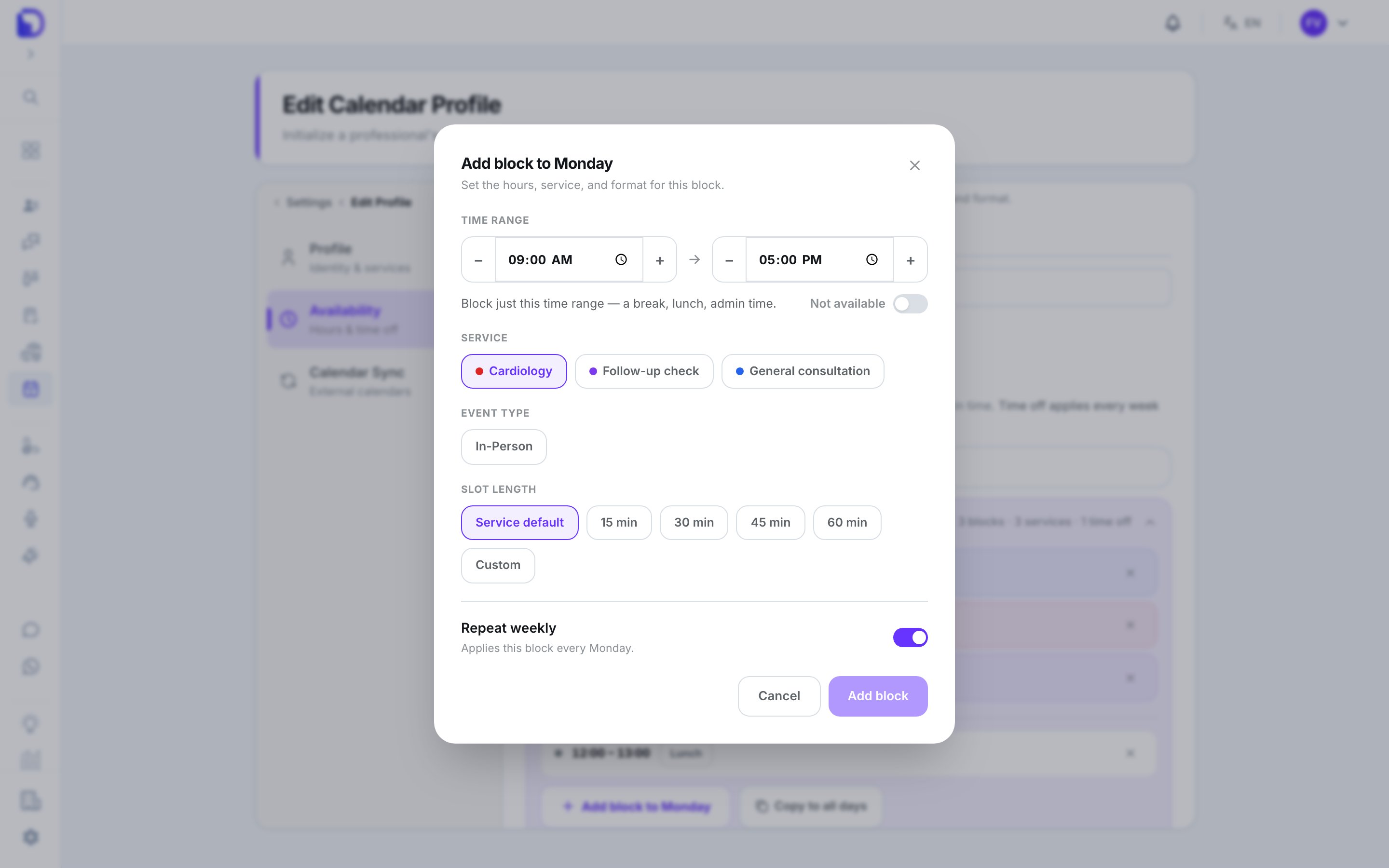
Edit Calendar Profile Availability section on the 'Weekly hours' tab showing the America/New_York timezone, a Sep 14 – 20, 2026 week selector, a service legend (Cardiology, Follow-up check, General consultation) and the Monday card with blocks 8:00–12:00 General consultation In-Person/Video call, 14:00–17:00 Cardiology In-Person, 17:00–18:00 Follow-up check Call/Video call and a 12:00–13:00 Lunch time off.

Weekly hours with stacked blocks and lunch

One row per weekday with an Unavailable switch. Expand a day to see its blocks. Stack as many blocks as you like — different services can even overlap in time.

A block

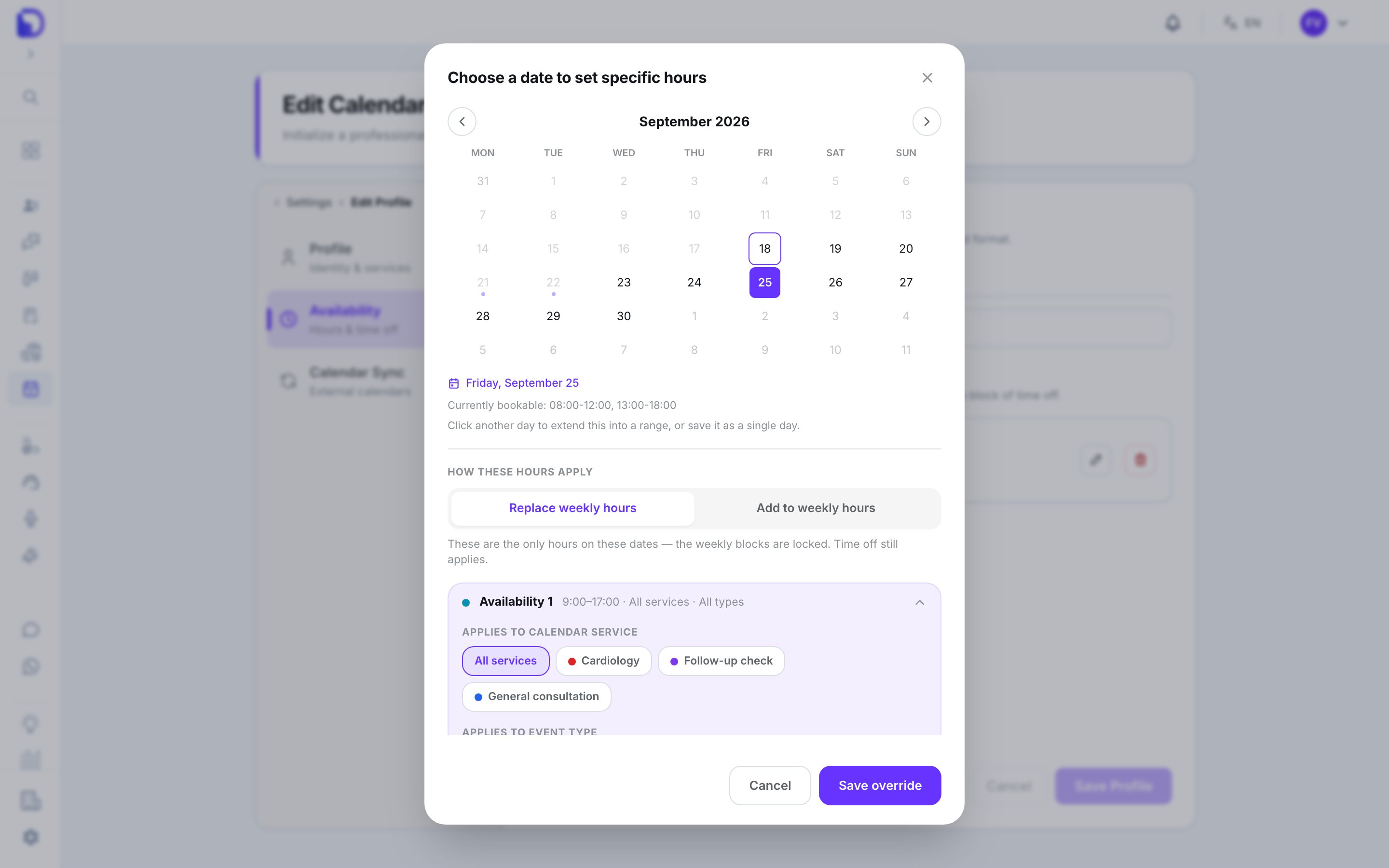
'Add block to Monday' modal over the Edit Calendar Profile Availability tab with a 09:00 AM to 05:00 PM time range, a 'Not available' toggle, service chips Cardiology, Follow-up check and General consultation, an In-Person event type, slot length options (Service default, 15, 30, 45, 60 min, Custom), a Repeat weekly switch and Cancel / Add block buttons.

Adding a weekly availability block

Breaks apply to every service and every week, even on dates with their own specific hours. Slots are cut by the slot length — there’s no separate grid step.

Date-specific hours
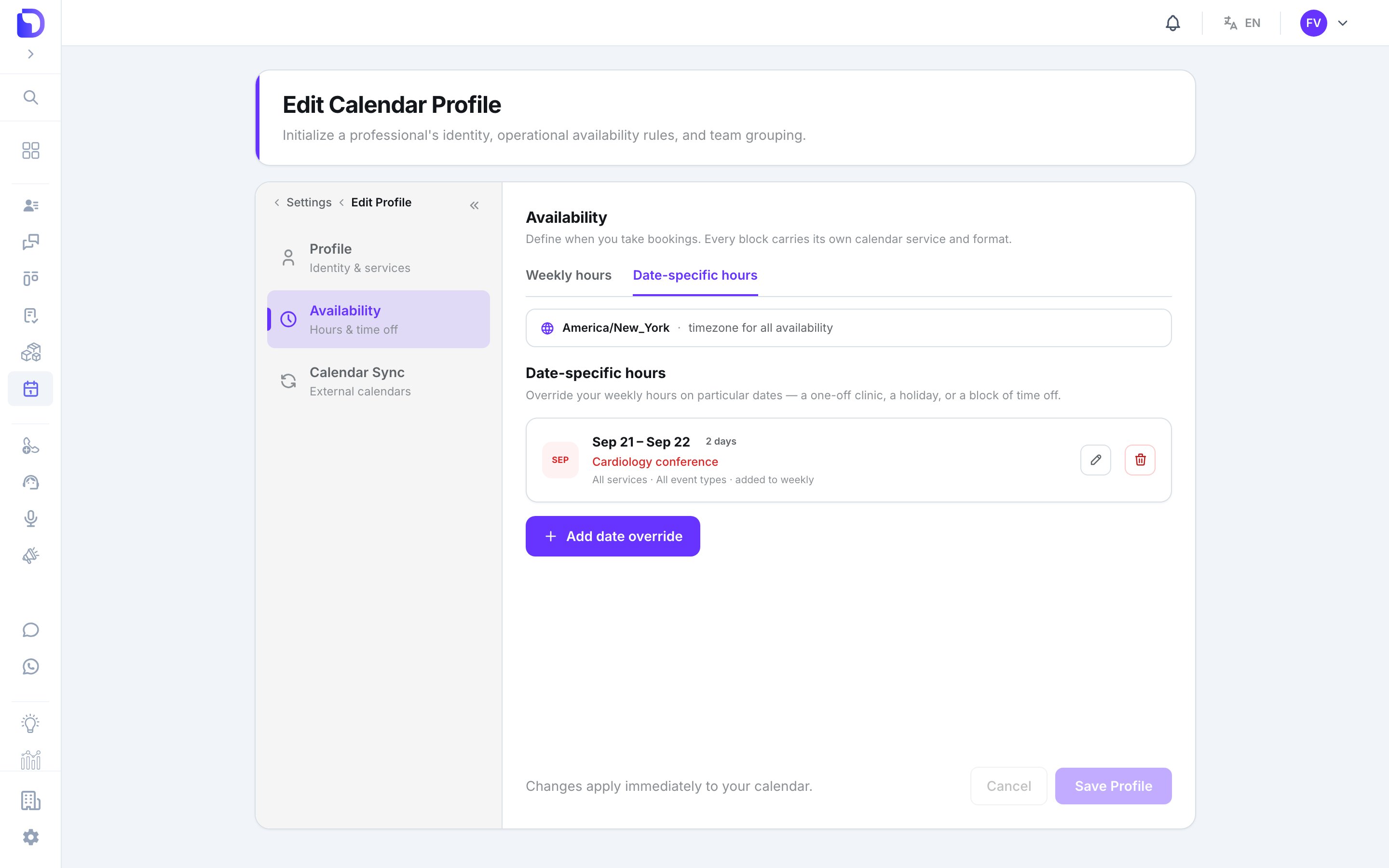
Edit Calendar Profile Availability section on the 'Date-specific hours' tab showing the America/New_York timezone banner and one override card 'Sep 21 – Sep 22 · 2 days · Cardiology conference · All services · All event types · added to weekly' with edit and delete icons and an 'Add date override' button.

Date-specific hours override list

Override your weekly hours on particular dates — a one-off clinic, a holiday, or a block of time off. Add date override opens the editor:
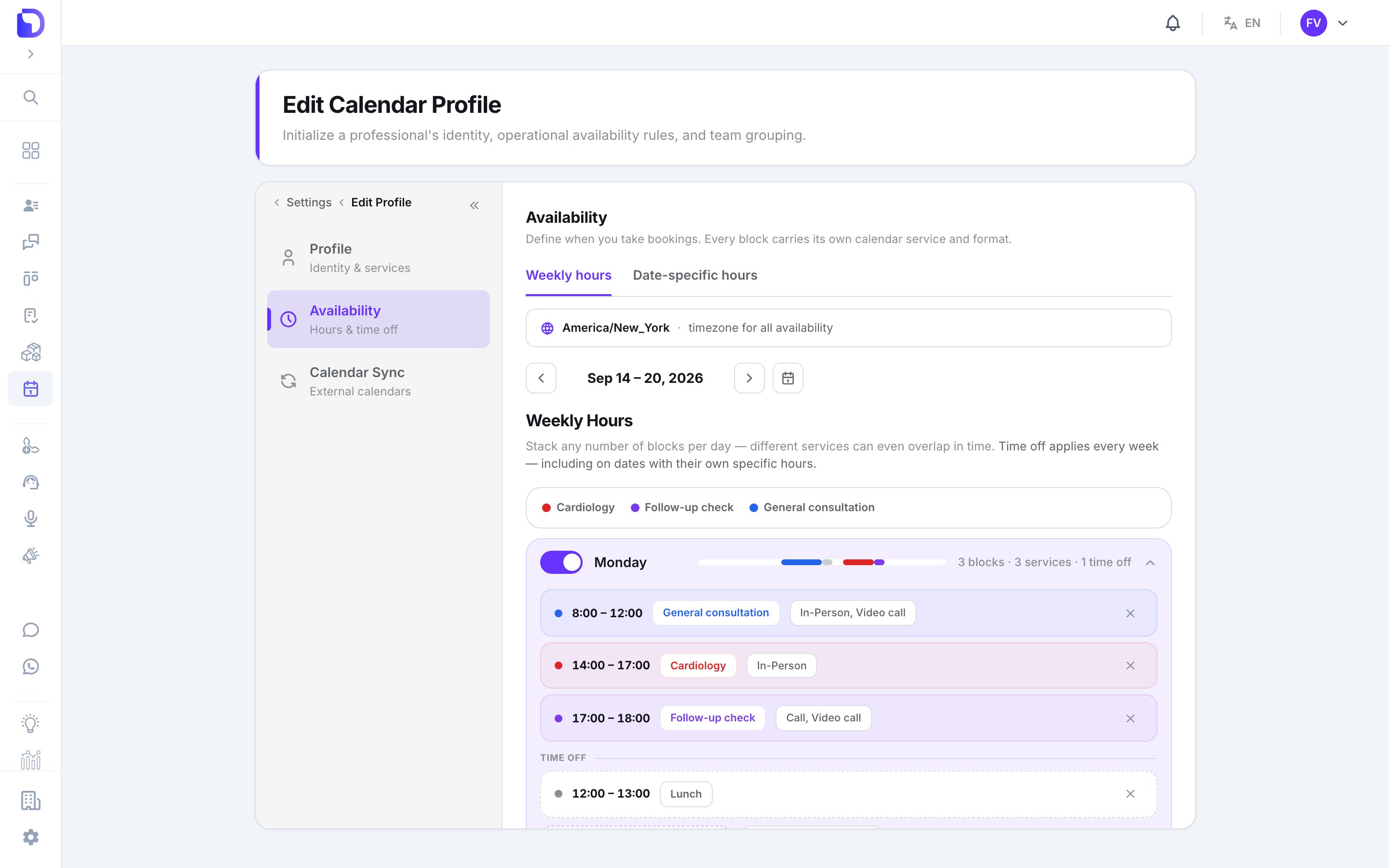
'Choose a date to set specific hours' modal with a September 2026 mini calendar where Friday, September 25 is selected, 'Currently bookable: 08:00-12:00, 13:00-18:00' info, a 'Replace weekly hours / Add to weekly hours' toggle, an 'Availability 1 9:00–17:00 · All services · All types' block with service chips, and Cancel / Save override buttons.

Editing a date override for September 25

  • Pick one day, or click twice for a rangeSaved as one record covering every day in the range.
  • Mark unavailable — the whole day, or specific time ranges.
  • Or give the date its own slot start / end times, an Applies to calendar service and an Applies to event type.
  • How these hours apply: Add to weekly hours or Replace weekly hours. Either way, “Not available” always wins.
The preview line Currently bookable: … shows the result before you save. Days with an override are locked on the weekly tab: Blocked — date override / Custom hours — date override.

Booking windows

Minimum notice, how far ahead, buffers — those are booking rules, not availability. Set them on the service and override per professional.

What doesn’t exist

  • Hours at the service level — always per professional.
  • Holiday import or recurring exceptions (every second Friday).
  • Copying hours between professionals.

Next step

Reminders

The WhatsApp message before each appointment.