

Test Call
The second tab of the right panel. It’s a text chat, not a voice call: you type as if you were the caller and walk the flow.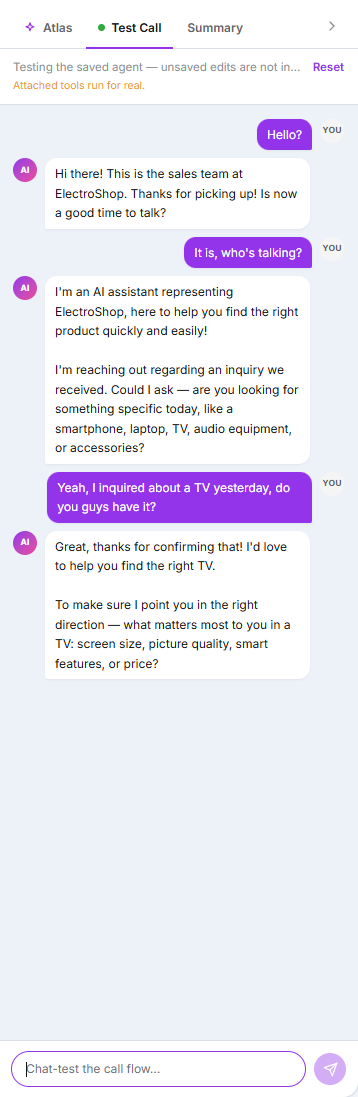
Test Call, with the warning that tools run for real
When you can test
The panel requires three things:The agent must be created — you can’t test before saving it the first time.
It must be synced with Aurora.
There must be no unsaved changes. The test runs against the saved configuration, not what’s on screen.
That last one trips people up most: if you edit the prompt and test without saving, you’d be testing the previous version. That’s why the panel blocks and asks you to save first.
Cost and limits
It’s free. The test panel consumes no credits — it’s a text conversation, not voice minutes.
Testing requires write permissions on agents, precisely because tools run for real and can create records in your connected systems.
What you’ll see
Tool calls appear as expandable cards showing the arguments the agent used and the result. It’s the fastest way to see why the agent chose to use — or not use — a tool. If the agent hangs up, the conversation ends and you have to Reset to test again.Summary
The third tab. A checklist of what’s still missing — name, description, model, language, voice and prompt — and a recap of the configuration: per-minute price, assigned number, direction, transcription mode, voicemail detection, tools and tags. Useful as a final check before activating.The per-minute price
In the top bar, next to the name. It recalculates as you edit and covers the model, the voice and the length of the prompt.FAQs count towards this calculation, because they’re sent alongside the prompt.
Activating the agent
The only lifecycle control is the Active / Paused toggle in the top bar.Import and export
From the agent list you can export an agent to JSON (choosing which tools to include) and import it later. Importing an Aurora agent makes the phone number mandatory, and an inbound one also needs a schedule.What doesn’t exist
So you don’t go looking:- Version history or rolling back to an earlier configuration.
- Knowledge base or document upload.
- Call recording, maximum duration or retries as agent settings.
- Analytics inside the agent — per-agent metrics live under Analytics, filtered by that agent.
Back to the start
Introduction to voice agents
The full path through this section.