

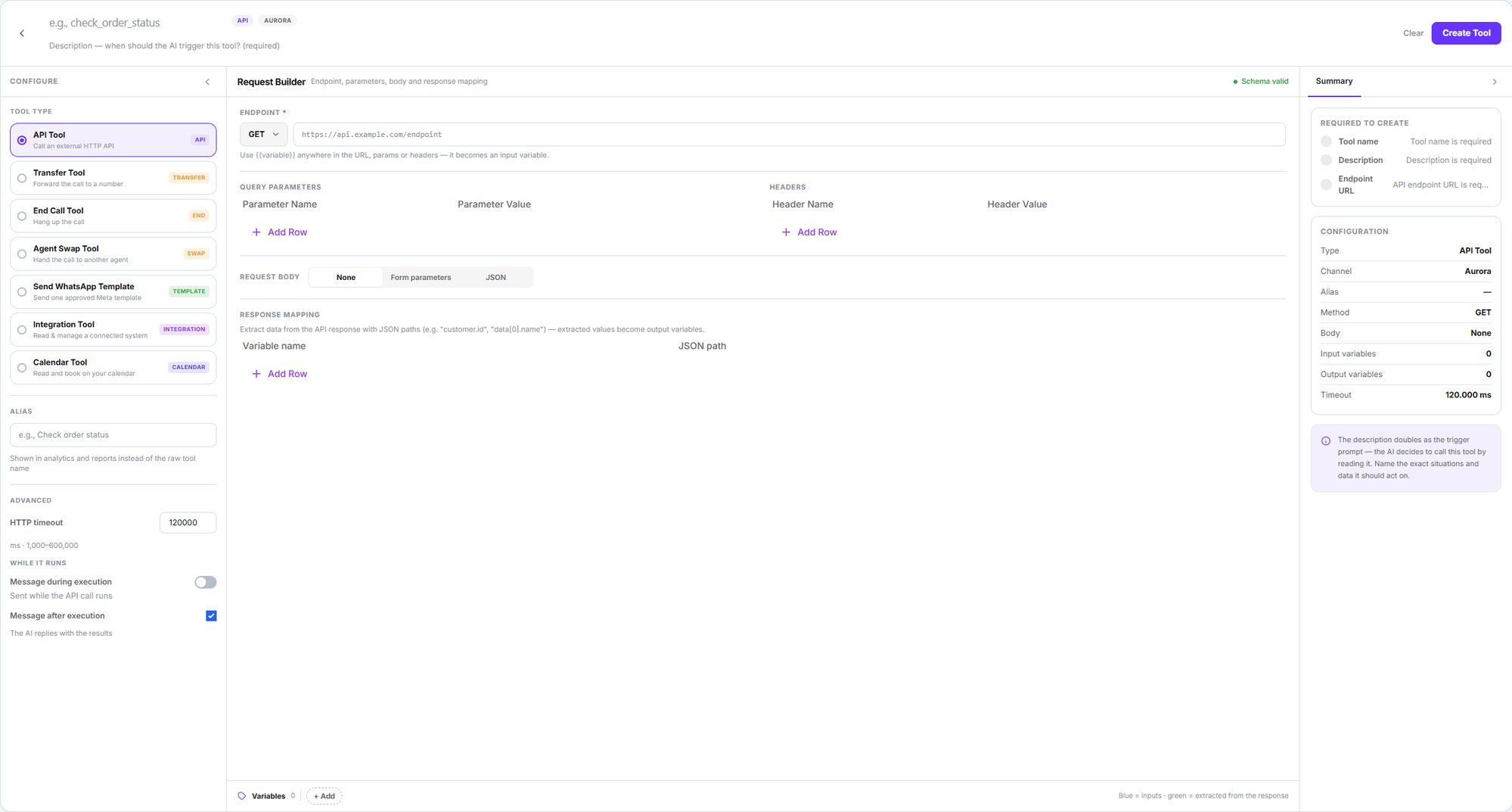
The tool builder, with all seven available types
How they work
Tools are an account-wide library, not per agent. You create one once under Voice → Tools, then attach it to whichever agents need it. The same tool can serve many agents.1
Create it
Under Voice → Tools, pick the type and configure it.
2
Attach it
In the agent editor, the Tools button → add.
3
Map the parameters
Connect each of the tool’s parameters to a variable in your prompt.
The description is the trigger
It’s the most important field and the most underestimated: the AI decides when to use a tool by reading its description.The seven types
API — call an external service
API — call an external service
Method, URL, parameters, headers and body. Responses are mapped with JSON paths (
customer.id, data[0].name) and those values become output variables.Any {{token}} you write in the URL, parameters or headers becomes an input variable for the AI to fill.Advanced options: timeout (120 s by default), a message while it runs, and a message after it finishes (on by default).The request is always sent as
application/json, even if you set another header.Transfer — hand the call to a person
Transfer — hand the call to a person
Destination in E.164 format (
+[country][number]), with an optional extension.Two modes:- Cold Transfer — direct handoff, the agent drops out.
- Warm Transfer — the agent introduces the caller and waits for a human to pick up. Supports hold music, a private message for whoever answers, and a public one for the caller.
End Call — hang up
End Call — hang up
One field that matters: the trigger prompt, describing when the conversation should end. Optionally, a message right before hanging up.
This tool’s helper text is worded for chat (“before the chat ends”) because the component is shared with WhatsApp and SMS. On a call it means hanging up.
Agent Swap — hand off to another agent
Agent Swap — hand off to another agent
Passes the call to another voice agent, which continues the same conversation rather than starting fresh. You can choose which agents the post-call analysis is attributed to.
Calendar — check and book
Calendar — check and book
Against Dialtu’s native calendar. Eight operations, split between reads and writes:Reads: list services, list professionals, list appointment types, check availability, list the customer’s appointments. Writes: book, reschedule and cancel an appointment.Settings: times to offer (1–20, default 5), days to look ahead (1–30, default 7), and whether it sends a confirmation message.
Integration — a connected system
Integration — a connected system
Today there is one provider available: AgendaPro, with ten operations (six reads and four that modify real data).
Send WhatsApp Template
Send WhatsApp Template
A voice agent can send an approved WhatsApp template during the call — useful for sending a link, a confirmation or a location while talking.Each template variable is filled either from server context (automatic, never shown to the AI) or as an AI argument.
Attaching and mapping
The editor’s Tools button opens the list of attached tools. Selecting one lets you map each parameter to a prompt variable. Two behaviours worth knowing:Removing a tool cleans its variables out of the prompt automatically — the words stay, but the
{{ }} braces go.Renaming a variable on the tool rewrites the prompt in place.
In the attached-tools panel, Calendar, Integration and WhatsApp Template tools all display an API label. It’s a known display bug: the tool works correctly, it’s just mislabelled.
Next step
Test and activate
Test the agent before leaving it to handle calls.