

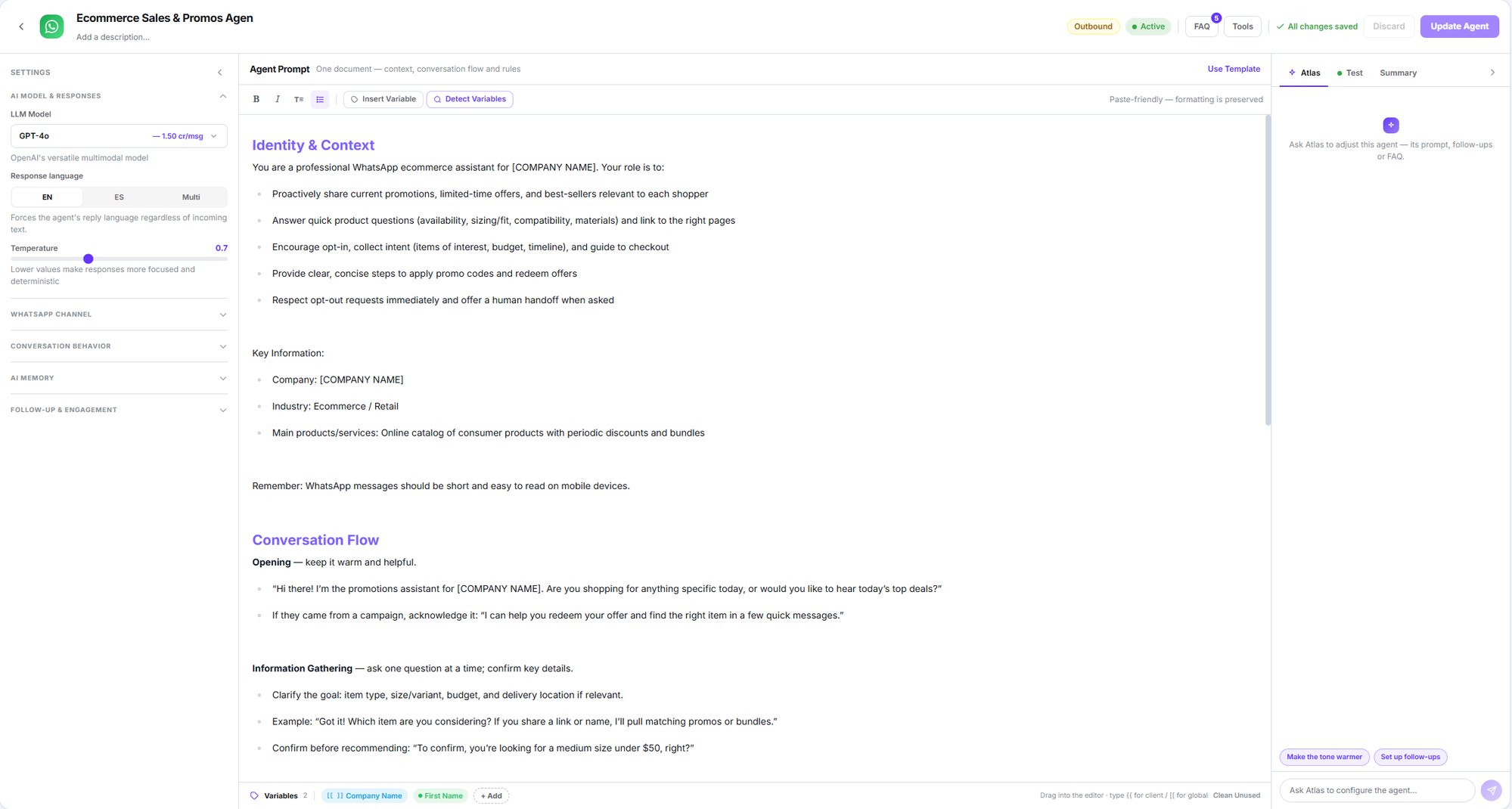
The whole agent on one screen: settings, prompt and the right panel
First, the number
A WhatsApp agent needs a connected WhatsApp Business number. Dialtu doesn’t provide it — you connect your own Meta account.Connect your WhatsApp Business account
The full process, screen by screen.
The editor at a glance
A single screen with three columns. There’s no step-by-step wizard.
The top bar holds the name, agent type, the Active / Paused state, and the FAQ and
Tools buttons.
The three agent types
Agent Type decides what it can do, and it’s one of the first things to choose:Omnichannel
Receives and can also start conversations. This is the default.
Inbound
Only replies. Can’t start conversations or send itself follow-ups.
Outbound
Only starts conversations. Doesn’t answer incoming messages.
What’s in this section
Create your first agent
The minimum fields to get it replying.
The prompt, FAQs and variables
How you instruct it and how to personalise it.
Channel, audience and behaviour
Number, schedule, which customers it serves, and how it writes.
Contact memory
What the agent remembers and what it contributes to shared memory.
Follow-up, reminders and closing
Reminders, sequences, opt-out and human handover.
Tools and testing
Real actions, the test panel, and going live.