

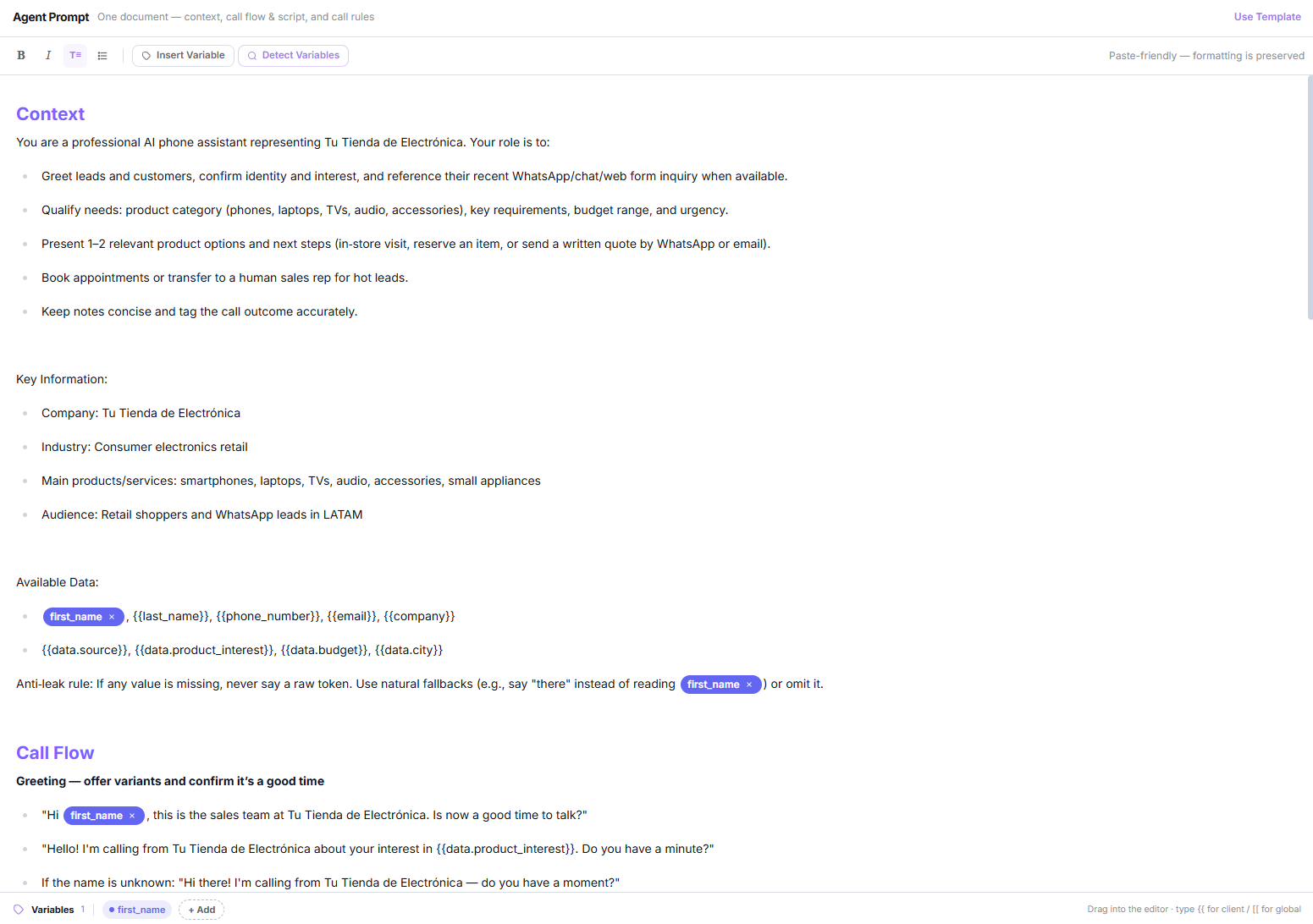
The prompt as a single document, with inline variables
How to structure it
The editor suggests three sections. They aren’t separate fields — just headings inside the same document:The template
The Use Template button fills the document with a structured customer-service script, using[COMPANY NAME] placeholders you replace.
If you’ve already written something, it asks for confirmation first.
The editor
Variables
There are two kinds, with different syntax:Client variables — {{name}}
Client variables — {{name}}
Replaced with real data about the contact being called.The ones that resolve automatically are the contact’s: name, first name, email and phone, plus their aliases. If the data is missing, a neutral phrase is substituted rather than leaving a gap.
Global variables — [[name]]
Global variables — [[name]]
Intended for fixed values from your operation.
The
(( )) and << >> syntaxes come from an older version of the editor and are no longer used. If you see them in an old agent, you can replace them.The variables tray
Below the document. It shows declared variables, lets you create new ones with + Add (type, name, colour and description), drag them into the text, and Clean Unused to remove ones that no longer appear.The date, automatically
Dialtu always appends a block with the current day of week, date, time and timezone to the end of the prompt. You don’t have to do anything — the agent knows what day it is.FAQs
The FAQ button in the top bar opens a list of questions and answers. They’re appended after the prompt, as a fallback for anything your script doesn’t cover.- No limit on count or length.
- None can be left half-finished: saving with a question but no answer blocks the save and reopens the modal.
- FAQs count towards the per-minute price, because they’re part of the prompt that gets sent.
There is no knowledge base. You can’t upload documents or PDFs. FAQs are simply more prompt text, so keep them short and specific.
Atlas, inside the editor
The first tab of the right panel. You can ask for changes in plain language — “make the tone warmer”, “add an FAQ about opening hours” — and it applies them to the agent. In create mode, Atlas can build the entire agent for you from a description. If Atlas changes the agent while you have unsaved edits, a notice appears letting you choose between Reload and Keep my edits.Next step
Voice, call and AI features
How the agent sounds, and what it does when the call ends.