

The header band
The title row shows the month, your company name, and three live numbers for the visible range:
The gear icon opens Settings.
Views and layout
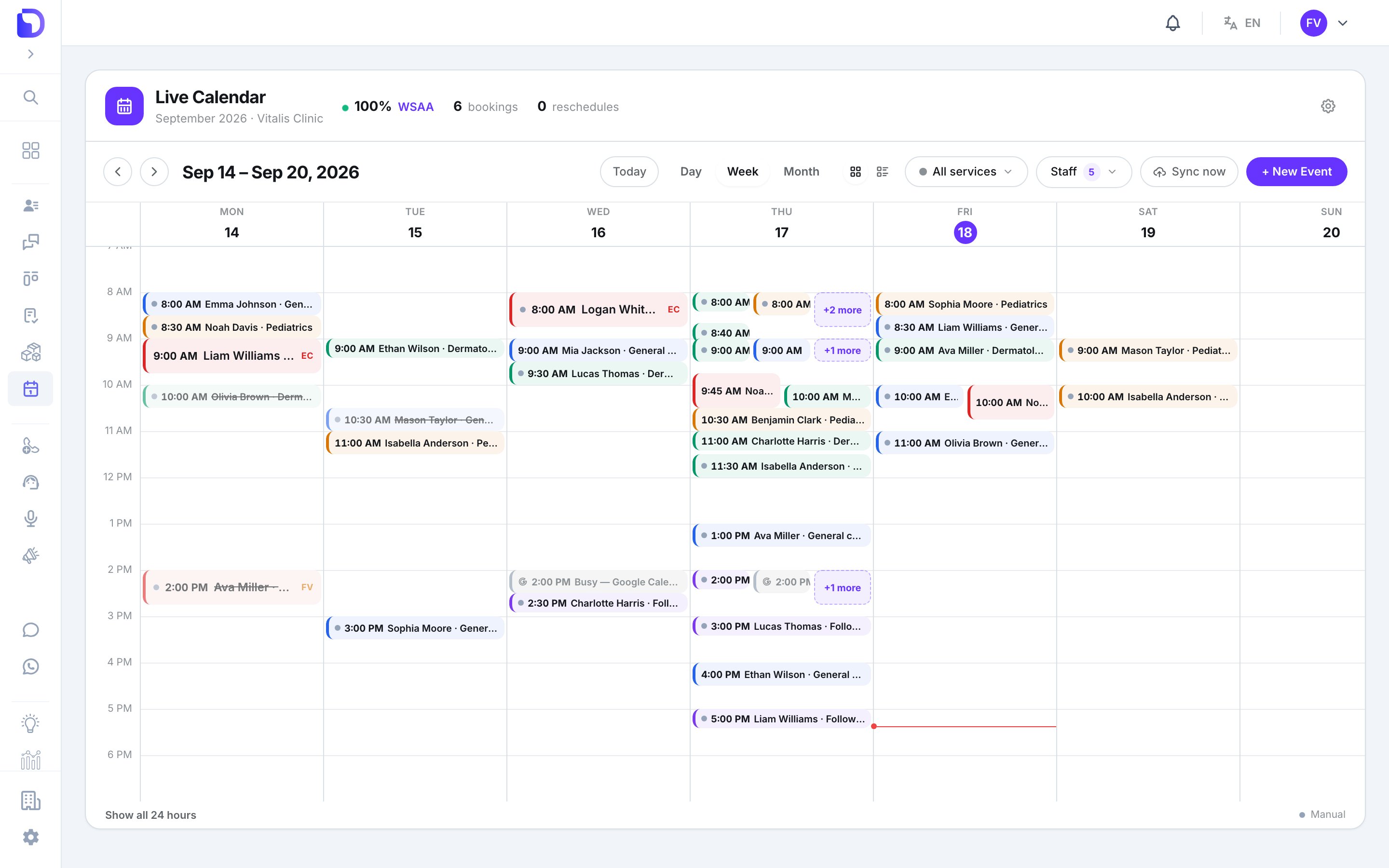
Week view with the current-time marker
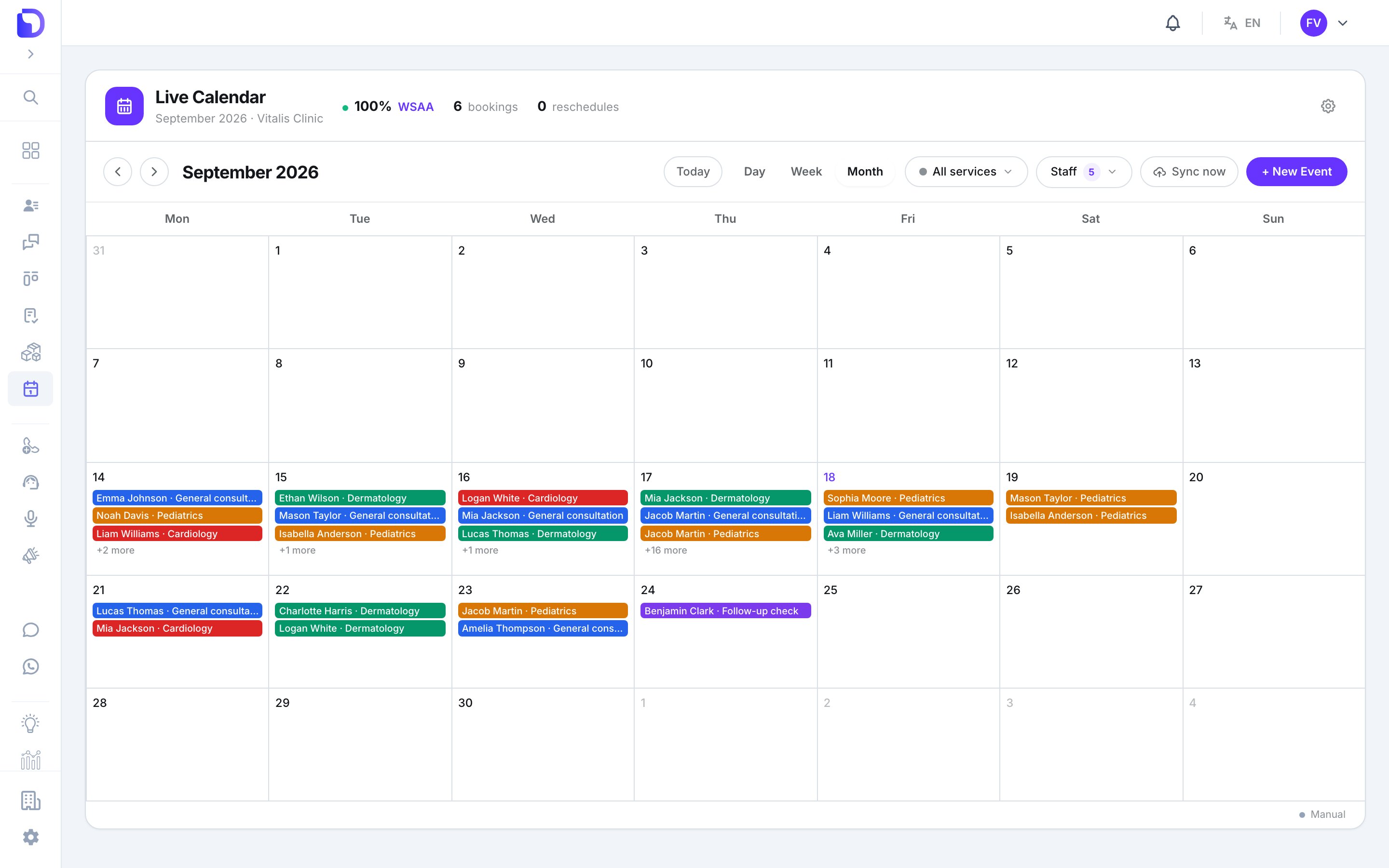
Month view with color-coded service chips
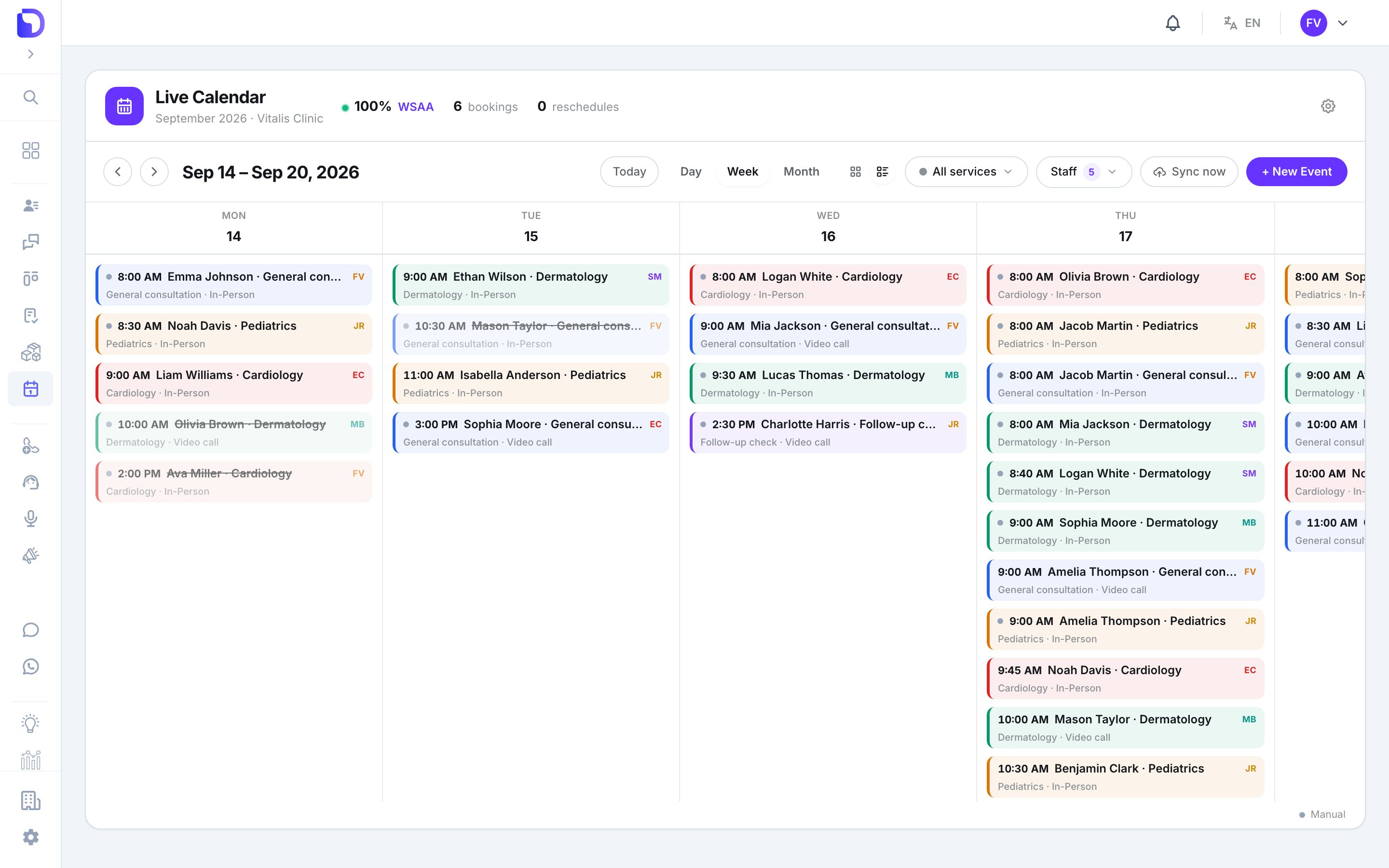
Week as a list of appointment cards
?view=, ?date=, ?service=, ?staff=), so a link opens the exact same view.
The default view depends on your permission: Admin and View All open Day; View Own opens Week.
Filters
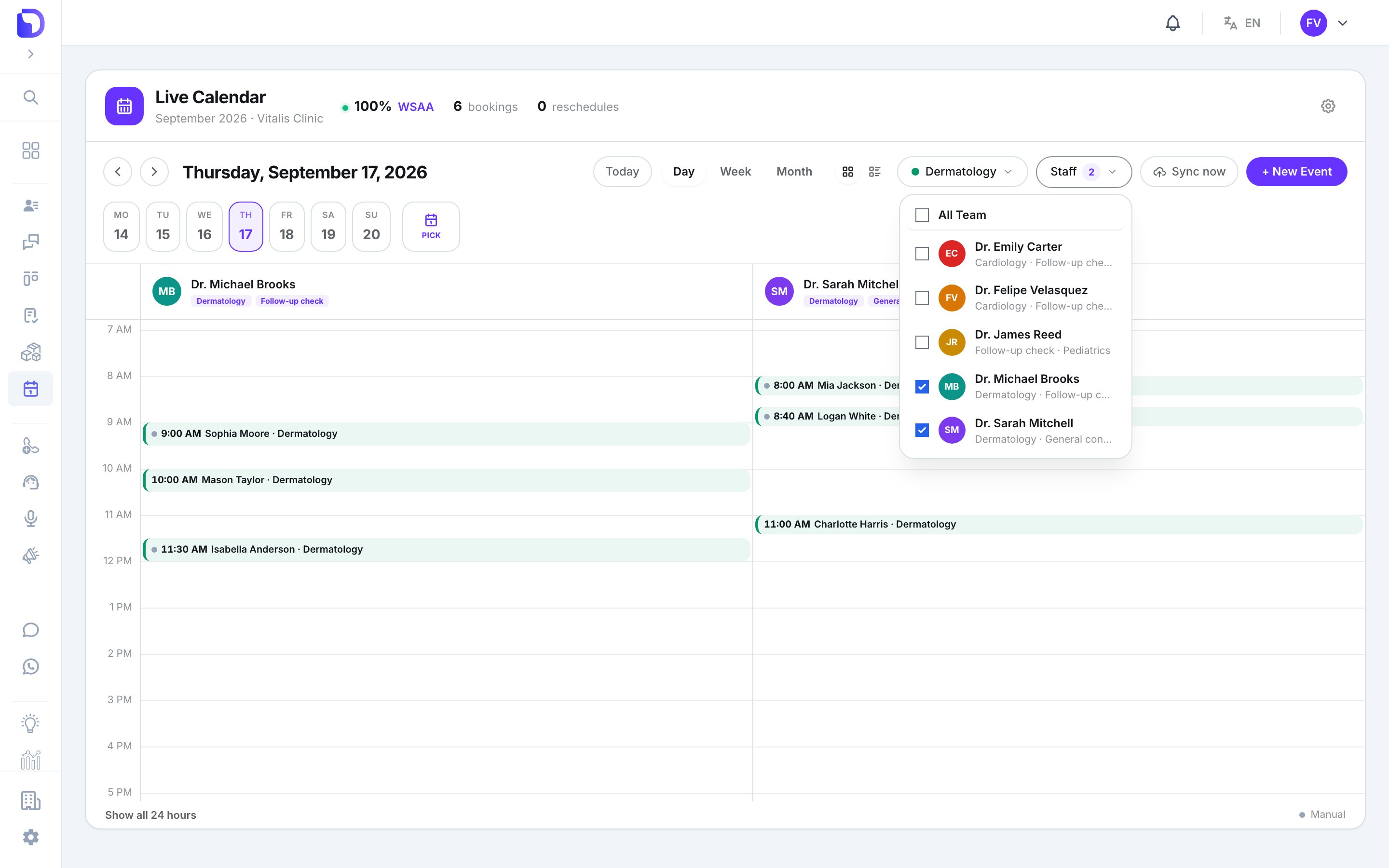
Filtering the calendar by staff member
- All services — one service at a time, or all.
- Staff — tick any number of professionals. Admin and View All only.
Reading a card
Each card is painted with its service’s colour. It shows the start time, the title, and the service and appointment type underneath. On team views a chip carries the professional’s initials.
Hover a card for the When and Service tooltip.
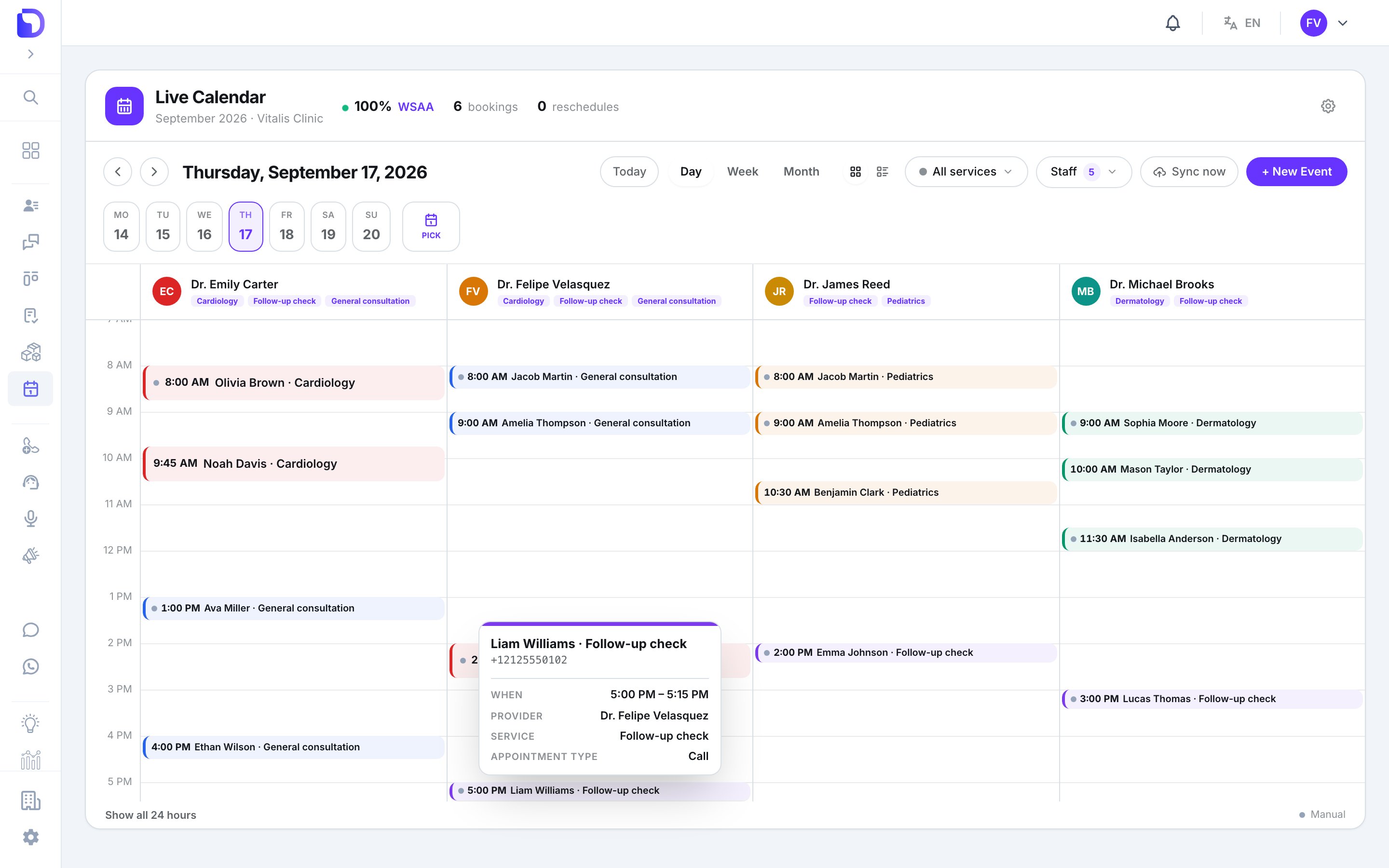
Hover tooltip with appointment summary
Move and resize with the mouse
In Day and Week grids you can drag a card to a new time, and in Day view to another professional’s column. Grab the top or bottom edge to change the start or end.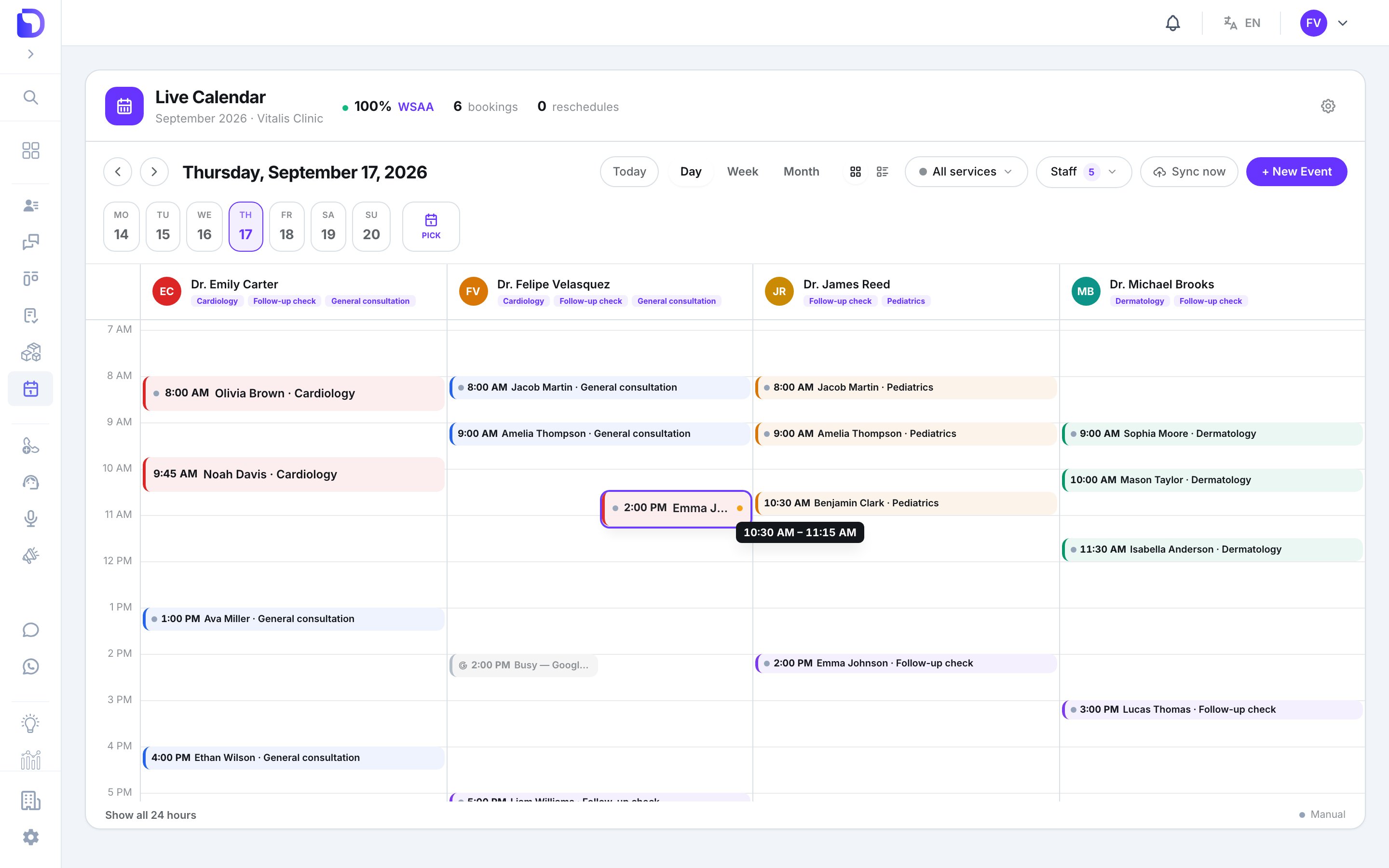
Dragging an event to a new time
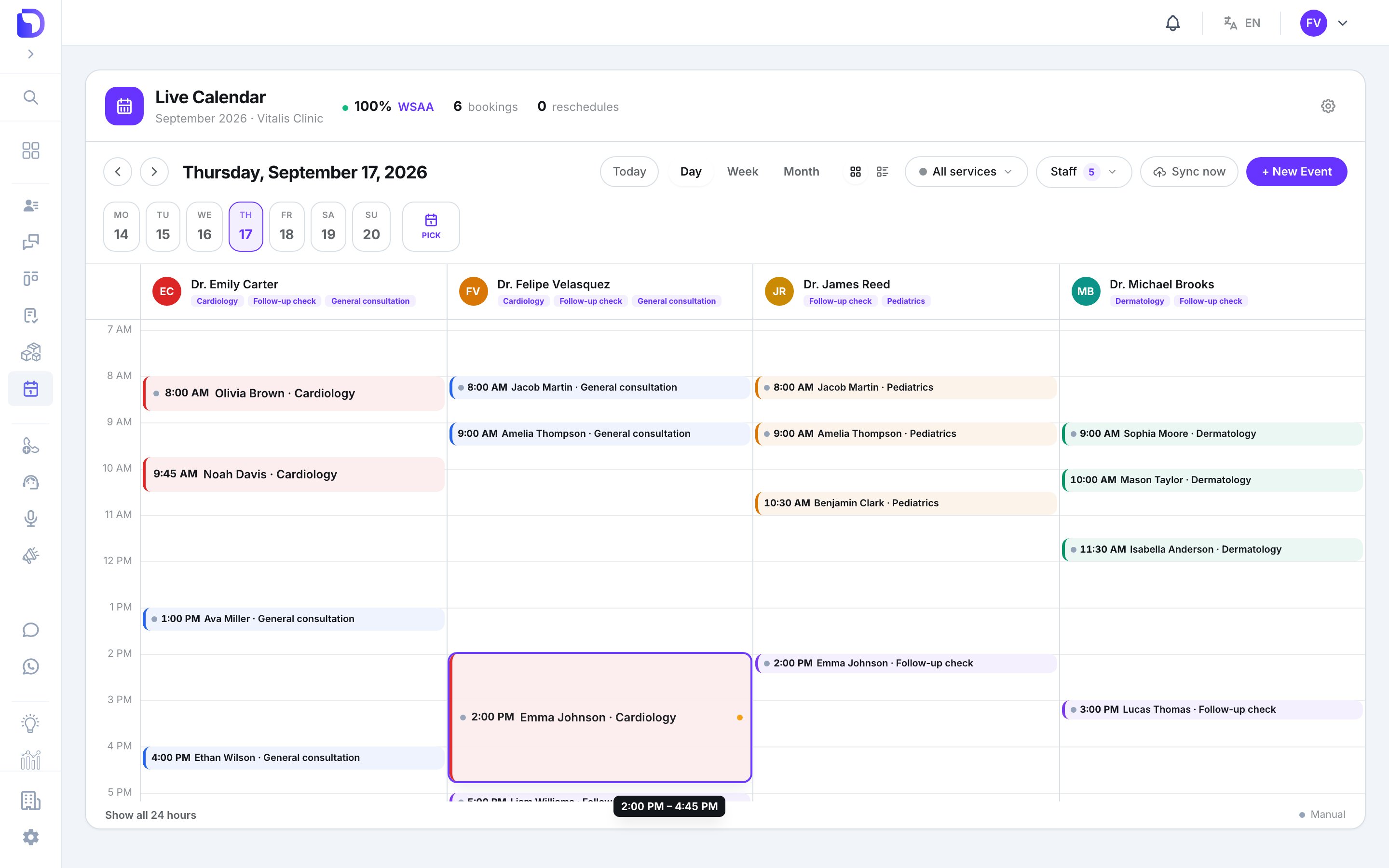
Resizing an event to change its duration
- Snaps to 15 minutes; minimum duration 15 minutes.
- Month view only moves the date; no resize there.
- Press Escape mid-drag to put the card back.
- The card moves immediately; if the backend refuses (the slot was taken, the professional isn’t available), it snaps back with the reason.
You can only move a card if you’re an Admin or the appointment’s own professional: You can only manage your own appointments.
Right-click actions
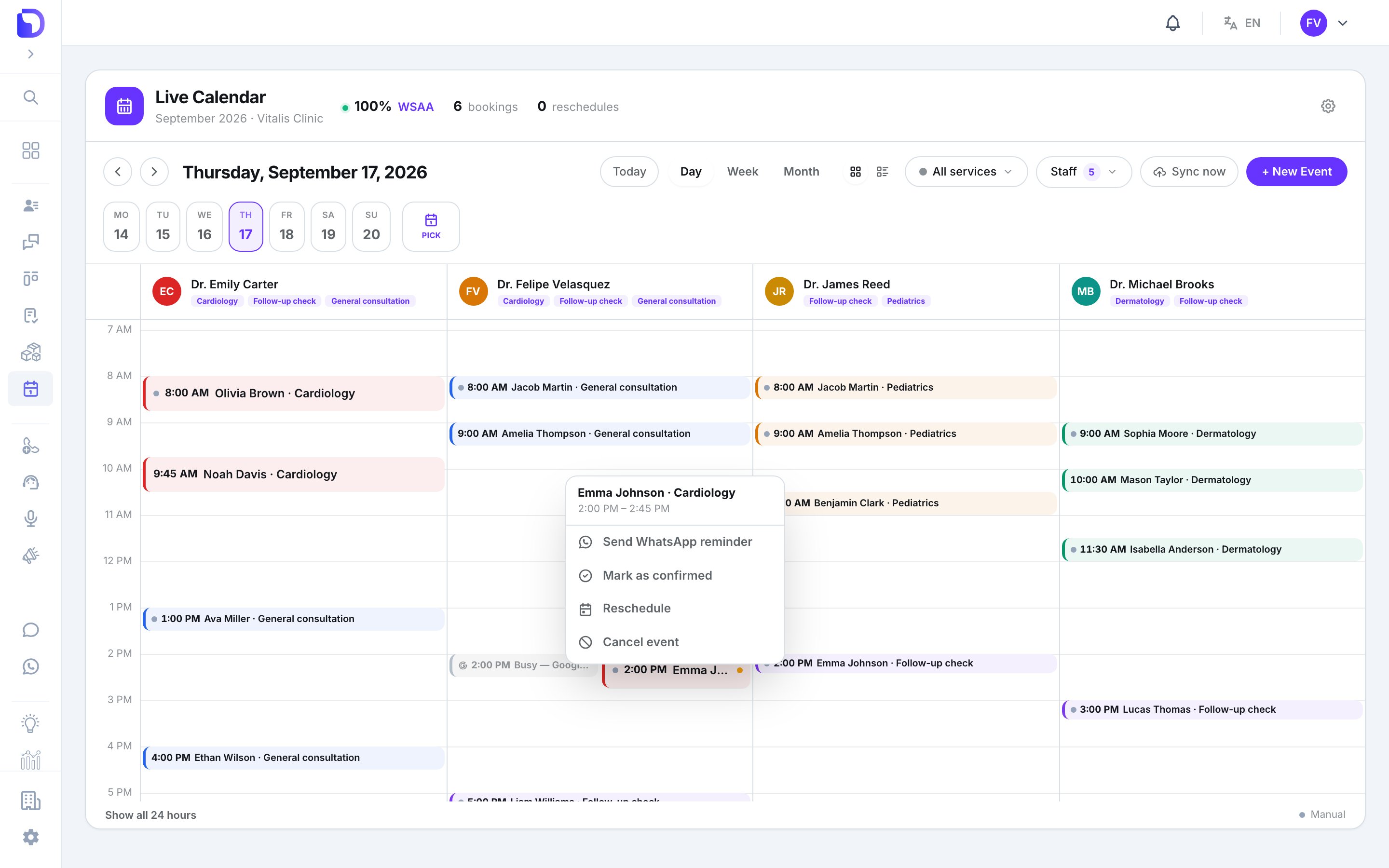
Right-click actions on a calendar event
A closed appointment shows This appointment is closed.
The appointment detail
Click a card.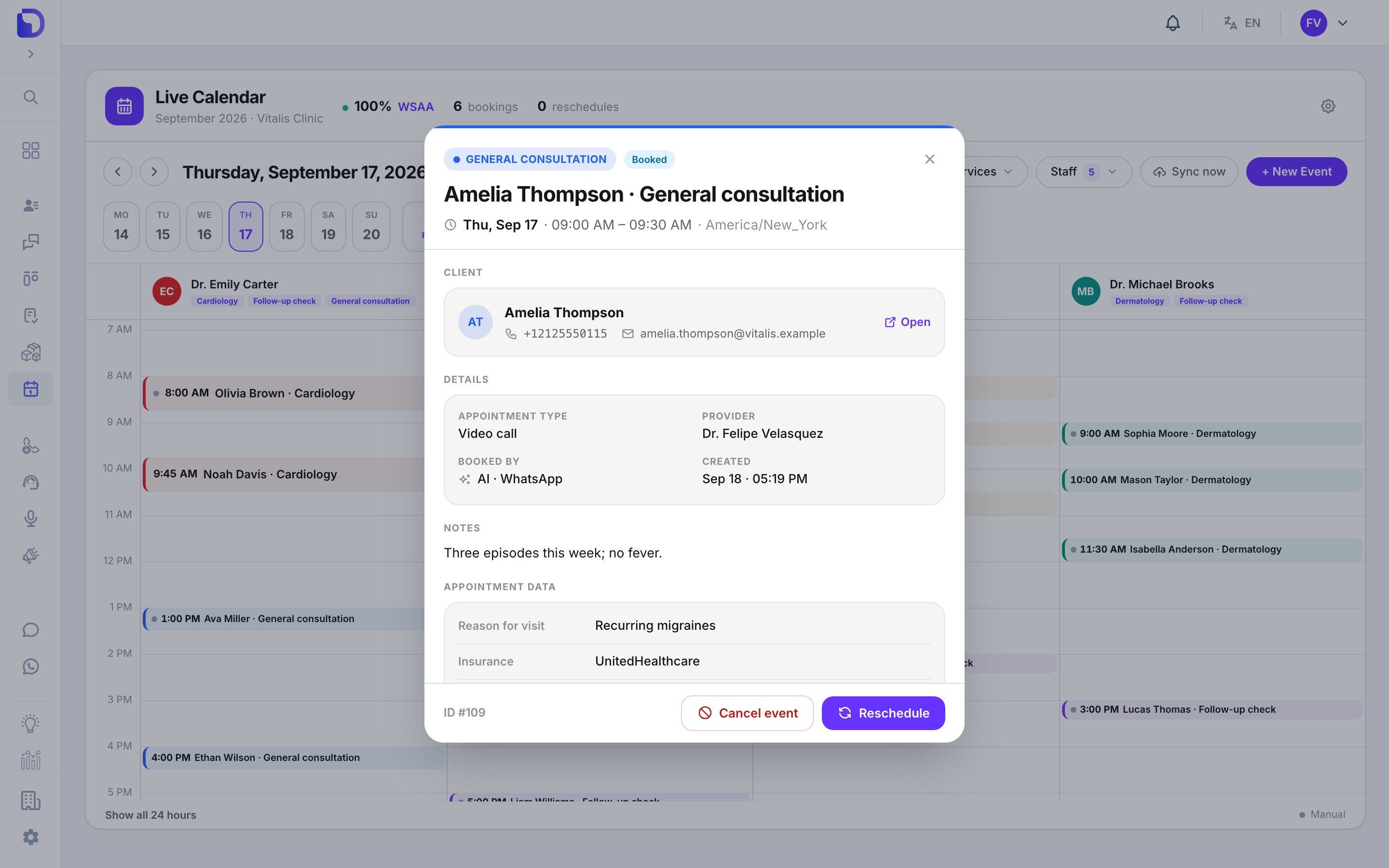
Appointment detail with client and intake data
Reschedule
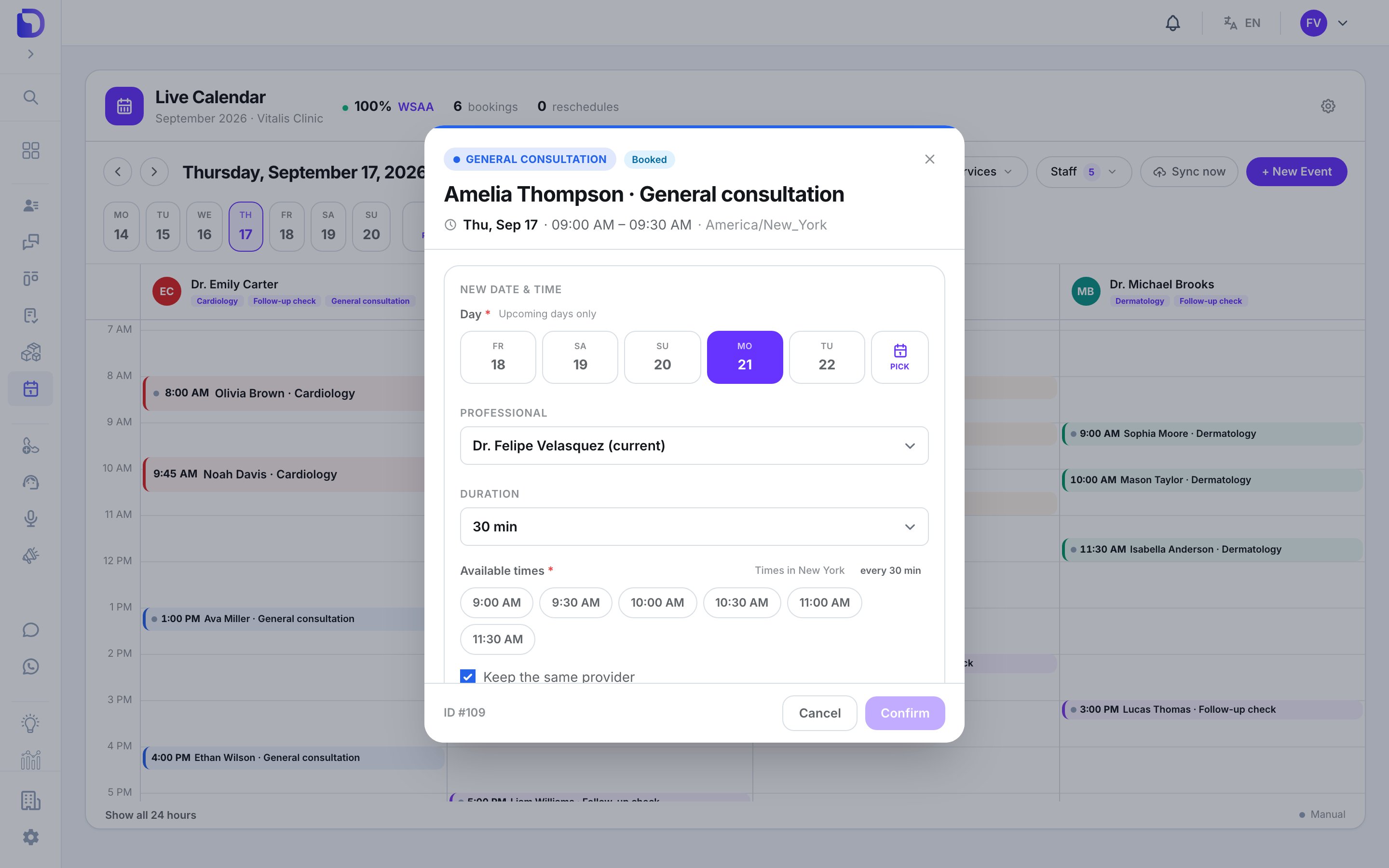
Rescheduling an appointment to a new slot
Cancel
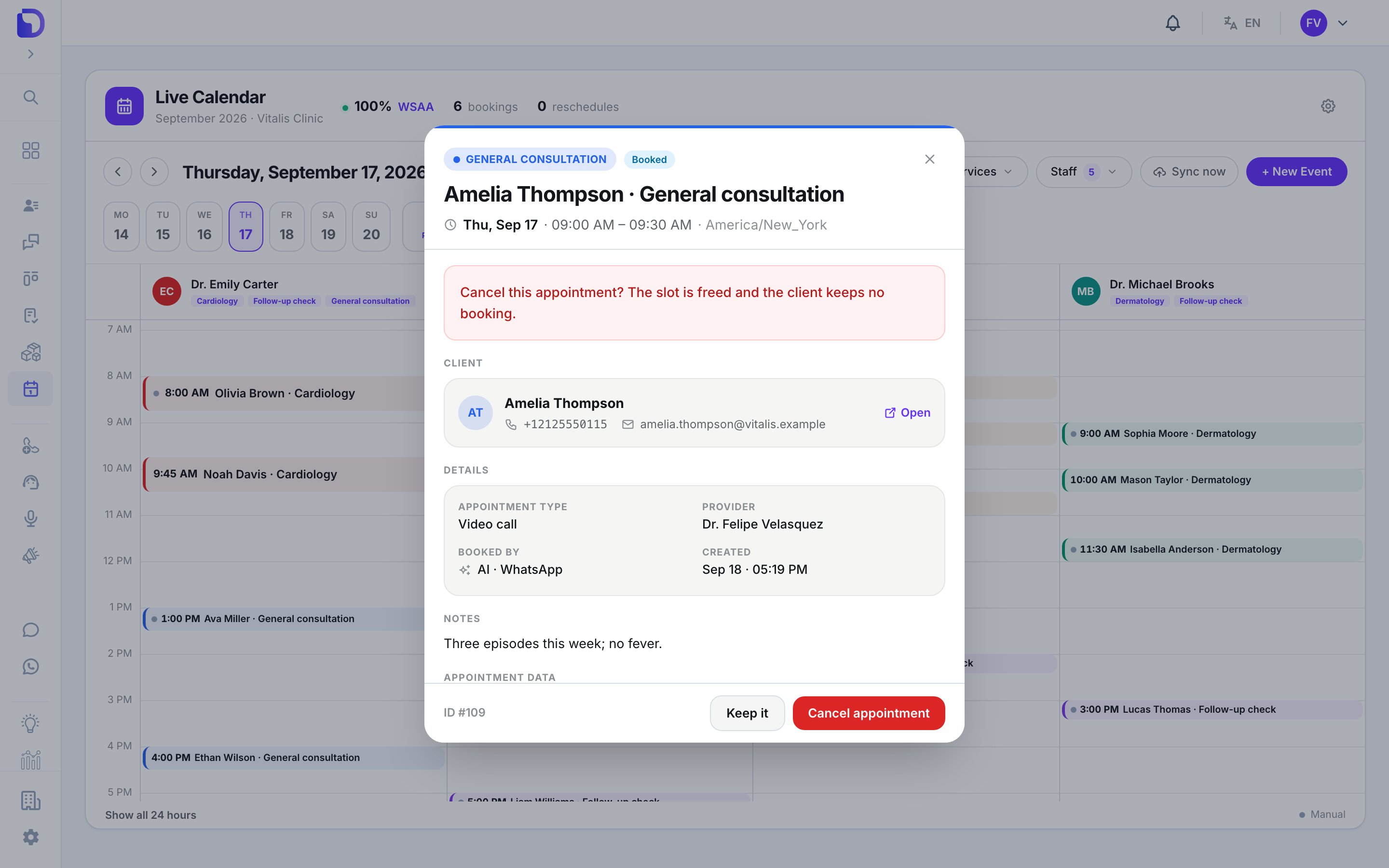
Confirming an appointment cancellation
What doesn’t exist
- Editing title, notes, client or service after booking.
- Mark as no-show from the UI (the status exists; only the API sets it).
- A change history on the appointment.
- Printing or exporting the agenda.
Next step
Book an appointment by hand
The New Event window.