

Set it for your team
Settings → User Management → Users has a WhatsApp for notifications column.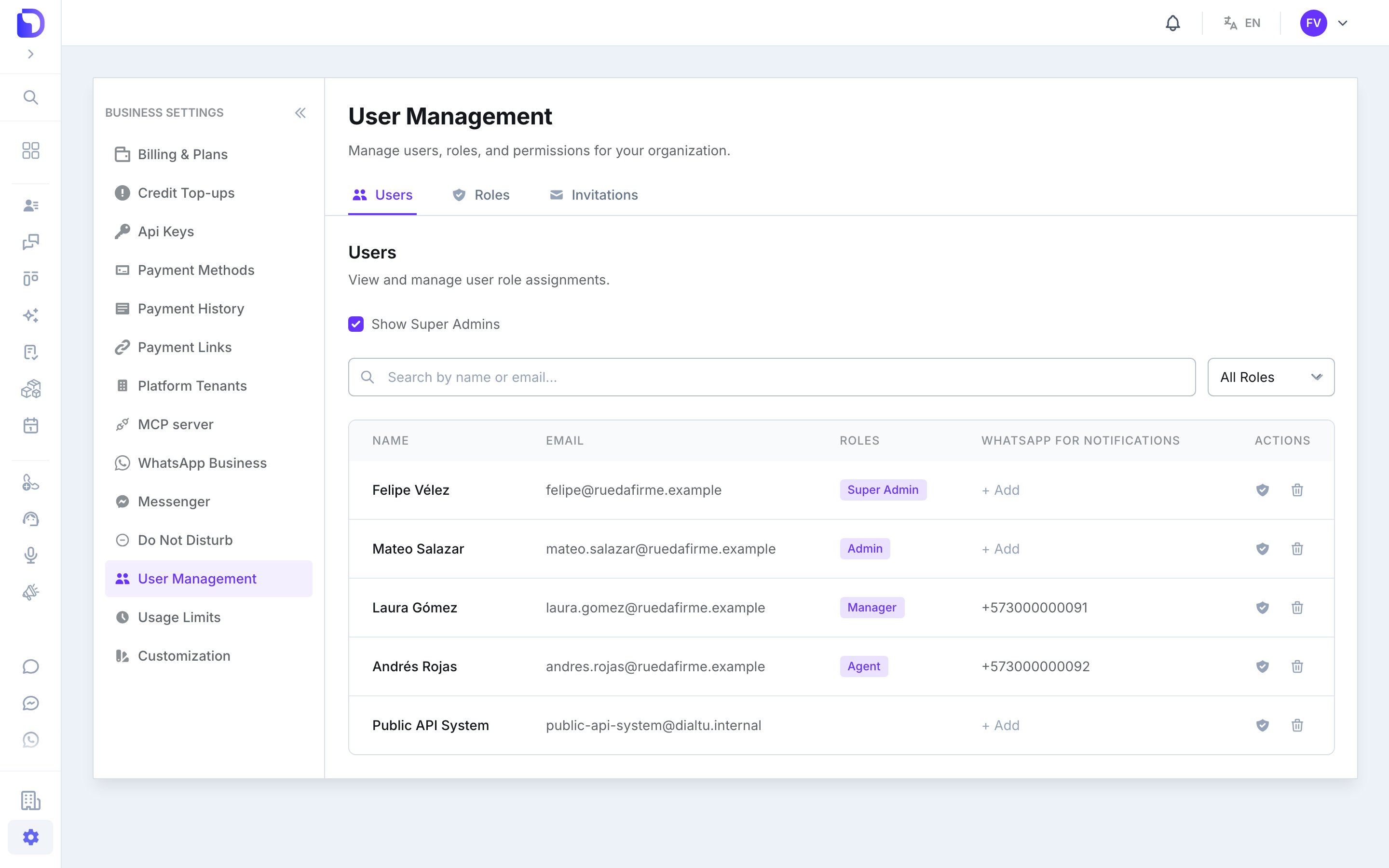
The WhatsApp for notifications column in the users list
Open the user
Click the number in the column (or + Add when it’s empty), or use WhatsApp for notifications in the row’s menu.
Type the number
Pick the country code and type the number — for example +57 and
3001234567. The window explains: “Ana receives a WhatsApp alert at this number when an AI agent assigns them a conversation.”Save
You’ll see WhatsApp number saved. To clear it, use Remove number.
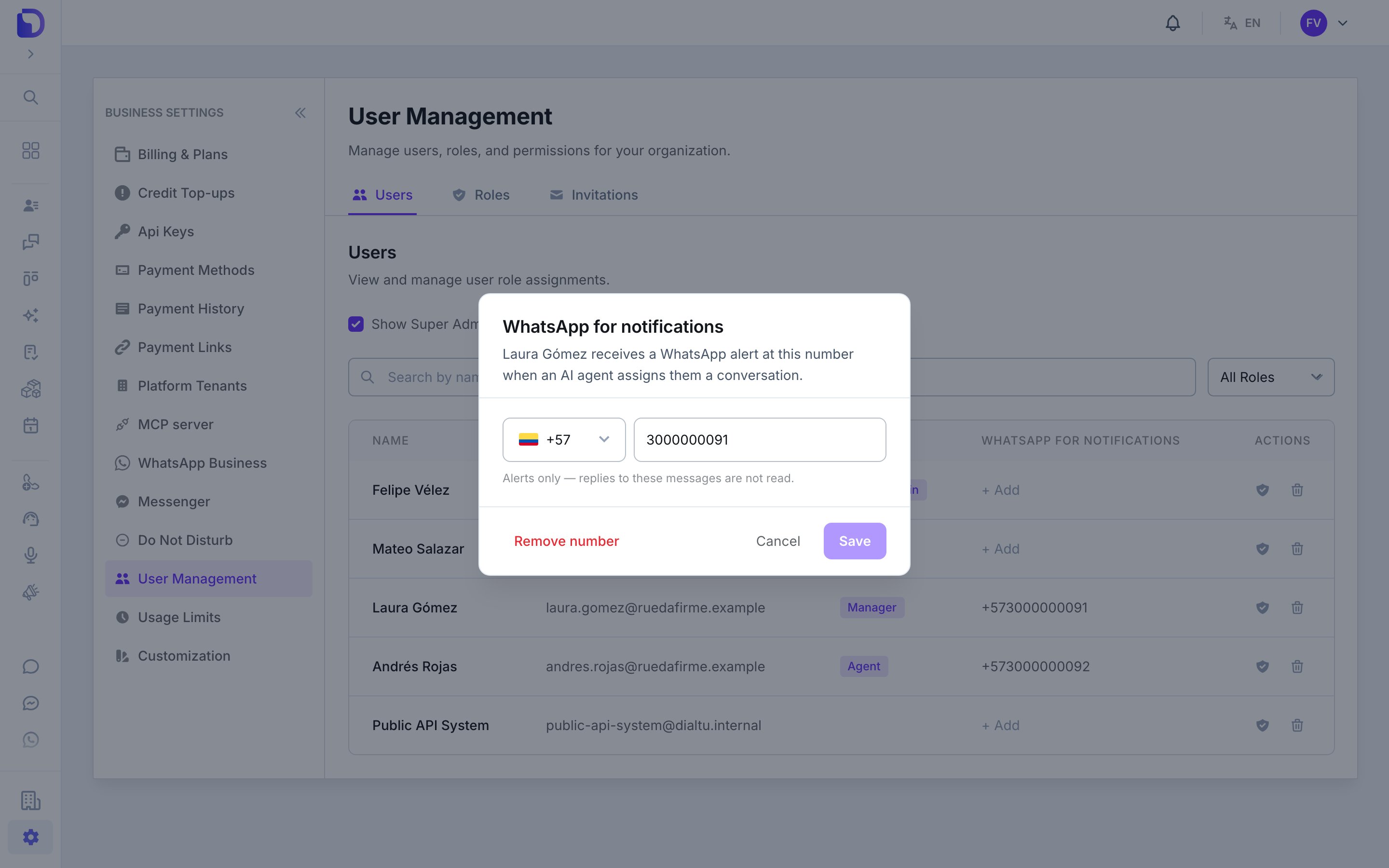
Editing someone's notification number
Set your own
Users who can’t manage other users see a Your WhatsApp for notifications card at the top of the same page instead. They can add or change their own number there. When it’s empty, the card says: “Not set — you will not get WhatsApp alerts when an AI agent assigns you a conversation.”Who can edit what
Format
- E.164, starting with
+and the country code:+573001234567,+15551234567. - Type it without spaces or dashes in the user window. (In a Handoff tool’s pool, spaces are tolerated and removed on save.)
- A number without the country code is refused: “Enter a valid number with its country code.”
How it combines with the Handoff tool
A Handoff tool’s assignment pool has its own WhatsApp for notifications field per person. The notice uses, in order:- The number set on the tool for that person — “This number is used for this tool instead of the profile one.”
- Otherwise, the number on their user profile (this page).
- Otherwise, nobody is notified, and the conversation gets the note “WhatsApp notice to the assignee not sent: the assignee has no WhatsApp number for notifications”.
What doesn’t exist
- A WhatsApp username instead of a number — planned.
- Several numbers per person.
- Notification by email or SMS — the notice is WhatsApp only.
Next step
Troubleshooting
When the notice doesn’t arrive, or the template is stuck.